Business Control
Expense management and card issuing platform enabling virtual card management.
- Article
- Business Control for new or existing portfolios
- What employee benefits can be offered via the Verestro Business Control
- Card issuing - financial details
- Example of Profit & Loss calculation in card issuing
- Master balance and collateral in card issuing projects
- Financial Benefits and Costs of Card Issuing Models
- Introduction
- Intro slides
- Overview
- Web portal for companies
- Use cases
- How to integrate with BC API as corporation
Article
You can find more knowledge about products on this site.
Business Control for new or existing portfolios
One of our important products is Business Control. You can find more information about this solution under the following link - Business Control
Our customers are asking us from time to time if it is possible to use Business Control for the existing portfolio of customers and cards or if it is aimed for new customers. Let me clarify this topic in this article.
Business Control is a platform or set of functionalities targeted at business customers that should give them more control over spendings, company expenses, cost and invoice management and more. Verestro offers it to banks and fintechs as a technology platform or we also can deliver it directly to corporations in connection with our partnering payment institutions in various parts of the world.
It offers several important benefits for business customers:
- super easy issuing of virtual cards for various company expenses - imagine that your manager can issue a virtual card to you when you go to a conference in another country. Card will be valid for 2 weeks, will have various limits etc.
- invoice management - instead of collecting pictures or doing photos you just scan an invoice and it lands directly in finance or accounting department for approval and further processing
- employee benefits - you can use cards with multiply visuals to give Christmas gifts or Valentine Cards or Thank You Gifts to your employees
- all the money is held in one or a few payment accounts which means that you do not need to pre-paid every card. You keep money and deliver "limits" to your users. It is a very important benefit vs pre-paid cards.
Let's imagine that you already have a portfolio of business customers because you are a bank or fintech partner and you would like to offer such a platform to your customers. Quick answer is - of course it is possible to offer Business Control to your existing customers.
After some integration and implementation projects you will give your existing customers an opportunity to issue new virtual cards for their employees, manage invoices and expenses etc. However, take into account that if you would like to enable it for already issued cards, actually you are using just part of the functionalities. The card already exists, it is in hands of the user, so in fact it means that you will not issue a new card for this person but you can:
- manage limits of cards
- manage invoices
- have new interface for company / employee
- and additional possibility to issue new virtual cards for this company or business customer
Feel free to contact us and discuss details of such implementation.
Regards,
Krzysztof
What employee benefits can be offered via the Verestro Business Control
Our Business Control platform provides the opportunity to issue virtual cards and manage business expenses. But in fact it can be used in multiple ways for companies. Here are a few examples of such use cases:
- Business payment card - your employee going for a trip, conference, meeting with a customer can get a virtual payment card and use it for payments globally. Once the employee makes a transaction, he/she can scan an invoice and connect it with the transaction so that the finance team and accounting have an easier process of expense management. This is a usual use case.
- Salary card - you can send salaries to your employees worldwide by using Business Control. If you issue a card with a specific limit to your employee, the employee can start making purchases and use it as a normal card. Thanks to it you have an easy salary transfer mechanism to all employees globally.
- Lunch card - you can issue cards for your employees and offer them a virtual card as a lunch card to get some tax benefits (depending on the country). Thanks to Business Control you can limit the acceptance of these cards to dining so that employees could use the cards for meals.
- Gift cards, holiday gifts, Thank You Card - you can issue a virtual card via Business Control any time you want to reward a particular behaviour of your employees. It is a bonus for the employee. You can have a specific "bonus" or "holiday" related card visual, you can add a message to the employee so that he/she knows that this card is for the particular achievement.
- Limiting time for expense processing in the company - if you want to limit hours spent by your employees, administration, finance and accounting teams for expense processing, finding documents, connecting them with transactions, etc., you can use Business Control. We can integrate Business Control with your ERP system, we can transfer invoices and transaction data to your internal databases so that transactions can be processed automatically. Think how many hours you lose every month of such manual activities connected with expense management.
Please remember that we offer this product through partnering with payment or banking institutions. We can also offer it directly to companies in Europe. Contact us if you want to know more about this product.
Card issuing - financial details
How can I earn from card issuing? This is a common question that is asked by our customers. Let me explain the key financial areas connected with this business.
Indirect revenue or cost savings
Usually, the main reason for issuing cards in different segments is indirect revenue or cost savings. The first question that you should ask yourself is connected with your use case. What can a payment card bring to my customers or my business? The answer to this question is different for various business segments and is the most important factor in defining a financial model for such an operation:
- If you are a bank, payment cards are obviously a core payment product that lets you earn from various transactions, currency conversions, ATM withdrawals and other fees.
- If you are a fintech wallet, it is obviously an important functionality because you compete with banks. It can increase your revenue streams from the same areas as above.
- If you are a crypto wallet, you want to offer to your customers a way to use digital assets at brick-and-mortar shops and in eCommerce.
- If you are an insurance company, you may want to send insurance in the form of a virtual card with a particular transaction and geographic limit so that your customer could immediately get necessary help.
- If you are an investment wallet, where users store value in the form of shares or bonds, you can offer payment cards to them so that they could pay using their shares at standard shops.
- If you are an eCommerce merchant or marketplace, you may be interested in using payment cards as a way to send back money to your users after their claim so that they could use this card for an eCommerce payment.
- If you are a small, medium or large corporation, you may want to distribute cards to your employees so that you limit costs of invoice processing and company invoicing.
- If you are an HR agency, you can use cards as a tool to pay salaries to your employees
- If you are a loyalty program owner, you may be interested in enabling users to use your points and make purchases at any location in the world.
- etc.
There are many use cases and this is the main value for you. You can charge additional fees for this new service offered to your users, or you can limit your operating costs thanks to card issuing. However, there are direct revenue streams and costs associated with issuing cards and I will describe them below:
Direct revenues of card issuing
The following direct revenue is connected with card issuing and card transactions:
- Interchange Fee - when your user pays online or offline at any merchant, there is a fee called Interchange Fee that the issuer of cards receives for this transaction. The value of this fee depends on the country, transaction type, card product type, etc. In general, it is between 0,2% (for consumer debit cards issued in Europe) to 1-2% (for various types of cards for transactions done on other continents). Make sure you check with your card issuer or BIN sponsor how they share this fee with you - it is the most important revenue stream.
- Currency Conversion Fee - every card transaction done in another currency than currency of a card account results in currency conversion. This action usually enables charging fees. Typically, they are between 0,5% to 8% depending on card product, country, currency, etc.
- User fee - card issuers, banks, financial institutions usually charge various user fees for using their payment card. Examples of such fees are: one-time fee for issuing a card, monthly fee per card, annual fee per card.
- Transaction fees - depending on a card product and a type of transaction, card issuers charge users additional transaction fees. A very standard fee is an ATM withdrawal fee - it is almost always valid because there are direct costs of an ATM withdrawal called ATM Service Fee and these costs need to be covered. Sometimes card issuers charge POS or eCOM transaction fees - for example 0,1% fee for every transaction done with a card.
- Value added services - a card product enables you to charge additional services, i.e. insurances, VIP support, concierge etc. that increase your revenue streams.
Direct costs of card issuing
- One-time fee for card issuing - usually 0,1-1 EUR. This fee is charged at the moment of card issuing. This fee covers costs of payment processors, various costs of operations connected with issuing the first card.
- Monthly fee per card - usually you pay 0,1-1 EUR monthly per issued card. This covers both technical, regulatory and financial risk costs of card issuers.
- Transaction fees:
- per transaction (from 0,05-0,3 EUR) - depends on a type of transaction, region of transaction etc.
- per transaction value (from 0,01%-0,5%) - depends on a transaction value.
- ATM service fee - very specific fee which is part of a transaction fee in fact. For every ATM withdrawal, a card issuer needs to pay a fee which is transferred to an ATM operator. Usually, it is in the value of 0,5-3 EUR + 0-1% from the transaction value.
- 3DS operations fee - transactions in eCommerce require additional authentication. Such an operation usually results in an additional fee charged by a card issuer (0-0,04 EUR per transaction).
- Apple Pay fees - Apple charges additional fees for using Apple Wallet. Those fees are both per card quarterly and per transaction volume - different for POS transactions and inApp transactions. We are not allowed to disclose the level of these fees.
- Plastic card related fees - production, personalization and transport of plastic cards is a serious operation that involves various costs. Typically, between 2-5 EUR per card depending on customer location, type of card, etc.
These fees are usually charged by card issuers and BIN sponsors to their partners. They have to charge them because there are various costs that we need to cover (this issue also applies to Verestro and our BIN sponsors). The main card issuing costs are:
- Payment scheme fees - Mastercard, VISA or any other payment organization charge a lot of various fees for connecting with them and using their licenses and technology. This is one of the biggest components of costs for card issuers.
- Payment processors - this is our (Verestro's) role. To issue cards, you usually need to hire external, certified payment processors. They charge a lot of fees for using their technology. Examples of such processors are : Verestro :) , Paymentology, Fiserv, First Data, Marqueta etc.
- Card manufacturers and personalisation centers - if you issue or sell plastic cards, you need to produce and personalize these cards. Companies like Austriacard, Thales, Idemia charge fees for such operations.
- Regulatory compliance costs - to become a card issuer in any country, you need to have a payment license, get certification, fulfill necessary roles that are not present in another business. This is a serious cost for card issuers.
- Security costs - to work with payment cards and process them, you need to fulfill various security requirements. The most important ones are summarized in the Payment Card Industry Data Security Standards. They include not only internal actions but also annual and quarterly audits that you need to perform to be compliant and offer secure operations.
There are other possible revenue streams and costs connected with card issuing, but the ones described above are the most important ones.
Thank you for reading.
Example of Profit & Loss calculation in card issuing
Calculating profits and losses in card issuing is not easy, especially when various card issuers offer different fee and revenue models. Below I would like to show a few examples.
Let's imagine we are a fintech wallet with 10.000 users and we would like to issue cards for these users. The first step we need to take is to try to forecast key parameters of product, transaction, revenue and cost assumptions:
- Product
- Product - Debit Business Mastercard card
- Settlement currency - EUR
- Transactions
- Average number of cards in a year - 10.000
- Offline POS transactions in Europe: Number of transactions per month - 5 ; Average Transaction Value (ATV) - 30 EUR
- Online eCom transactions in Europe: Number of transactions per month - 3 ; ATV - 40 EUR
- ATM transactions in Europe: Number of transactions per month - 2 ; ATV - 100 EUR
- Share of currency conversion transactions in Europe - 10% (transactions done in Polish zloty, Czech koruna, Romanian Lei, Swedish krona etc.
- Offline POS transactions outside of Europe: Number of transactions per month - 1 ; Average Transaction Value (ATV) - 60 EUR
- Online eCom transactions outside of Europe: Number of transactions per month - 1 ; ATV - 60 EUR
- ATM transactions outside of Europe: Number of transactions per month - 0,1 ; ATV - 100 EUR
- Share of currency conversion transactions outside of Europe - 100% (transactions done in Polish zloty, Czech koruna, Romanian lei, Swedish krona etc.
- Share of registered ApplePay cards - 30%
- Share of ApplePay transactions - 20% for online and 90% for offline contactless
- Revenue
- Interchange fee for business cards (fee from POS and eCommerce transactions; we assume 100% of interchange stays with partner)
- in Europe - 1.2%
- outside Europe - 1.5%
- ATM withdrawal fee - 0.5%
- POS and eCommerce transaction fee - 0%
- Currency conversion fee - 2%
- Monthly fee per card - 1 EUR
- Interchange fee for business cards (fee from POS and eCommerce transactions; we assume 100% of interchange stays with partner)
- Costs
- One-time fee for an issued card - 0,4 EUR
- Average monthly fee per card - 0,3 EUR
- Fee for offline POS transactions in Europe - 0,10 EUR + 0,1%
- Fee for online eCom transactions in Europe - 0,10 EUR + 0,11%
- Fee for ATM transactions in Europe - 0,9 EUR + 0,3%
- Fee for offline POS transactions outside of Europe - 0,3 EUR + 0,45%
- Fee for online eCom transactions outside of Europe - 0,3 EUR + 0,5%
- Fee for ATM transactions outside of Europe - 0,3 EUR + 1.2%
- Currency conversion fee - 0,5%
- Apple Pay active card quarterly fee - 0,25 EUR
Let's do quick calculations.
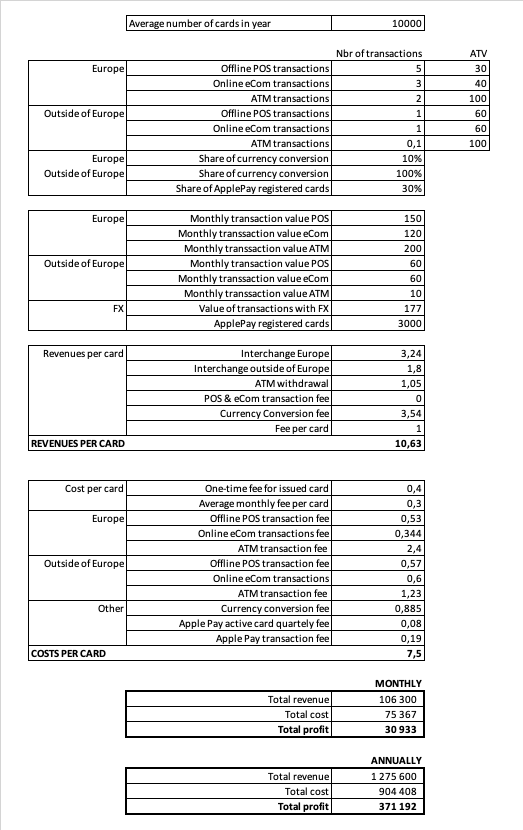
Please treat it as example and make your own calculation. There will be many dependencies connected with segment, type of portfolio, detailed pricing, volume estimations etc.
Taking into account the above assumptions, you could earn 30.933 EUR monthly and 371.192 EUR annually on such a portfolio. Seems high? Interested what cost of investment is needed? Contact us.
Thanks for reading.
PS. If you are interested in receiving an Excel file related to these calculations, let us know at sales@verestro.com.
Master balance and collateral in card issuing projects
During the implementation of card issuing projects with Verestro and our partner payment institutions, we receive questions about liquidity management and collateral in card issuing projects. Let me summarize and explain the key dependencies.
There are two important points that need to be taken into account:
1. Collateral - this is a dedicated amount of money and account which needs to be transferred by our partner to our account to cover costs of payment risks and collateral that we need to pay to Mastercard or VISA. Usually it is between 3-5 days of transaction volume. The collateral is non-refundable until the end of the project and may grow in time together with the volume of transactions. If we do not take collateral, there is a risk that in case of growth, we will have to block the partners' transactions because we will not have enough liquidity at Mastercard or VISA accounts.
2. Master balance - it is an account (in other words cash balance) dedicated to our card issuing partners where our partner stores his own money which covers fees paid to our card issuing partners and/or transaction settlement in case of working with external balance API. There are two possible situations that affect the amount of the master balance:
-
- Scenario 1 - In case External balance API is used which means that partner keeps information about user balance and every transaction authorisation is routed to partner for approval. In such a case we have to keep the Master balance of the partner up to the amount of transactions. Every transaction authorisation is verified by the partner but also on our Master balance account. A day later we have to settle money for this transaction with Mastercard so we must have enough cash on Master balance to cover this transaction amount. Every day or any time our partner transfers additional money to the Master balance to make sure that there is enough liquidity to cover costs of transactions of their users. This means that the amount on the Master balance is high enough to cover transactions of users during a day, week etc.
- Scenario 2 - In case internal balances are used, we have a situation where all users' money are kept at our payment institution. It means that the partner does not need to provide additional funds to cover transaction volume. In such a case the partner needs to transfer just an adequate amount to cover the amount of transaction and card fees to be paid for card issuing activities.
In all card issuing projects both collateral and masterbalance exist so please make sure you are aware of differences between those two definitions.
Thanks for reading.
Financial Benefits and Costs of Card Issuing Models
In this article we will focus on the three main business models of cooperation in card issuing programs: co-brand, affiliate license and principal membership. We will explain the key advantages and disadvantages of each model.
Co-brand
The easiest model of all. Our BIN sponsors create a new card visual for you, we dedicate a BIN range, and you can issue cards. All settlements are done between the partner and the BIN sponsor. There is no contractual direct relation between the partner and the payment scheme (VISA or Mastercard). The partner usually receives 90-100% of interchange fee and vast majority of currency conversion revenues. In this case the partner needs to provide a collateral to the BIN sponsor – usually 4-5 days of the forecasted turnover. This model is the most cost effective one – no big operations on the partner side, no licensing costs, no difficult implementations. You can go live with your program within 1-2 months for around 10-20k EUR.
The main disadvantage is that the BIN sponsor will have to have contract with partners’ users as formally they open a payment account and get a payment card from the BIN sponsor.
Affiliate license
An affiliate license is the first step to your own license. The partner wants to have a direct relationship with the payment scheme and the partner must have a payment license in the country (like EMI). The partner wants to see a detailed cost split and cost of payment organizations. Our BIN sponsor will register the partner at Mastercard as an affiliate licensee. Mastercard will do a verification of the partner and will approve the application – additional 3-4 months will be needed for the project. In this model, the Partner will usually get a detailed split of Mastercard fees and 100% of interchange. For settlements and fees the partner will be settling with the BIN sponsor / our payment institution. The partner will have to pay an additional collateral and additional Mastercard fees (around 2-4k EUR per month). A big advantage is that there will be no additional contract with users – just the partner contract with users. A slight advantage and disadvantage is that the partner can usually see all info about the settlements with Mastercard for his/her cards.
The main disadvantages are time (extra 3-4 months) and additional costs.
Principal license
The most sophisticated and most difficult model of cooperation with a payment scheme. The partner must be a payment institution in the country working under the regulatory approval. There will be no BIN sponsor involved in such a project as the partner will have their own license. In this case Verestro will act as a card issuing processor supporting the partner in integrations and operations with Mastercard or VISA. The partner will have to pay collateral to Mastercard and VISA (usually from zero at the beginning to millions of EUR if you issued 100.000 cards), so the liquidity will be needed for operations. The partner will settle transactions directly with the payment scheme through settlement banks where accounts will have to be opened. The partner will get 100% of interchange fee and all currency conversion revenues. The partner will have to take care of plastic card operations, chargebacks, settlements, liquidity etc. You will need 5-10 people minimum to perform those operations. The users will have a contract with the partner only.
The main disadvantage is cost (additional 100-150k EUR to be paid to payment schemes) and time of implementation (5-10 months).
In summary:
• Co-brand – use it when you want to go live quickly and pay little; use it when you are not sure if you issue >200.000 cards
• Affiliate – use it in specific cases only if you must have a license for whatever reason and you want to avoid that your customers sign a contract with an external institution
• Principal – use it when you are big enough, you are sure you can issue >200.000 cards, make sure you have enough money (>1mln EUR) for liquidity and cost of operations
Sometimes, the best model is to start with a co-brand license and migrate to a principal license once you grow. We can help you with this scenario, so you won't have to make those difficult decisions. The migration process could be very smooth in such cases.
Krzysztof Drzyzga
Introduction
Business Control is a sophisticated multifunctional platform that connects card issuing, expense management, Token Management and other functionalities. The platform can be used by banks or fintechs to bring additional value to their business customers:
- Companies can easily issue cards for their employees.
- Manager can setup limits of cards for his employee.
- Employee can use business card for payments in eCommerce and face-to-face environment through Apple Pay, Google Pay or other NFC solutions.
- Company administration or finance can get invoices in scanned form and not in paper.
- Company finance team can receive various reports on employee expenses.
- Company accounting team can receive direct reports to accounting system.
The platform consists of two interfaces:
- Web portal - available for Partner and to his business customers; enables creation of cards, group management and other use cases. Check here for more information.
- Mobile application - available for employee; enables registration, card management, invoice scanning and other use cases. Check here for more information.
- iOS and Android SDKs. In case you would like to integrate Business Control use cases in your app you can use our mobile SDKs for easy integration.
Please read other sections for detailed product understanding.
Intro slides
Business control
Business Control is an advanced technologically business solution for growing needs of modern companies. This product allows employers to create and deliver instantly a temporary business Mastercard card to employees. Virtual card in mobile application can be used for: NFC and e-commerce payments.
- Readiness: Live,
- White label solution available: Yes,
- Implementation time: 3 months from contracting,
- Administration Panel for management: Yes,
- Integration with: Apple Pay, Google Pay.
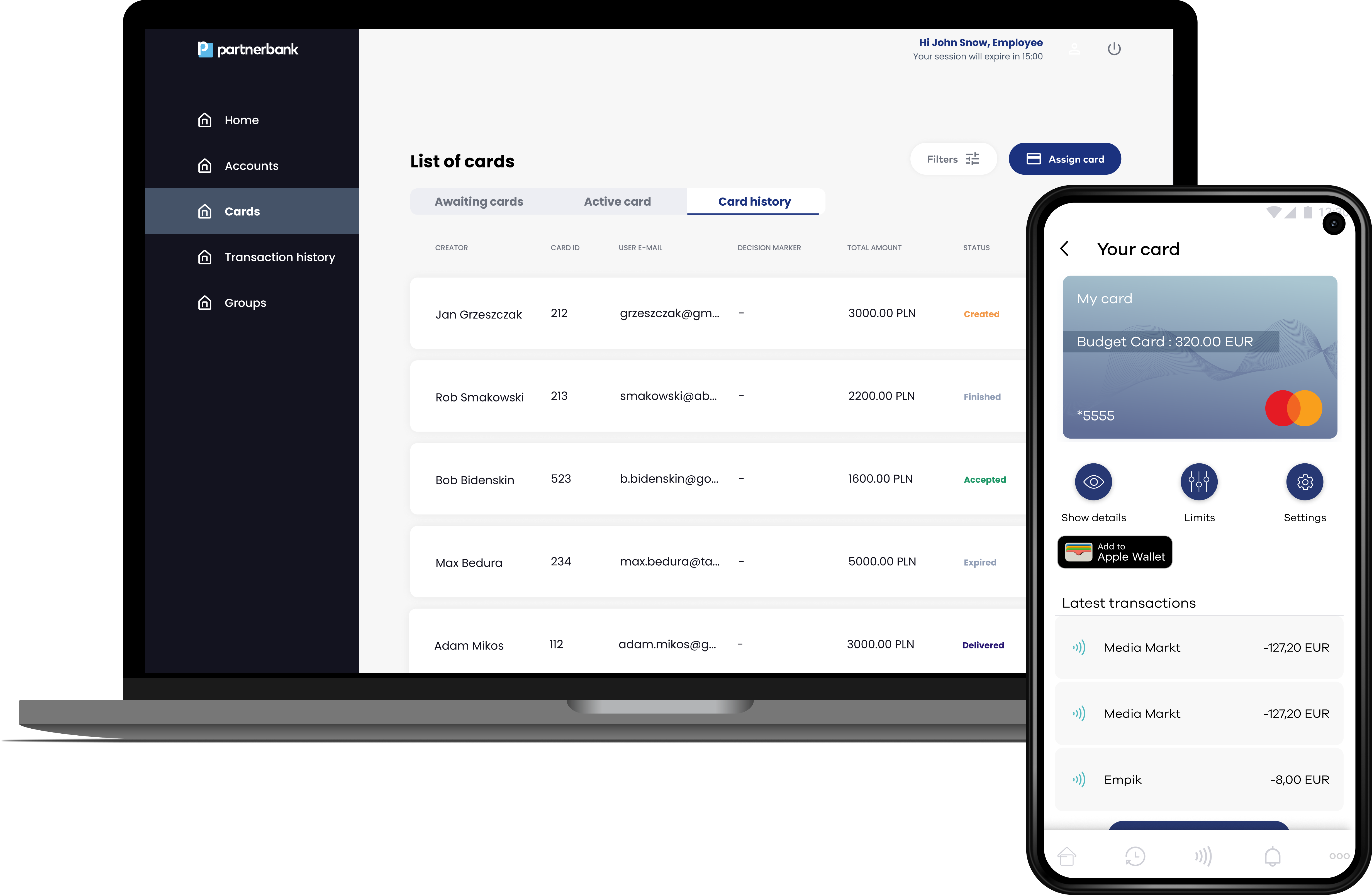
Click on the screens below to experience our application on an interactive prototype.

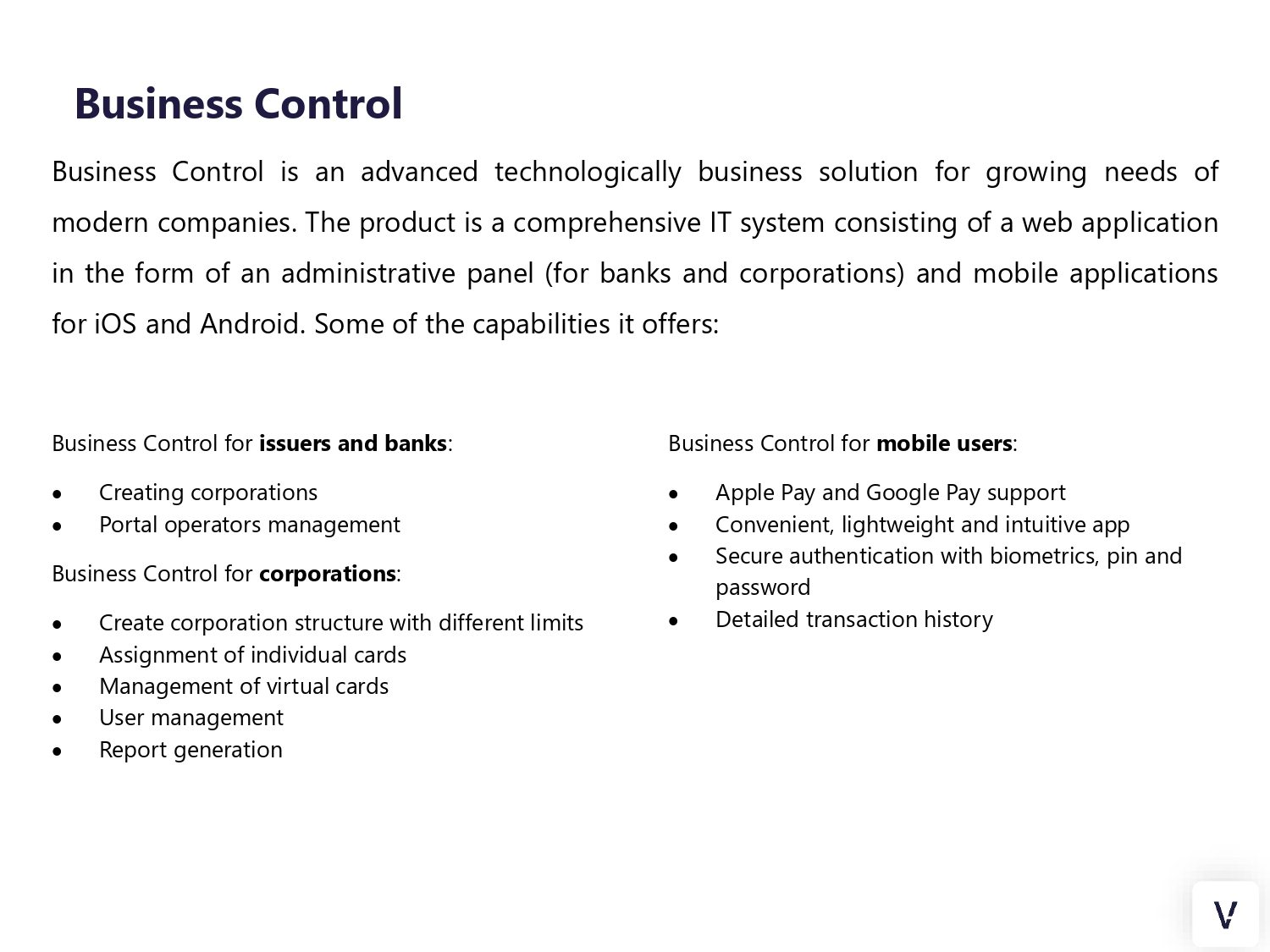
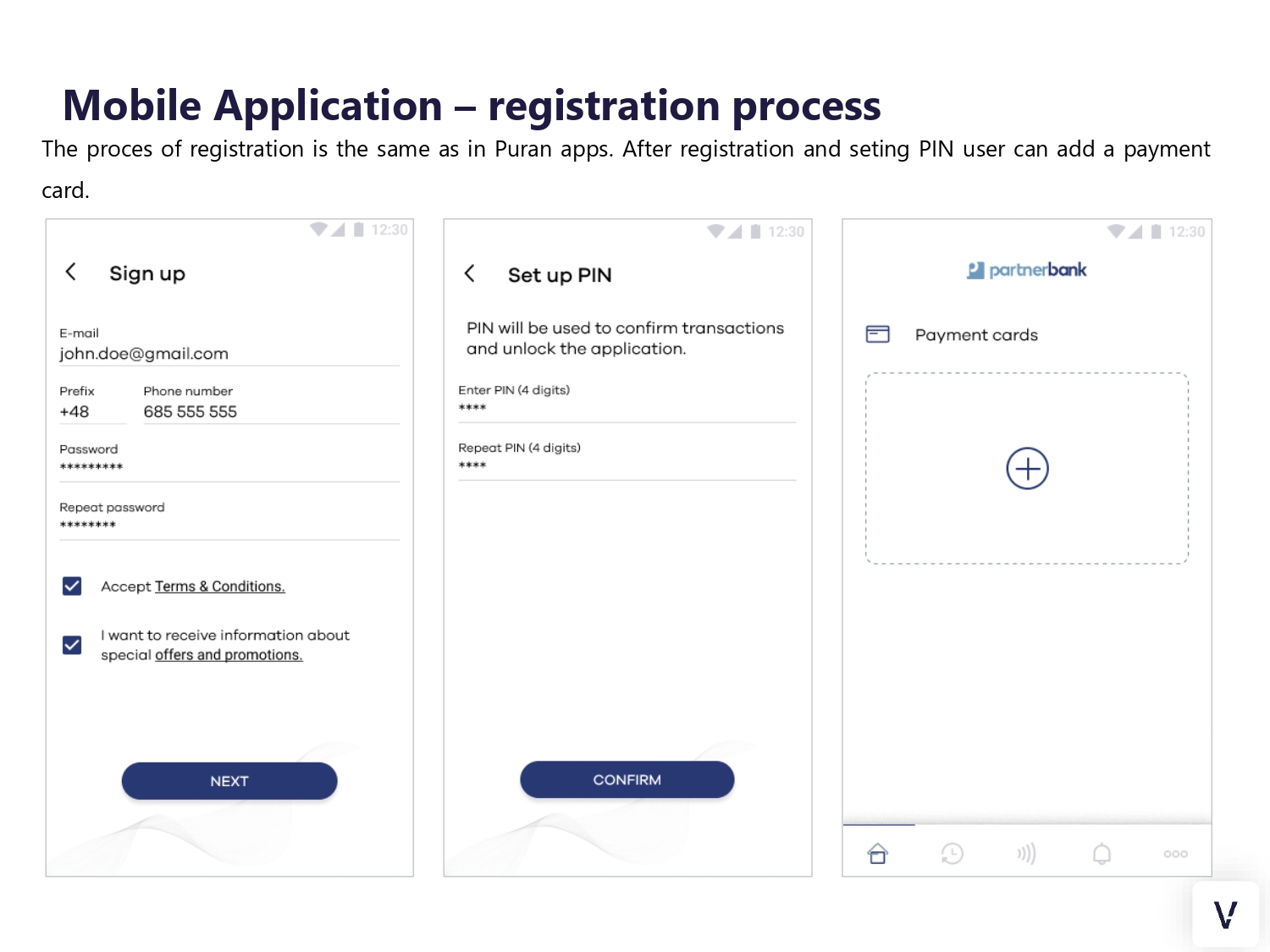
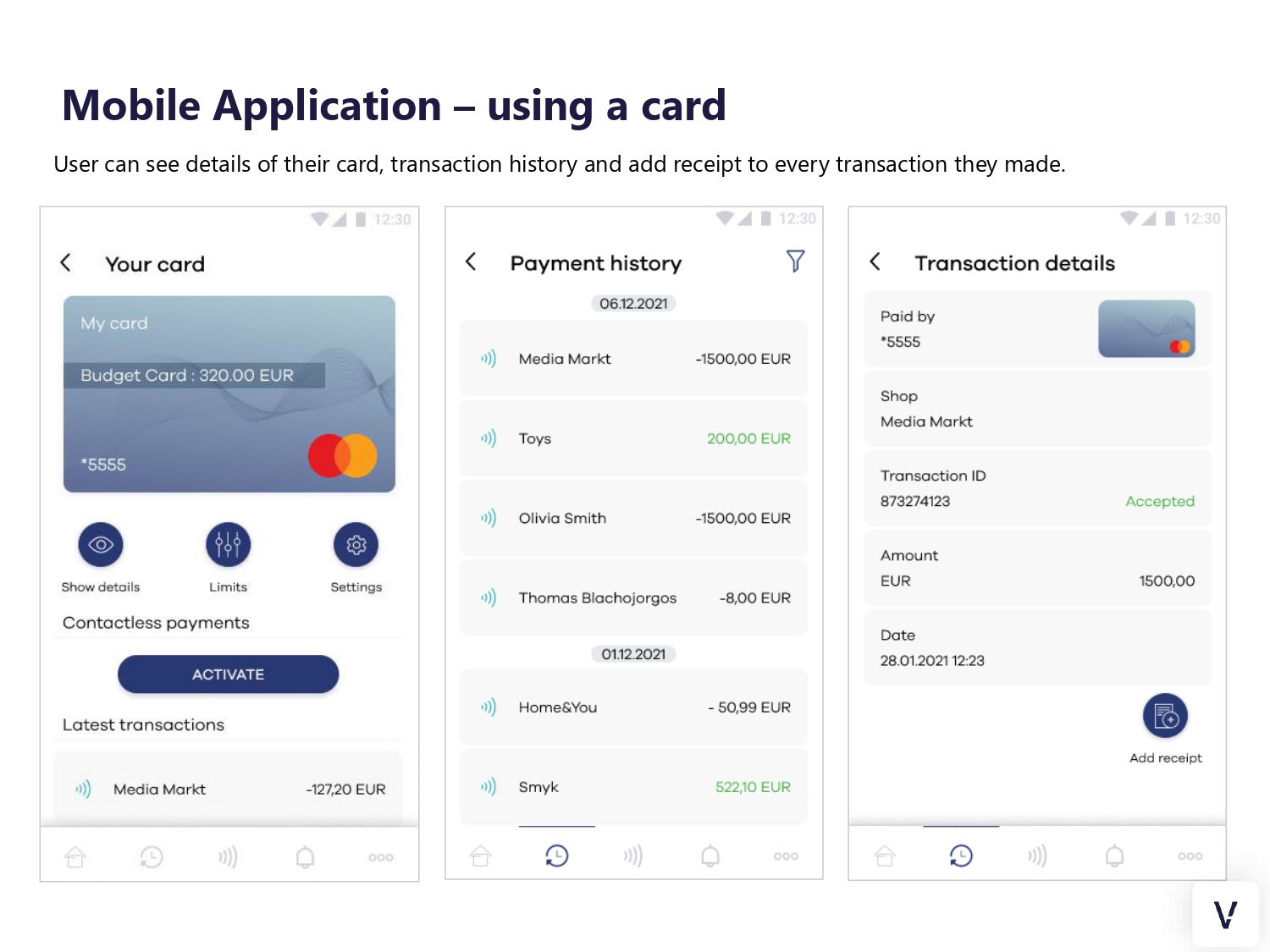
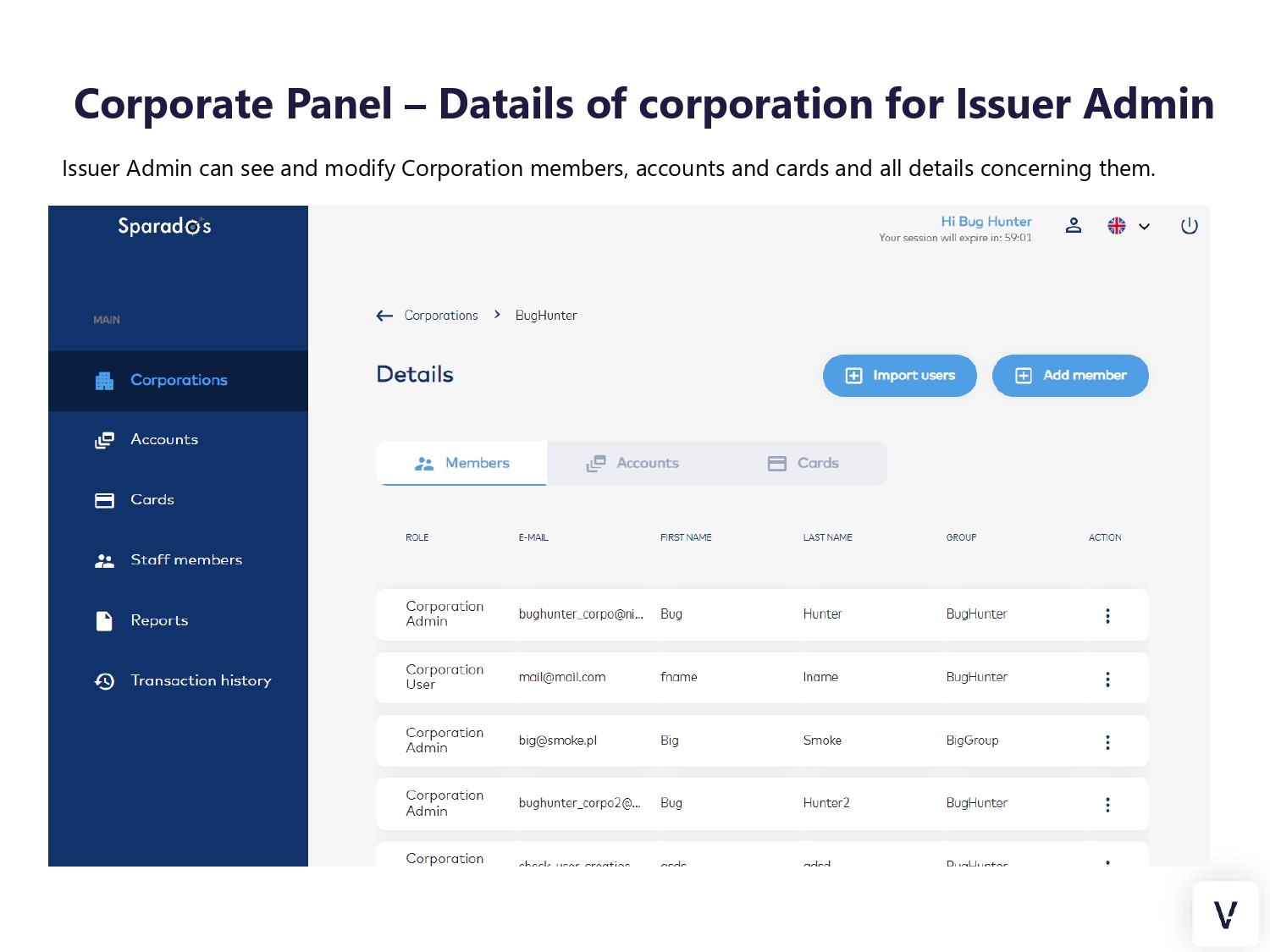

Overview
The Business Control platform by Verestro enables digital card issuing and expense management for modern companies. By adapting to the changing needs of the current small, medium companies and big corporations and business customers digital, Business Controls enables companies to create and deliver instantly a temporary business Mastercard card to employee, simplify invoice collections and settlements of expenses.
If you are a bank or fintech you can offer a new product for your business customers and increase revenues.
The platform consists of web portal and mobile application or SDK. The simplest white label solution can be delivered in 3 months from start of the project.
Purpose and scope
This product guide provides a high-level overview of Business Control. This document covers the following topics:
• description of possible configurations,
• granting access,
• description of main processes as: login, reset password, cards import, redemption of card,
• additional and optional functionalities.
Terminology
This section explains a number of key terms used in this document.
|
Name |
Description |
|
Operator/portal user |
The user working using web portal. |
|
End-user/mobile user |
A corporate employee who received a card and uses a mobile app. |
|
Payment history |
It’s possible that transaction history will be stored on Verestro wallet server for infinite time (this setting can be specified during onboarding with Mastercard). If these options are enabled, MPA can retrieve transaction history for given card and payment instrument ID. Transactions are returned in corresponding parts for better user experience. Particular transaction may appear on the list with delay – depending on integrated external components. |
|
Session token |
Access to the system by a application user is secured using a session token to uniquely associate the session with the user. It is required to perform any action. |
|
sFPANs (Subordinate Funding Pan) |
Valid card numbers supplied by the Issuer. All payment messages will be delivered to the Issuer with this card number in Data Element 02. |
|
Funding Card Alias |
A name given to the ultimate funding account to which payments will flow. This name is assigned by the Issuer and should be recognisable to the Corporate who owns the account. E.g. “JoeCorp HR USDollar”. |
|
CSV |
Comma Separated Values. |
|
Digital Tokens |
This is the surrogate card number that is inserted into the NFC chip in the Mobile phone. For tap payments, this is the number shared with the Point of sale device. On all message flows; it is mapped by Mastercard to its parent sFPAN. The Issuer will then map the sFPAN to the Funding Account. |
|
Virtual Card |
This is the optional card number for eCommerce payments - number entered at the eCommerce checkout page. On all message flows; it is mapped by Mastercard to its parent sFPAN. The Issuer will then map the sFPAN to the Funding Account. |
|
Approval |
In the context of Business Control, this is the assignment of a specific card for a certain period of time to a defined user. |
|
Reapproval |
By reapproval is meant the process of changing the data of a specific card assignment. Limits or date range can be changed. |
|
Mobile reapproval |
The process of changing a specific assignment initiated by the end user - which means through the use of a mobile application. |
|
Group limit |
This limit determines the maximum amount with which anyone in the group can assign a card to a user and the maximum amount on a card that can be accepted in a given group if an assignment confirmation request comes in from a group with a lower limit. |
Key Use Cases
Below we present a list of key use cases enabled on Business Control platform. We are constantly working on new functionalities that are adding value to the product:
- issue virtual card for employee,
- setup card limits (time, date, transaction limits etc.),
- manage groups in companies (departments or teams),
- scan invoices,
- present reports for accounting purposes,
- and many more.
Security
The systems offered by Verestro are fully secure, which is confirmed by current third-party certificates. As we store card and payment data we are obliged to comply with strict legal requirements. Card data are stored in a specially designed environment - Data Core. This environment is PCI DSS certified. The PCI-DSS standard guarantees the security of payment card data. It ensures that sensitive information is properly guarded and provides maximum security in the payment process.
We achieve high security standards by, among other things :
1. Building and maintaining network security - the need to build and maintain a firewall configuration that protects cardholder data, not using manufacturers' default passwords and settings.
2. Protecting cardholder data - protecting stored cardholder data, encrypting data transmissions when using public networks.
3. Maintaining a payment management program - using regularly updated anti-virus systems, developing secure systems and applications.
4. Implementing strong access control methods - limiting access to cardholder data to only those with a business need, assigning each user a unique ID, limiting physical access to cardholder data.
5. Regular network monitoring and testing - testing security systems and processes, controlling access to network resources and cardholder data.
6. Maintaining information security policies - relying on security policies for employees and vendors.

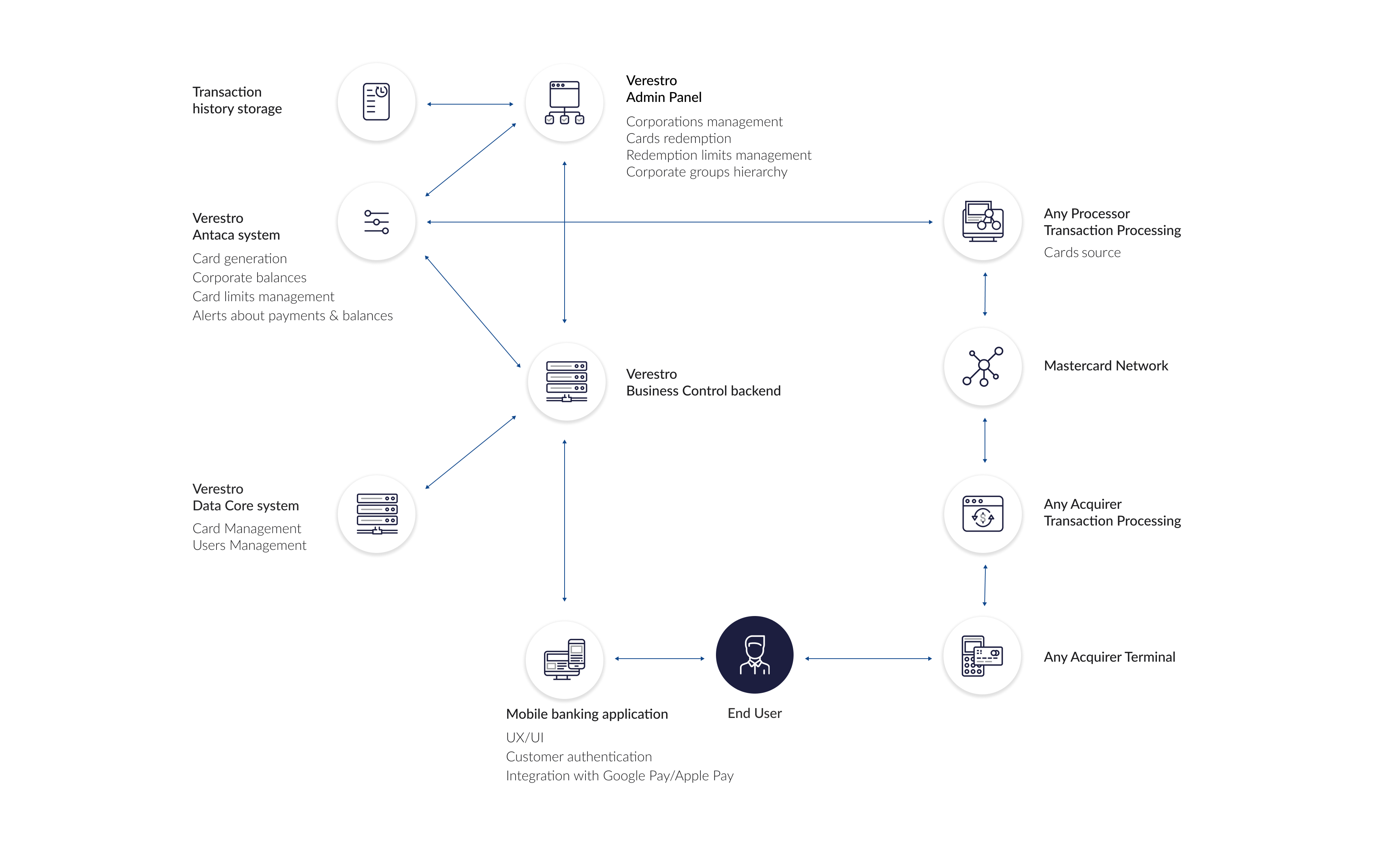
Architecture
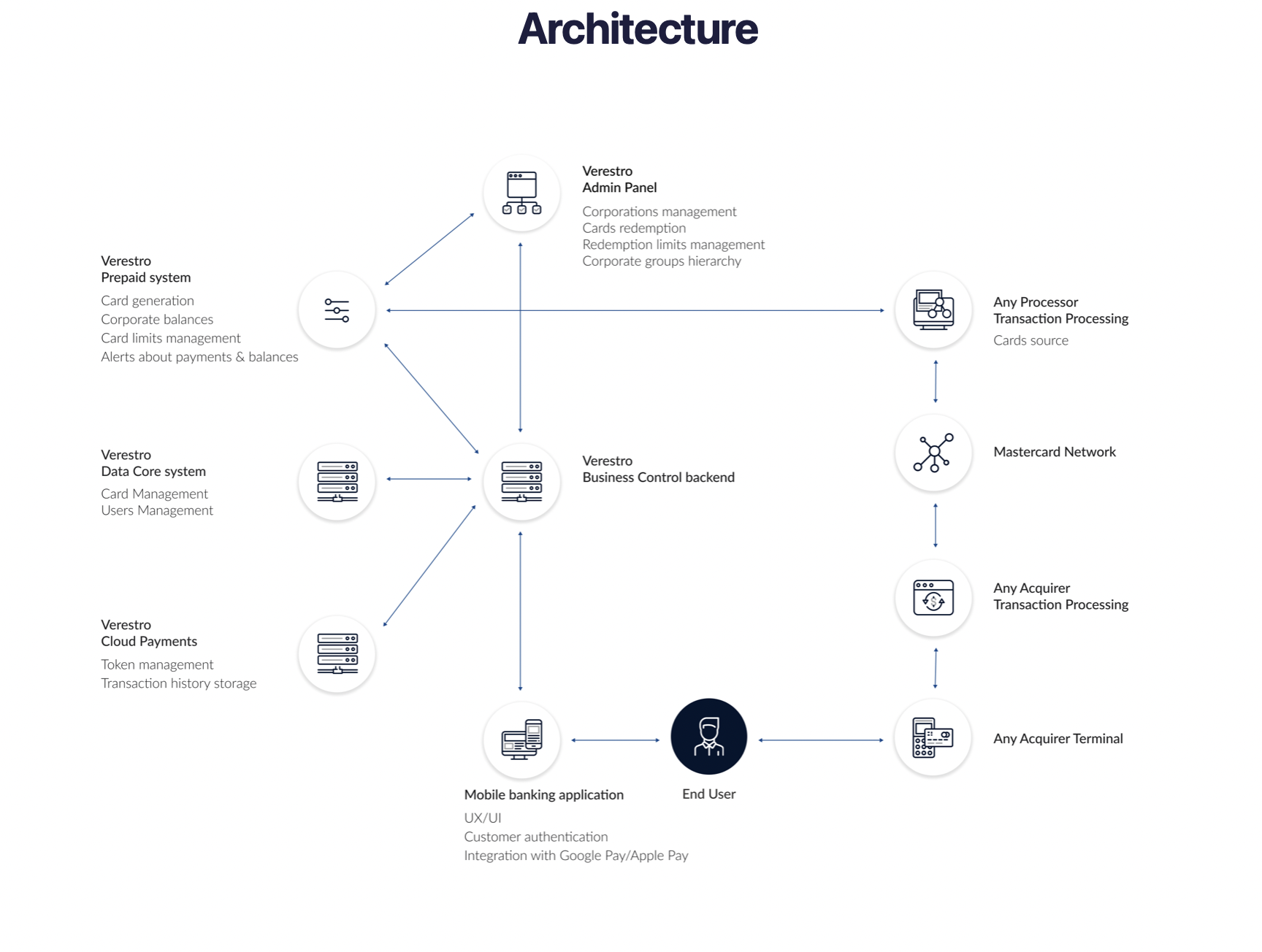
Business Control uses Verestro's distributed systems to provide the highest quality of service. It is practically the best architectural solution these days. As mentioned in the previous chapter, the communication between services is completely secure, maintaining the highest security standards. This kind of system guarantees not only high efficiency, due to the division of responsibilities between the components, but also allows for easy and fast scaling of the system according to the customer's requirements.
Access and Configuration
Access solutions
The access to Admin Portal in available in 3 ways:
- direct traffic through VPN - requires VPN reconfiguration on both sides,
- block access to the domain and allow access from a particular IP address (specific IP addresses or a range of addresses) - configuration required on Verestro side,
- free access for everyone, who have an account in Admin Portal (no matter if VPN configuration or IP address are set.
Admin Portal is available on two environments:
- test environment (dev/UAT environment),
- production environment.
Sample of test environment (URL): https://corporate-panel-nameofclient.verestro.dev/
Sample of production environment (URL): https:// corporate-panel-nameofclient.verestro.com/
Configuration
Time settings for individual functionalities
Business Control has a several default parameters related to the time of each action. Table below describes particular action and time related to the action.
|
Functionality |
Description |
Default time on beta environment |
Default time on production environment |
|
Operator session time. |
Session after successful login to the panel. |
60 minutes |
15 minutes |
|
Session reminder popup. |
Time after which a popup appears asking to extend or end the session. |
55 minutes |
10 minutes |
|
Mobile session time. |
Session after successful login to the beta mobile application. |
15 minutes |
15 minutes |
|
SMS lock time. |
Determines the time after sms count will be erased and sms resend will be available. |
24h |
24h |
|
Reset password OTP. |
Validity of OTP during password reset process. |
900s |
900s |
Automatic job configuration of Business Control
|
Functionality |
Description |
Default start time |
|
Expiring outdated approvals. |
The time when cards whose assignment has expired are removed from enduser. |
Every full hour |
|
Generating transaction reports. |
Time when mechanism of generating reports for pending reports is starting. |
Every 15th minute |
Requirements for password
|
Functionality |
Description |
|
Mobile password length. |
8-250 chars. |
|
Portal password length. |
8-30 chars. |
|
Password (both mobile & portal) requirements . |
upper-case letter, lower-case letter, special character and digit. |
Mobile apps configuration
Completion of product configuration (T&C regulations, imported cards, created limits and user structures) is required to test mobile applications.
For beta environment testing, it is necessary to provide the project manager with information about the type of device and the data for which test cards are to be assigned. This is related to separate app delivery solutions for each platform.
In the case of a production environment, the application is provided by authorized and official application stores dedicated to that environment.
Beta environment
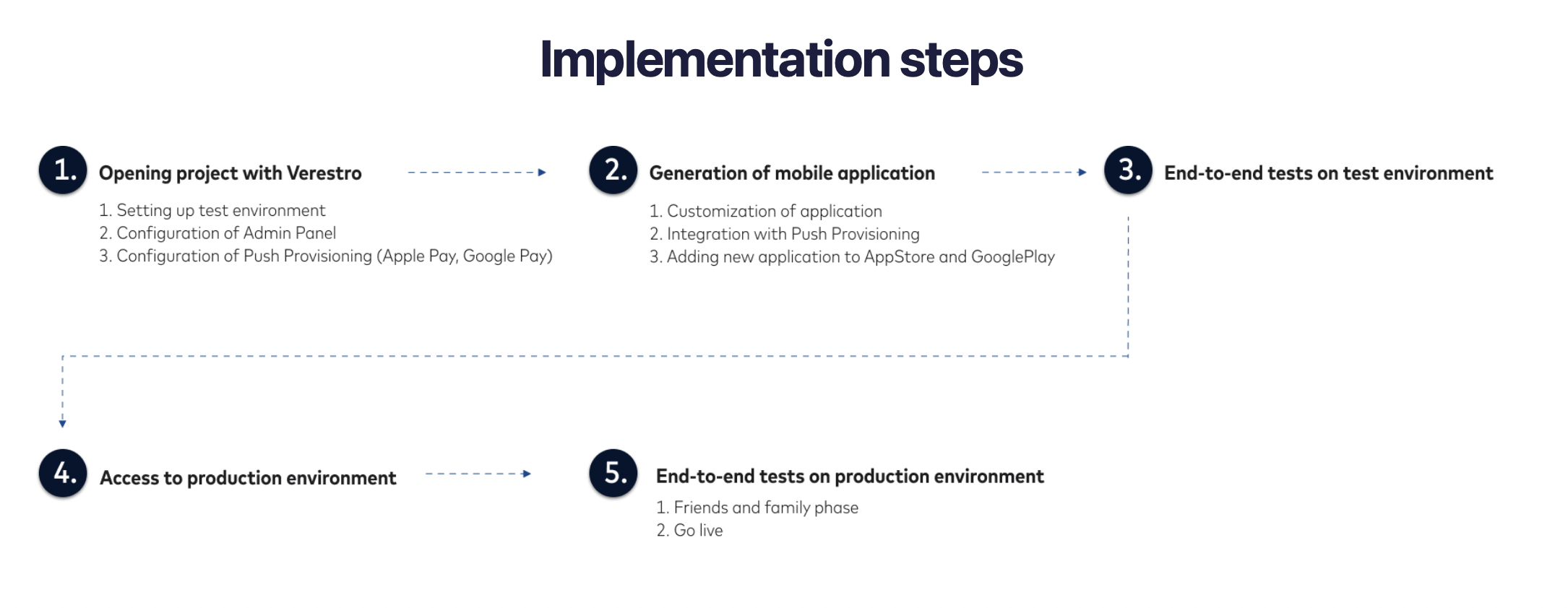
In the initial stages of the project, the mobile application can be delivered as an APK file to be installed manually on the device. It is also possible to set up an automatic distribution center for test versions, in which case it is enough to provide Verestro with a list of email addresses to which invitations to the test system will be sent. Each user will receive an individual registration link and AppTester software (a fully secure component of the Google Firebase system) or TestFlight software (Apple's standard way to distribute test applications that meet the latest functional and security requirements). Both of the distribution ways allow to download each version of the application and deliver new versions in real time to testers.
Production environment
Once the testing phase is complete, Verestro generates applications that must be signed with the appropriate set of keys and then, using procedures appropriate to the specific distribution site (Apple AppStore or Google Play), added to the app stores. Once the application is in the store, any user can easily and quickly install the application and update it automatically.
Roles in the System
Issuer Administrator
Created in the new Issuer setup process after legal and contractual issues are completed. Associated with the flow of configuring corporations related to the Issuer. Could see the corporations associated in the system and their cards along with limits.

Corporate level
The following section provides information about the actions that vary according to the level of authority in the corporate structure and key capabilities common to the roles contained in the corporation.
|
Functionality |
Corporate Administrator |
Corporate Manager |
Accountant |
|
Add new corporate operator (administrator, manager, user). |
Yes |
X |
X |
|
Create new group. |
Yes |
X |
X |
|
View all groups. |
Yes |
Yes |
X |
|
View own group and groups below, view group members. |
Yes |
Yes |
X |
|
Reset password group members. |
Yes |
X |
X |
|
View, lock/unlock, remove from the EndUser, assigned cards from own and group below. |
Yes |
Yes |
X |
|
Assign cards. |
Yes |
Yes |
X |
|
View approvals history from own group or group below. |
Yes |
Yes |
Yes |
|
View awaiting card assignment from group below. |
Yes |
Yes |
Yes |
|
Accept/decline approval from group below. |
Yes |
Yes |
X |
|
Edit existing approval from own group. |
Yes |
Yes |
X |
|
View all assigned cards and approvals. |
Yes |
Yes |
X |
|
View assigned cards and approvals for own group and groups below. |
Yes |
Yes |
Yes |
As may be seen from the table above, the main differences between admin and manager concern adding new operators to the corporation. In contrast, the context of a user is usually narrowed down to its own group or actions directly related to particular user-level operator.
The manager and user roles are fully configurable. It can contain decreasing privileges in comparison to Admin or completely different functionalities.
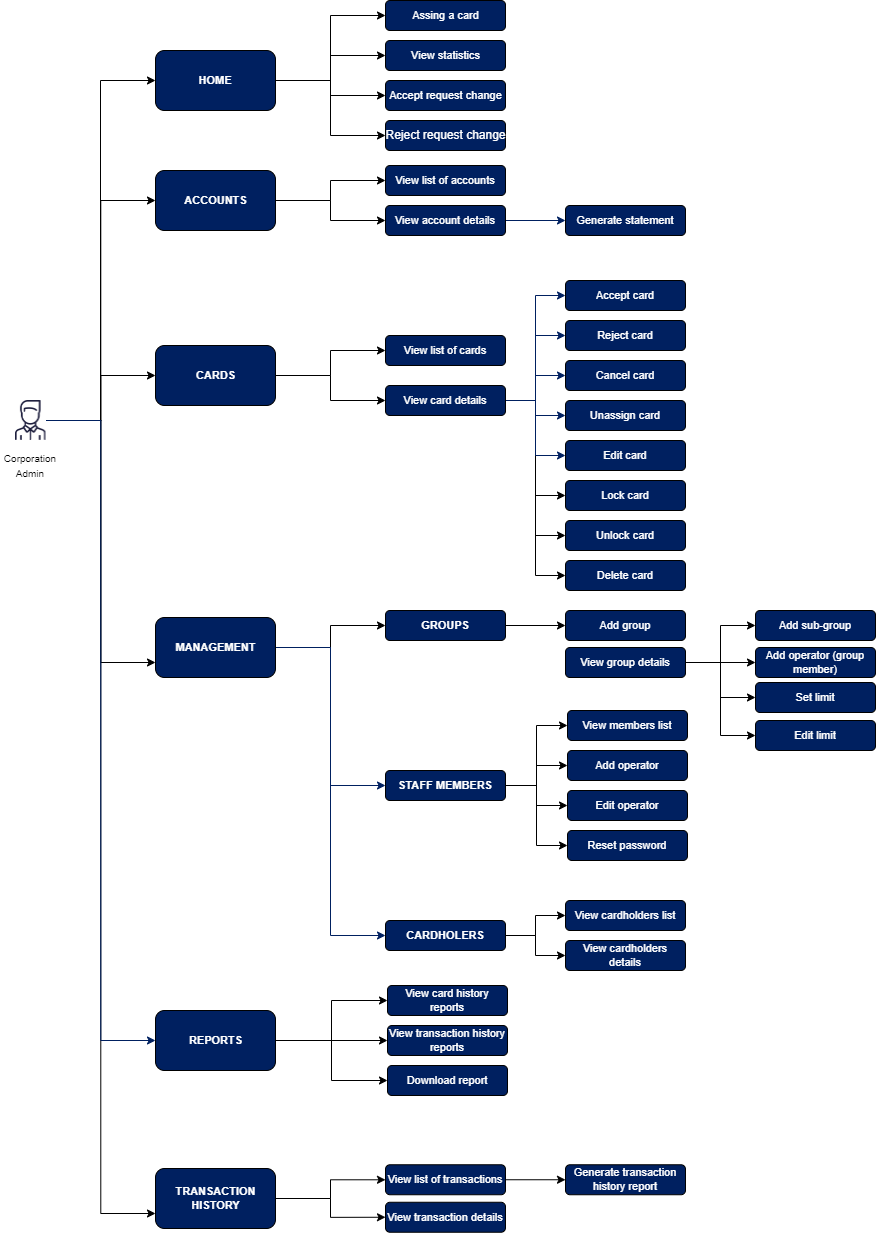
Corporate Administrator
This is a role that guarantees full authority in the corporate context. It has access to manage the hierarchy of groups and portal operators. Corporate Administrator has a privilege to assign cards and has access to all the details of the corporation.
Corporate Manager
The role of manager in a corporation almost exactly matches with the administrator's capabilities. The difference is the inability to add new portal users and manage groups.
Accountant
The basic role in the corporation, should be assigned to a lower level user. Capabilities are limited to displaying cards from their own group and below and transactions. That means Accountant cannot view approvals from groups higher in the hierarchy and group section.
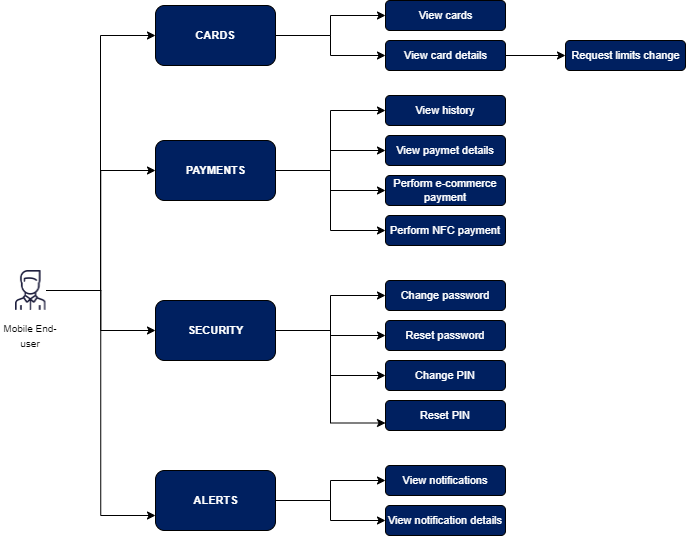
Mobile user - Enduser
Flow of creating the mobile user account doesn’t depends on portal. End-user could install application and register without any invitation. Until the card is received from the system, it can use the mobile application capabilities. Only the assignment of the card binds him strongly to the system. Importantly, the code necessary to assign the card is sent to the phone number and e-mail address given by the portal operator on the assignment form, but the end user can redeem the code on any account (so on an account registered with different data than the one provided in the form). In such case it is required to provide the OTP code sent to the number from the form. As a result, the user can use one account for both private and corporate cards (but the authentication sent to the corporate data is required).
Notifications
This section contains all push messages and email messages that are sent in the system.
The following breakdown was used:
- emails regarding the basic functionality of the portal and sent to the operator,
- emails concerning the business processes of the product and sent to the operator,
- emails regarding the product's business processes and sent from the end-user,
- push notifications sent to the end-user.
Emails from Admin Panel to operator
|
Process |
Topic |
Details |
Comment |
|
Invitation to the system |
Set password to administration panel |
Hello! You are receiving this e-mail because an account was created for you, and you need to set a new password. <button to set password> Regards, <corporation> |
Standard email sent when portal operator added new operator. |
|
Login process |
Login code |
Hello! Your login code: <code> Regards, <corporation> |
Standard AP email sent when portal operator entered correct email and password. |
|
Reset password |
Reset password to administration panel |
Hello! You are receiving this mail because someone initialized password reset for your account. If it was not you, you can ignore this mail. <button to reset password> Regards, <corporation> |
Standard Admin Panel email sent when portal operator uses "reset password" button on login page. In Business Control also send when portal operator uses "reset password" action on staff member row. |
Emails from Business Control to operator
|
Process |
E-mail name |
Topic |
Details |
Comment |
|
Approval |
BC_OPERATOR_PENDING_APPROVAL |
Request approval |
Hello! There is a pending request for a card with a limit greater than allowed in requestor's administration panel group. Please log in for more detailed information. Regards, <corporation> |
Email sent to higher group operator when someone from group below wants to assign card with the limit exceeded group limit. |
|
Approval |
BC_OPERATOR_APPROVAL_ACCEPTED |
Approval accepted |
Hello! Your request to send card to <email> has been approved. You can check the details in the Administration panel. Regards, <corporation> |
Email sent to requestor when someone from group higher (who is able to accept this kind of limit) accepted the approval. |
|
Approval |
BC_OPERATOR_APPROVAL_CANCELLED |
Approval cancelled |
Hello! Your request to send card to <email> has been cancelled. You can check the details in the Administration panel. Regards, <corporation> |
Email sent to requestor when someone from group cancelled the approval. |
|
Approval |
BC_OPERATOR_APPROVAL_REJECTED |
Approval rejected |
Hello! Your request to send card to <email> has been rejected. You can check the details in the Administration panel. Regards, <corporation> |
Email sent to requestor when someone from group higher (who is able to accept this kind of limit) rejected the approval. |
|
Approval |
BC_OPERATOR_APPROVAL_CARD_CHANGED |
Approval card changed |
Hello! Card changed on your request to send card to <email>. You can check the details in the Administration panel.” Regards, <corporation> |
Sent in the rare case when card have to be changed to meet the requirements (original card has expiration date earlier than approval end date). |
|
Mobile reapproval |
BC_OPERATOR_PENDING_MOBILE_APPROVAL |
Request to change limits from mobile |
Hello! There is a pending request to change card limits from mobile application for a card <last4digits>. Please log in for more detailed information. Regards, <corporation> |
Email sent to requestor when mobile end-user sent request for changing the limit. |
Emails from Business Control to end-user
|
Process |
E-mail name |
Topic |
Details |
Comment |
|
Card received |
BC_USER_PENDING_CARD |
A payment card has been assigned to you. |
Hello! To se the card, you must have the <corporation> Wallet application installed and an account created. Using this code in the application, you can assign the card to your account - <activationCode>. After this action you will be able to use all features of the application and make payments. |
Email sent to end-user every time when new card has been assigned. |
|
Card adding |
BC_USER_NEW_CARD |
A new card has been added to your account. |
Hello! You are receiving this mail because a card provided by <corporation> has been added to you account. Through the <corporation>Wallet application you can monitor your available balance and completed transaction on an ongoing basis. Regards, <corporation> |
Email sent to end-user when card has been properly added to the account. |
|
Card expiring |
BC_USER_CARD_EXPIRING |
The temporary card issued by <corporation> will soon expire. |
Hello! The temporary card issued to you by <corporation> will soon be no longer available for use. The card <last4digits> will be removed from your account. You do not need to take any action, this email is for awareness only. Regards, <corporation> |
Email sent to end-user when assigned card expiration date is approaching (cancelled, locked, removed or just expired). |
|
Card expired |
BC_USER_CARD_EXPIRED |
Card expired. |
Hello! The card with the last 4 digits <last_4_digits> issued by <corporation> has expired. This email is for informational purposes only and you do not need to take any action.
Regards, <corporation> |
Email sent to end-user when assigned card is expired. |
|
Card locked |
BC_USER_CARD_LOCKED |
Your card has been locked. |
Your card <last4digits> issued by <corporation> has been blocked. |
Email sent to end-user when assigned card is locked. |
|
New T&C |
BC_USER_PENDING_TERMS_AND_CONDITIONS |
New terms and conditions. |
Hello! There are pending Terms and Conditions for acceptance. To keep receiving cards from Issuer, please log in and accept pending Terms and Conditions. Regards, <corporation> |
Email sent to end-user when Issuer updated the T&C and an end-user action is required to obtain a new card. This email is send only when a new card is assigned. Even if Issuer changed T&C before and no card has been assigned the email shouldn't be send. |
Push notifications from Business Control to end-user
|
Process |
Topic |
Details |
Comment |
|
Card redemption |
New card. |
A card has been assigned to your account. Check the budget details in the app. |
Push notification sent to end-user when a new card has been assigned to logged account. |
|
Mobile approval |
Mobile request to change limits reviewed and accepted. |
Your request to change card limits has been reviewed and accepted. Details are available on alerts screen within mobile application. |
Push notification sent to end-user when a mobile request to change limits has been reviewed to operator from original group and group higher. Basically send when double-check on portal has been made. This case is only possible when the requested limit exceeded the original group limit. |
|
Mobile approval |
Mobile request to change limits rejected. |
Your request to change the assigned card limits has been rejected. Details are available on alerts screen within mobile application. |
Push notification sent to end-user when a mobile request to change limits has been rejected. |
|
Mobile approval |
Mobile request to change limits accepted. |
Your request to change the assigned card limits has been accepted. Details are available on alerts screen within mobile application. |
Push notification sent to end-user when a mobile request to change limits has been accepted. |
|
Transcation |
Transaction declined. |
Card ending <last4digits>; Purchase of <currency&amount> was attempted at <merchant> and declined per your settings. |
Push notification sent to end-user when a transaction has been declined during processing. |
Business Logic and Groups
This section contains all necessary information about key business processes in the system.
8.1 Groups
The group hierarchy always has a tree structure with one top group named Root Group. Other groups are below in the hierarchy and there can be unlimited of them on each level. There is no limit of levels or branches.

Group limits
To understand group limits, it is important to remember that these limits are related only to the card assignment process itself. They have no direct relationship to the corporation's limits. They are used to limit the ability to assign cards within the organization structure.
Sample group structure:

Assumptions
- Approval Limit - This limit determines the maximum amount with which anyone in the group can assign a card to a user.
- Spend Limit - This limit determines the maximum amount on a card that can be accepted in a given group if an assignment confirmation request comes in from a group with a lower limit.
- Cumulative limit cannot exceed Spend limit of group from which the card is assigned. If Cumulative limit during assigning to the card exceeds Spend limit then card request will send to right parent group to approve.
- PO group has Approval limit 500 and Spend limit 500.
- PO Junior group has Approval limit 200 and Spend limit 200 also.
|
Case |
Description |
Result |
|
1 – green path |
User from PO Junior group wants to assign card with limit 200 to enduser. |
It is possible without additional confirmation. |
|
2 – yellow path (direct group above) |
User from PO Junior group wants to assign card with limit 300 to enduser. It is possible with additional confirmation from higher group (group with Approval limit higher or equal to 300).
|
Approval goes to PO group after the creation to get the confirmation. |
|
3 - yellow path (another group above) |
User from PO Junior group wants to assign card with limit 600 to enduser. It is possible with additional confirmation from higher group (group with Approval limit higher or equal to 600). |
Approval goes to group which could accept the limit (higher the PO group). |
|
4 – red path (no group to handle) |
User from PO Junior group wants to assign card with limit 1600 to enduser. It is possible with additional confirmation from higher group (group with Approval limit higher or equal to 1600). In the group structure there’s no group with possibility to handle this limit. |
Card assignment has been declined. |
Card assignment statuses (approval statuses)
The table below contains all approval statuses that can occur in the system. Each status is described by a definition of occurrence. Knowledge of the table contents is necessary to understand the next two subsections.
|
Status |
Description |
|
CREATED |
When an Approval is created with a limit higher than the group of the person creating it but lower than the group limit above. |
|
ACCEPTED |
When an Approval is created with a lower limit than the creator's group OR accepted by a higher group. It changes to DELIVERED status after registration is complete and card is redeemed by end-user. |
|
CANCELED |
When an Approval with status CREATED, ACCEPTED or PREPARED is cancelled by the anyone from creator group. |
|
REJECTED |
When an Approval with status CREATED is rejected by the group above. |
|
EXPIRED |
When an Approval with the status CREATED is not accepted/rejected or status is ACCEPTED but the card has not been redeemed by end-user within the given Approval time (until the end of the ValidTo date). |
|
PREPARED |
When approval has been ACCEPTED, redeemed by the end-user and is waiting for the start of the Approval. |
|
DELIVERED |
When an Approval is accepted and CARD REDEMPTION is created, the process of issuing the card to the end user is triggered. |
|
FINISHED |
When an Approval with status DELIVERED exceeds the end date of assignment. |
|
REAPPROVED |
When a reapproval is created for a given Approval that is in Accepted/Delivered status. |
|
LOCKED |
This is a status of a card (not an approval) but we display it on the diagram below to show that Delivered is the only state of a approval on which we have action to lock and unlock card. |
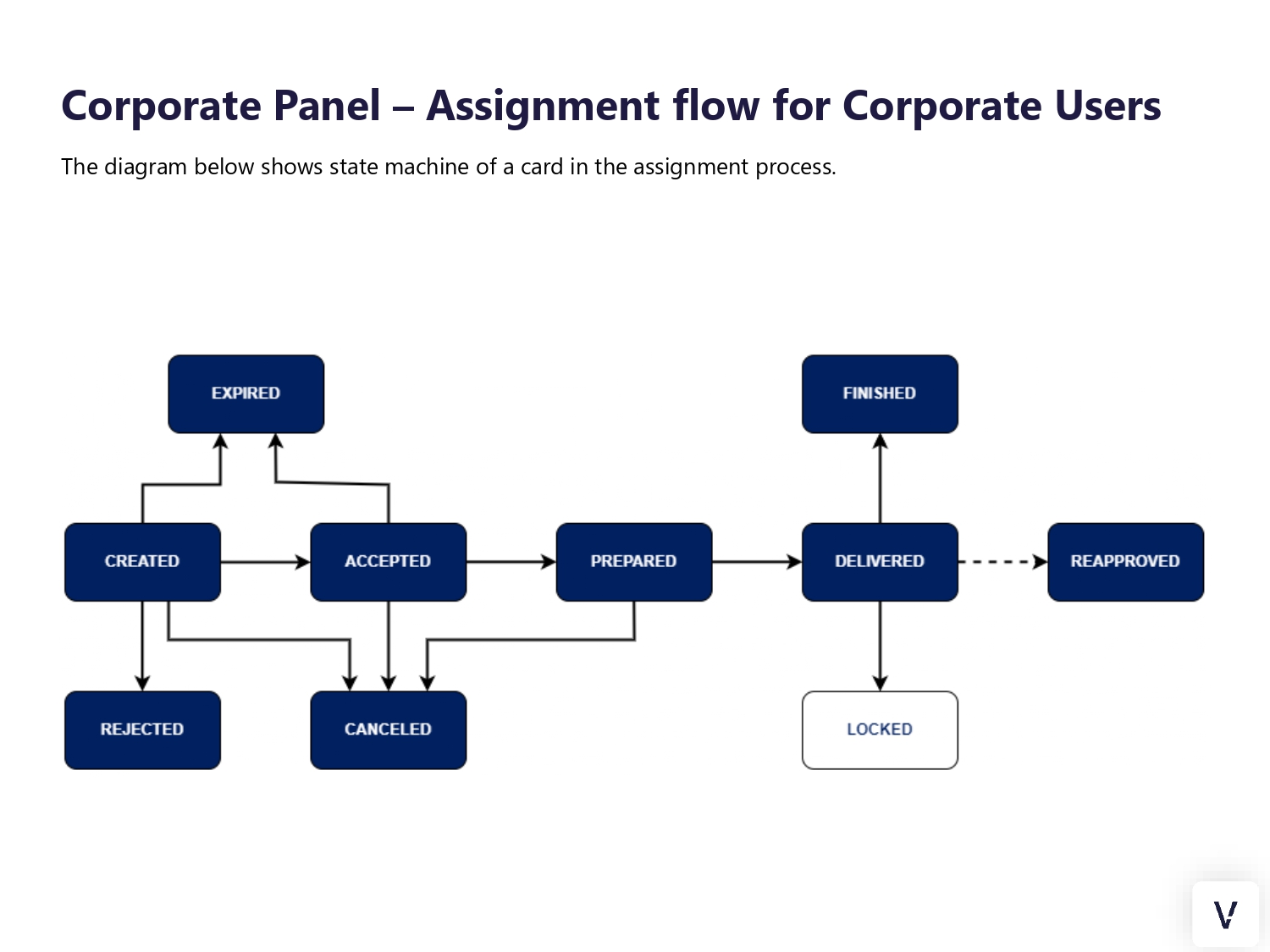
Approval state machine
The diagram below shows Approval's state machine - that is, the states it can reach and the sequence of changing states.
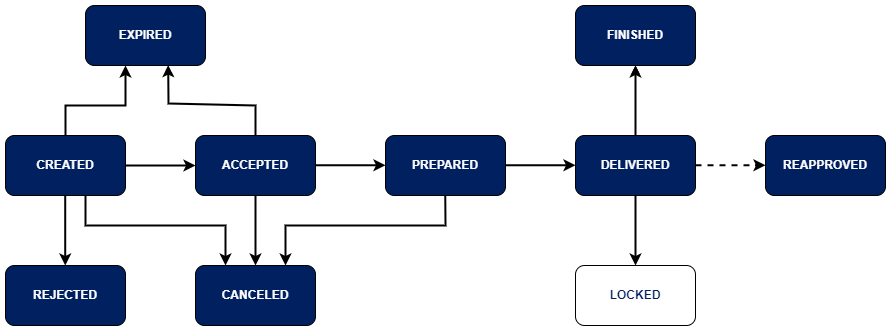
Actions available on approvals:
- Created: Accept, Reject, Edit, Cancel.
- Accepted: Cancel.
- Preprared: Cancel.
- Delivered: Lock, Unassign, Edit.
- Locked: Unlock.
- Rejected: —
- Expired: —
- Finished: —
Rules:
- Accept and Reject are available only when the request to change the limits comes from a mobile user from the same group OR when the approval creator has added an approval with an amount exceeding the group's limit.
- Cancel is available to approval creator and operators from creator group. The group above does not see Cancel.
- Edit is available to operators from creator group and operators from groups higher in the hierarchy.
Assignment lifetime flow
The way approvals are organized in flow is one line of transition from the first to the last correctly created (created) or delivered to the end user (delivered). This line can be followed by "next" and "previous". There can be branches from the main line - canceled, rejected, expired, but it is not possible to get to them via "next". There's no possibility to make a reapproval from status finished.

Card status
A card as an entity used to create a specific assignment can have different status in the system, depending on the state it is in.
|
Status |
Description |
|
Verified/Active |
This means that the card has been correctly added to the system and can be used by assigning it to an end user. |
|
Locked |
This status indicates that the card has been manually blocked by the portal operator. There is no automated process in the system that results in the status changing to locked. |
Transaction status
|
Status |
Description |
|
Authorized |
Transaction has been authorized by the Issuer. |
|
Declined |
Transaction has been declined by the Issuer. |
|
Cleared |
Transaction has been cleared by the Issuer. |
|
Reversed |
Transaction has been reversed by the Issuer. |
Web portal for companies
Login procedure
First login - activation
Operators can be added only from the panel. It is not possible to register in the system without an invitation. Basic administrators accounts that can be used to create a user hierarchy are provided with the panel instance.
In order to create a new portal operator account you have to log in to the panel using e-mail address, which is user login. Then go to the "Staff members" tab and fill in the required data. After filling in the role, personal data and e-mail address there will be sent a welcome message with an activation link for new account.

Once the email send process is complete, the invited operator will receive a message. It contains a welcome and an activation link - used to set a password to access Corporate Panel.

Clicking on the link redirects to the login page, where the operator will have to set a password during the first logging in. The required password standard is a minimum of 8 characters, at least one digit, one capital letter and one letter.
Login procedure
Operator must provide correct pair – e-mail and password. If the provided login is incorrect, a message informing the employee of an error “Incorrect e-mail or password” and the possibility of another attempt will be displayed.
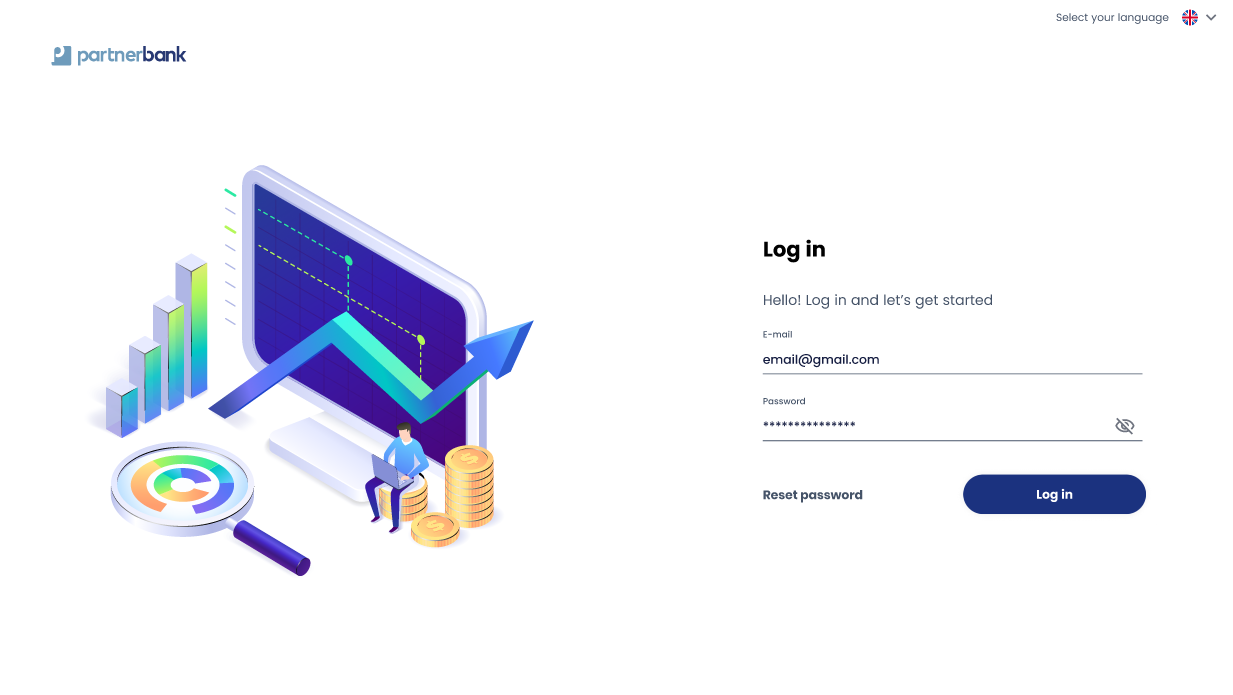
If the data provided is correct, an authentication code is sent. This is required to complete the next step of the two-step login.

As last step application asks for code. Sent code has set validity time described in previous chapter. If code will not be provided in this time, login procedure must be started from first step.
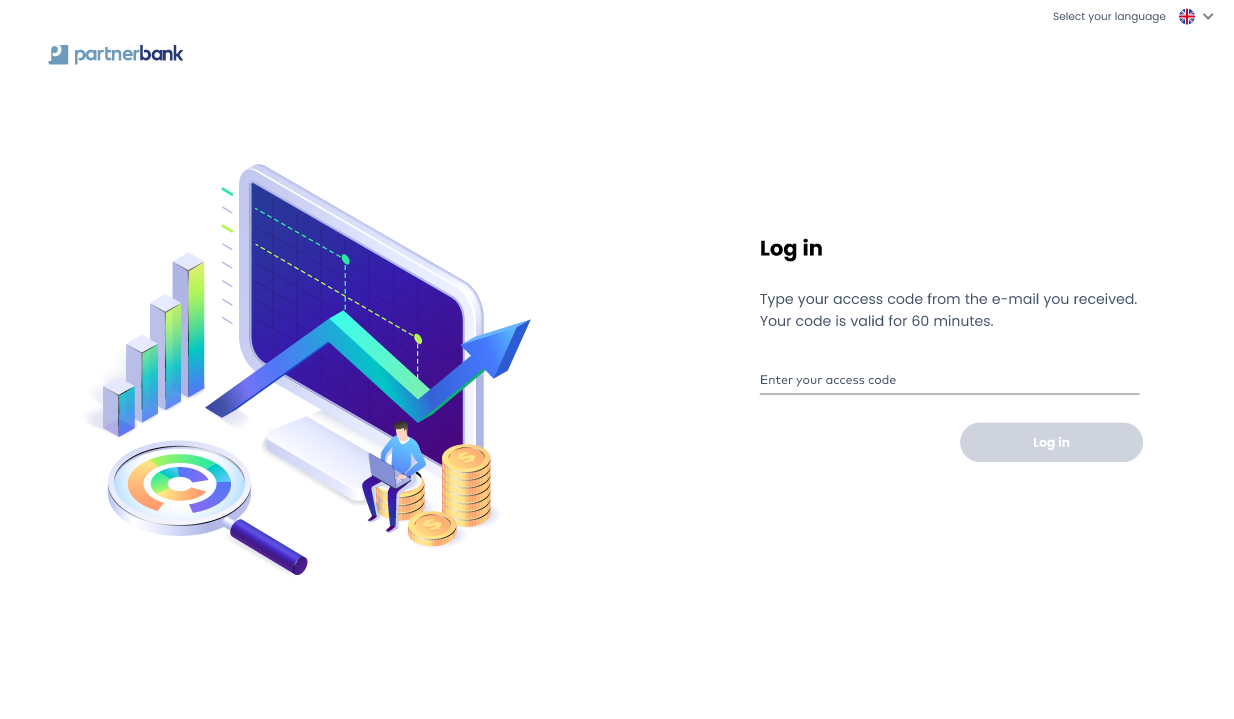
Reset password procedure
In order to reset password, admin has to open the login page and click option “reset password” (located under e-mail and password inputs). In next step, admin must provide correct e-mail address.

After correct completion of the form you will be redirected to the login page with a popup notification displayed on the screen. At this time the password reset mechanism is activated and a unique link is sent to the operator.

If the provided e-mail is correct, reset password link will be delivered to the operator’s e-mail address.

Clicking on the link redirects to the reset password page, where the operator will have to provide his e-mail address and set a new password. The required password standard is a minimum of 8 characters, at least one digit, one capital letter and one small letter.
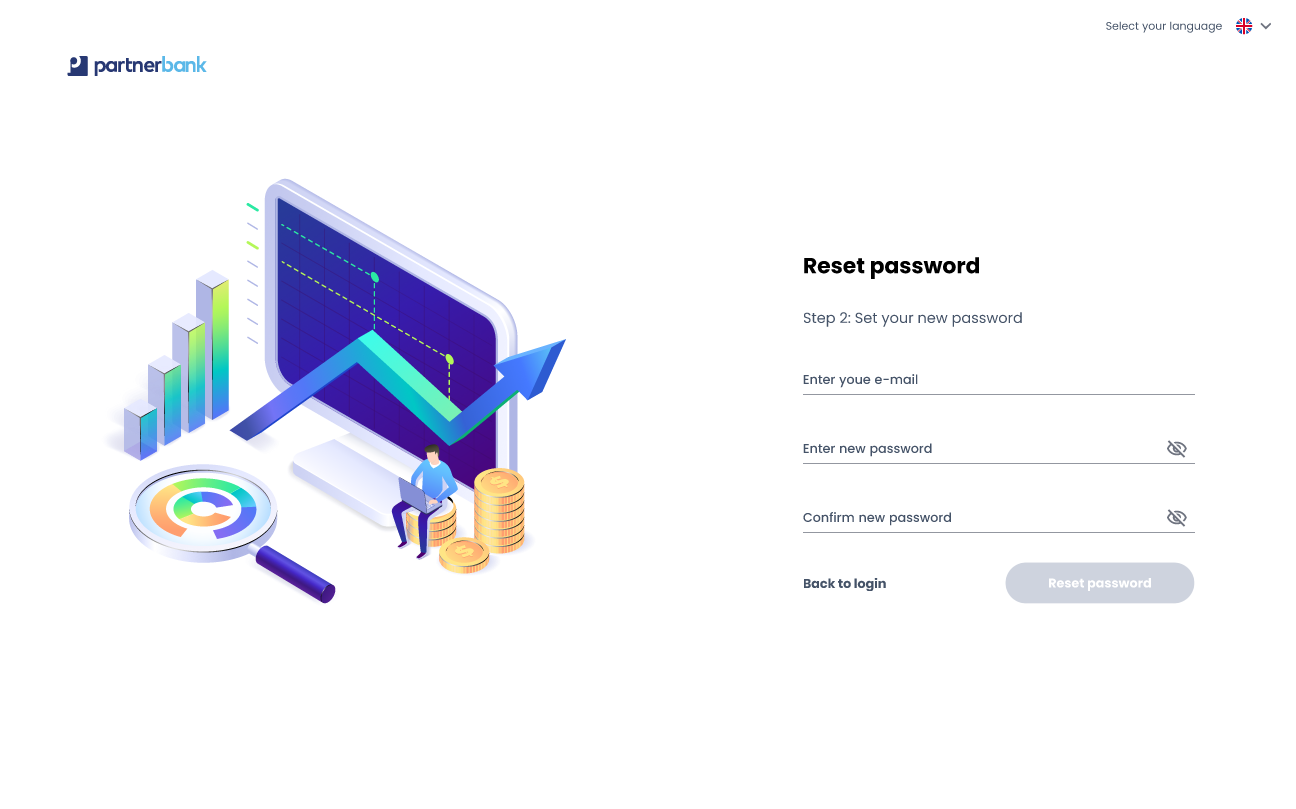
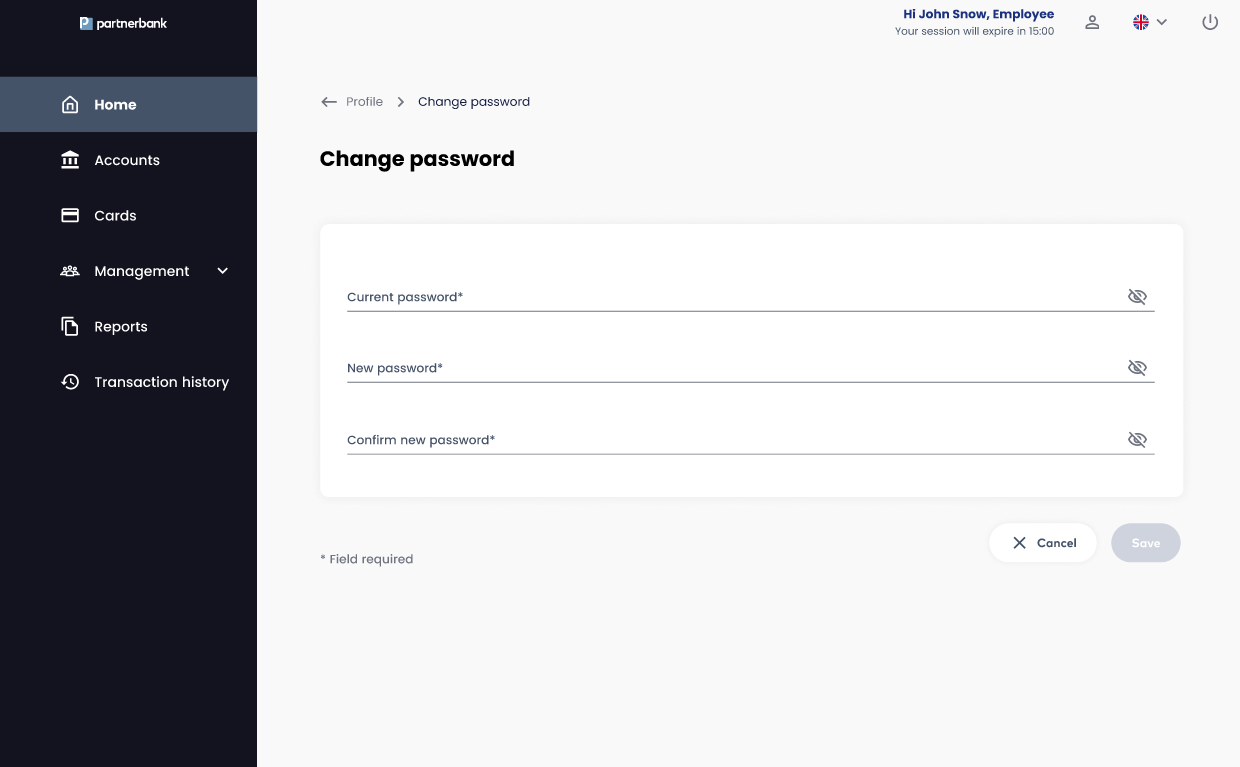
Change password procedure
From the portal operator profile it is possible to change the password without using the password reset procedure.

The form itself consists of 3 fields: the current password required to confirm identity, a new password that meets the security criteria, and a repeat of the new password to confirm the correctness of the data entered.
Main view
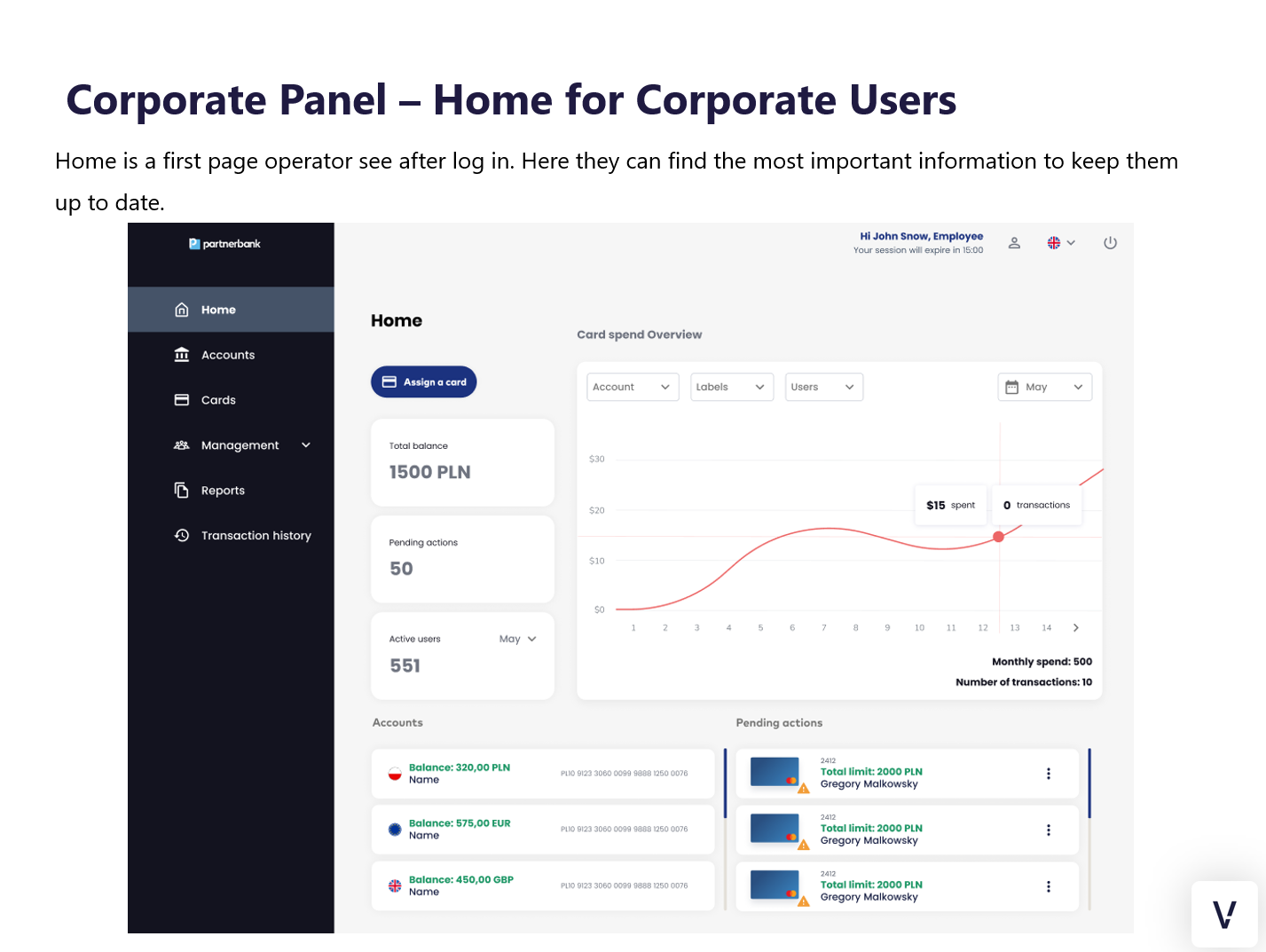
First view that is displayed after logging in is Home view. Operator can see basic information and charts.

Groups view
Once the authentication process is properly completed, the bank employee has access to the panel. He is shown the main screen of the system. Depending on the assigned rights group its appearance may vary. Different roles in the system have different tabs available.
The components that comprise the Business Control product operator portal are:
Sections
This section describes the functionality available to the Corporate Admin role, broken down by specific tabs on the portal.
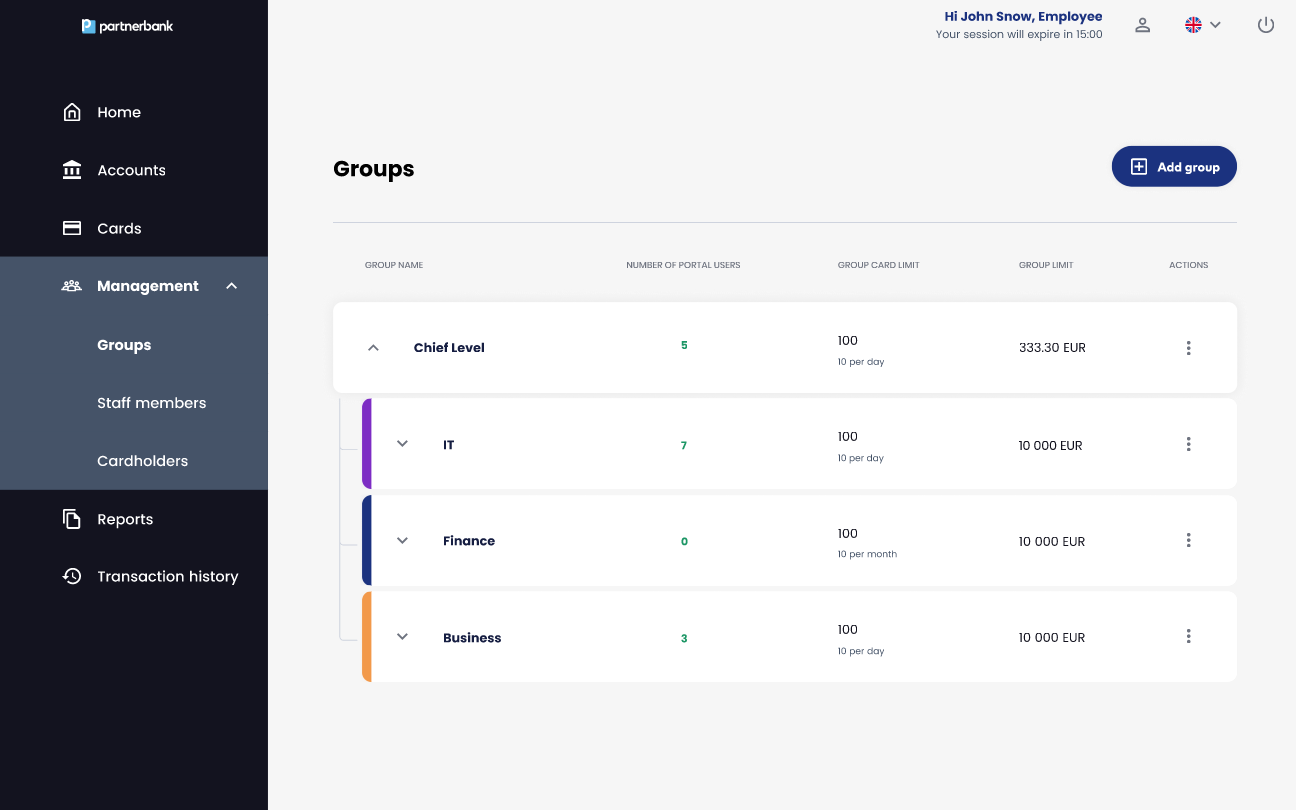
Groups section
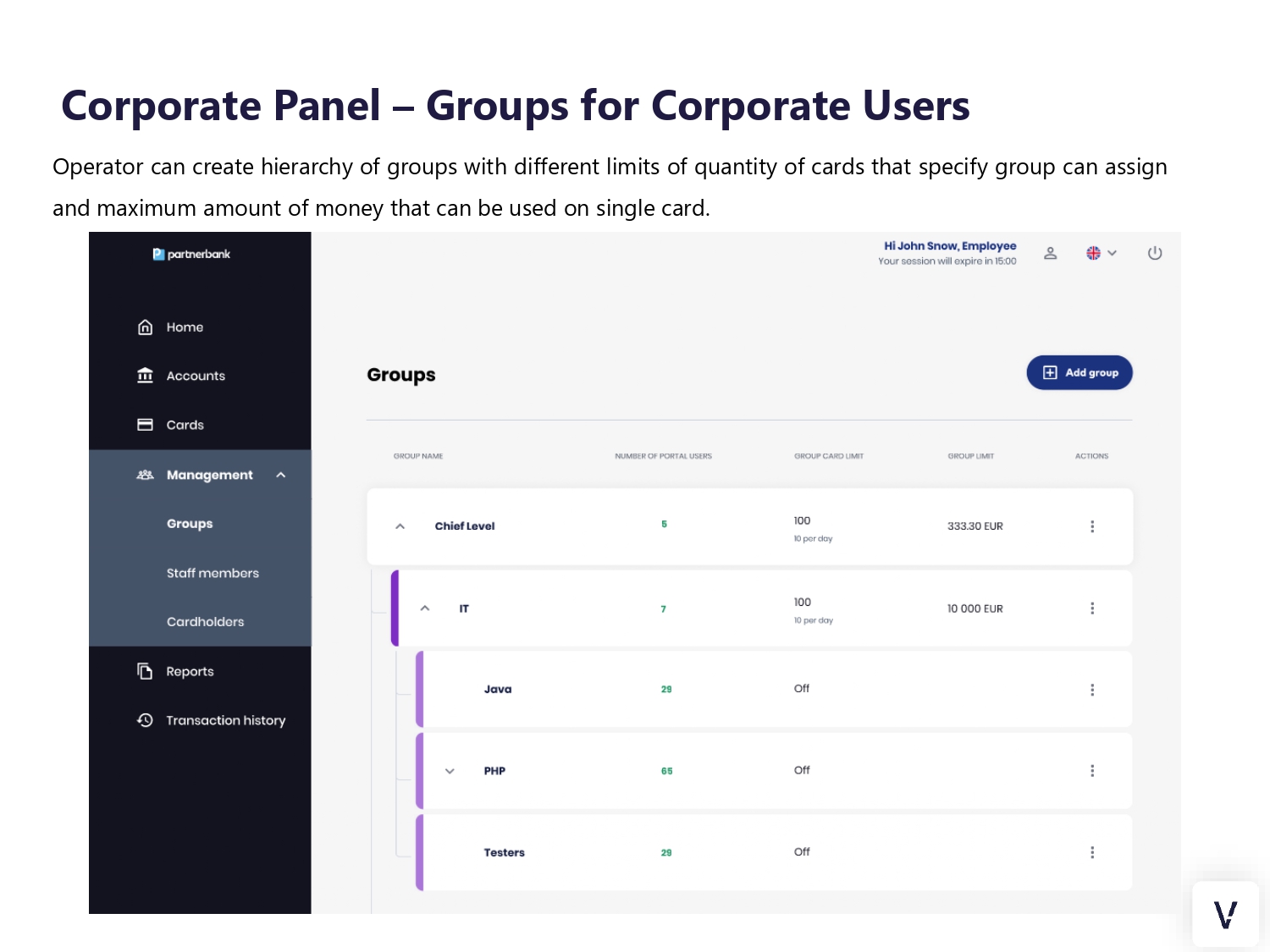
Appears after login as first screen shown to Corporate Admin. Contains tree view of all groups related to current Corporation.
UI Elements:
List includes following information:
|
Parameter |
Description |
|
Group name |
Custom and internal name of Corporation Unit assigned during process of adding Issuer. |
|
Number of portal users |
Number of staff members assigned to a specify group. The number of members in child groups does not add up to the number of members in the parent group. |
|
Card quantity limit |
Number of cards assigned to staff members in a specify group. |
|
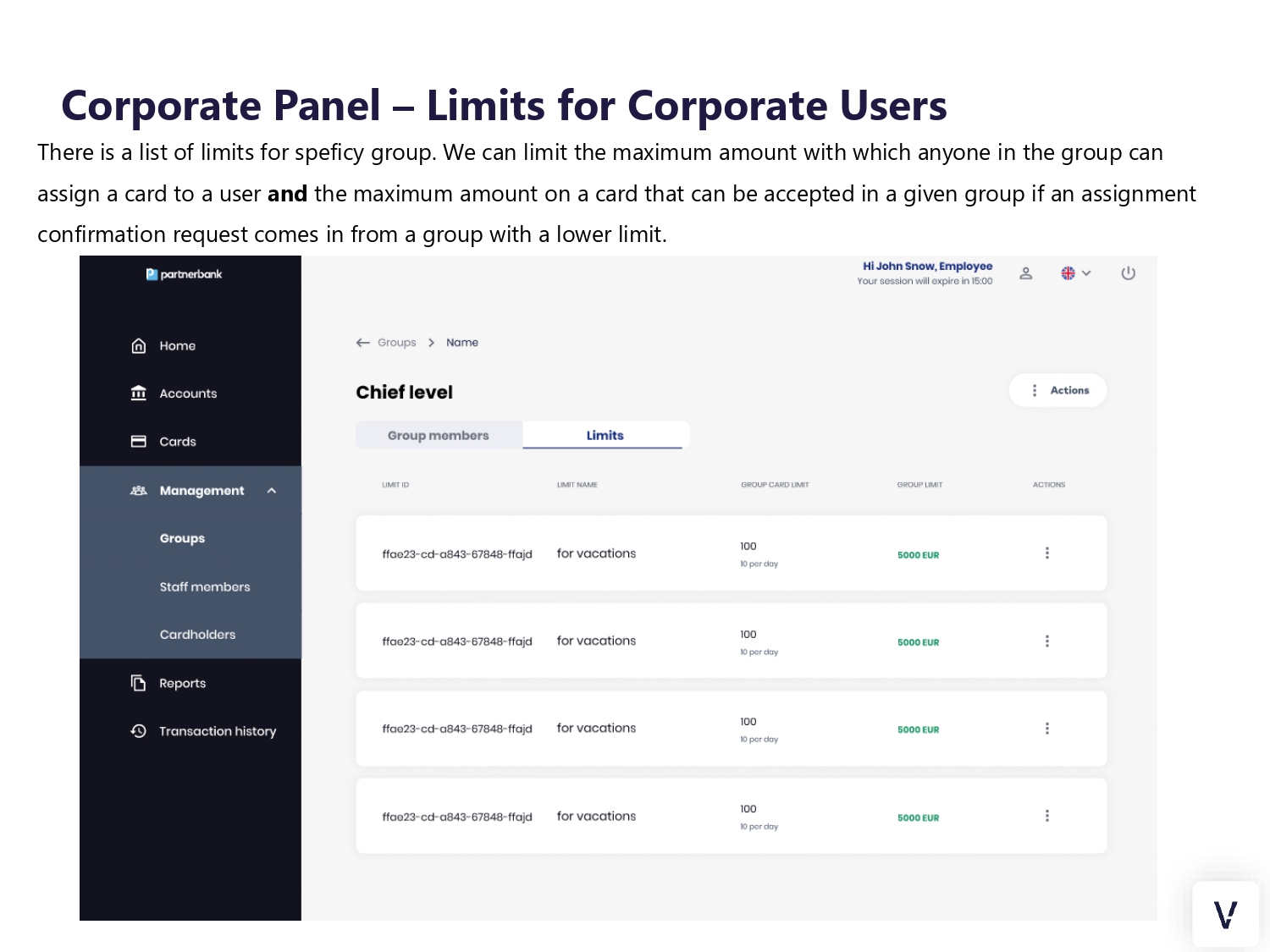
Group limit |
This limit determines the maximum amount with which anyone in the group can assign a card to a user and the maximum amount on a card that can be accepted in a given group if an assignment confirmation request comes in from a group with a lower limit. |
Add group
This page appears after the user selected "Add group" button. The page contains a form for adding a new group in the hierarchy.
UI Elements:
- Field - Name (required),
- Drop-down-list – Pick a group,
- Button – Cancel,
- Button - Save.

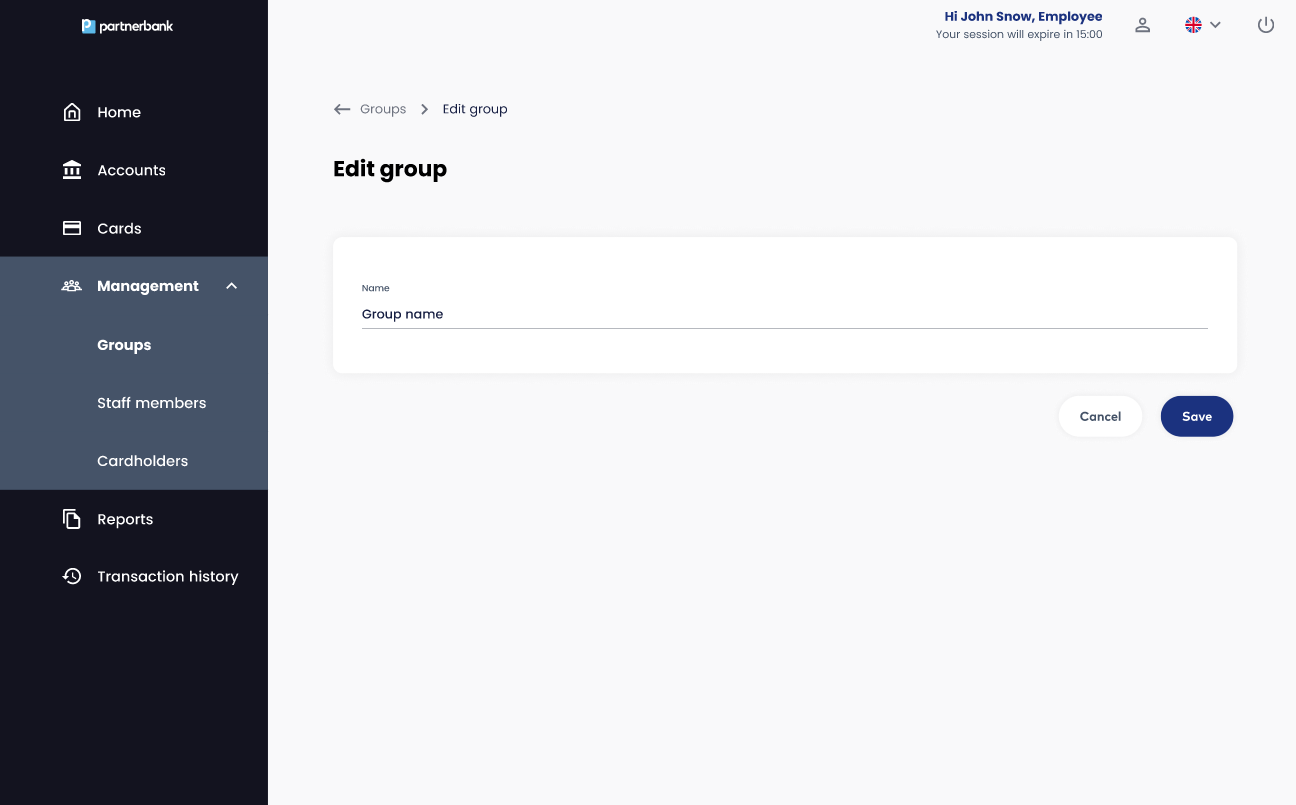
Edit group
The page contains a group edit form.
UI Elements:
- Field - Name (required),
- Button – Cancel,
- Button - Save.
Group details
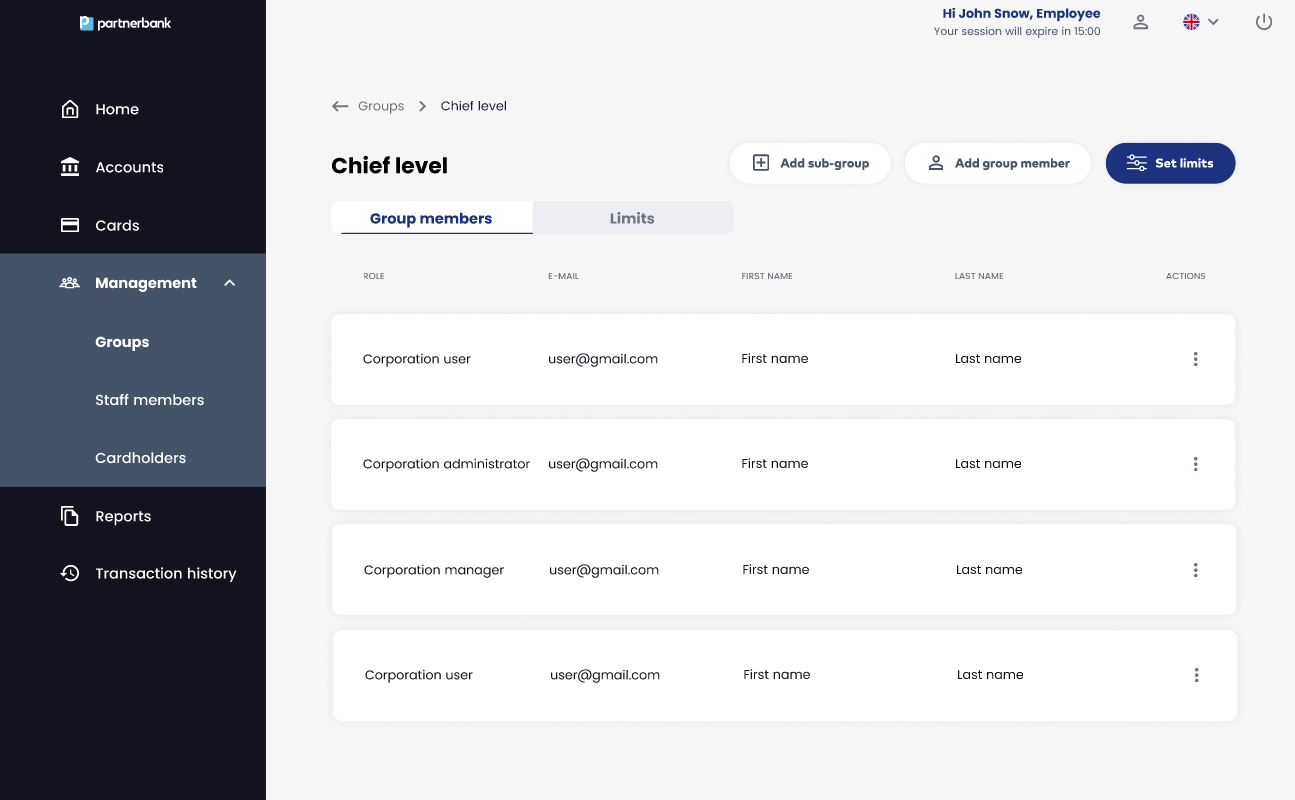
A page containing a list of members and limits related to selected group.
UI Elements:
List includes following information:
|
Parameter |
Description |
|
Role |
Role of administrator (Corporate Admin, Corporate Manager, Corporate User). |
|
|
Email address of Operator – login to the portal. |
|
First name |
First name of Operator. |
|
Last name |
Last name of Operator. |
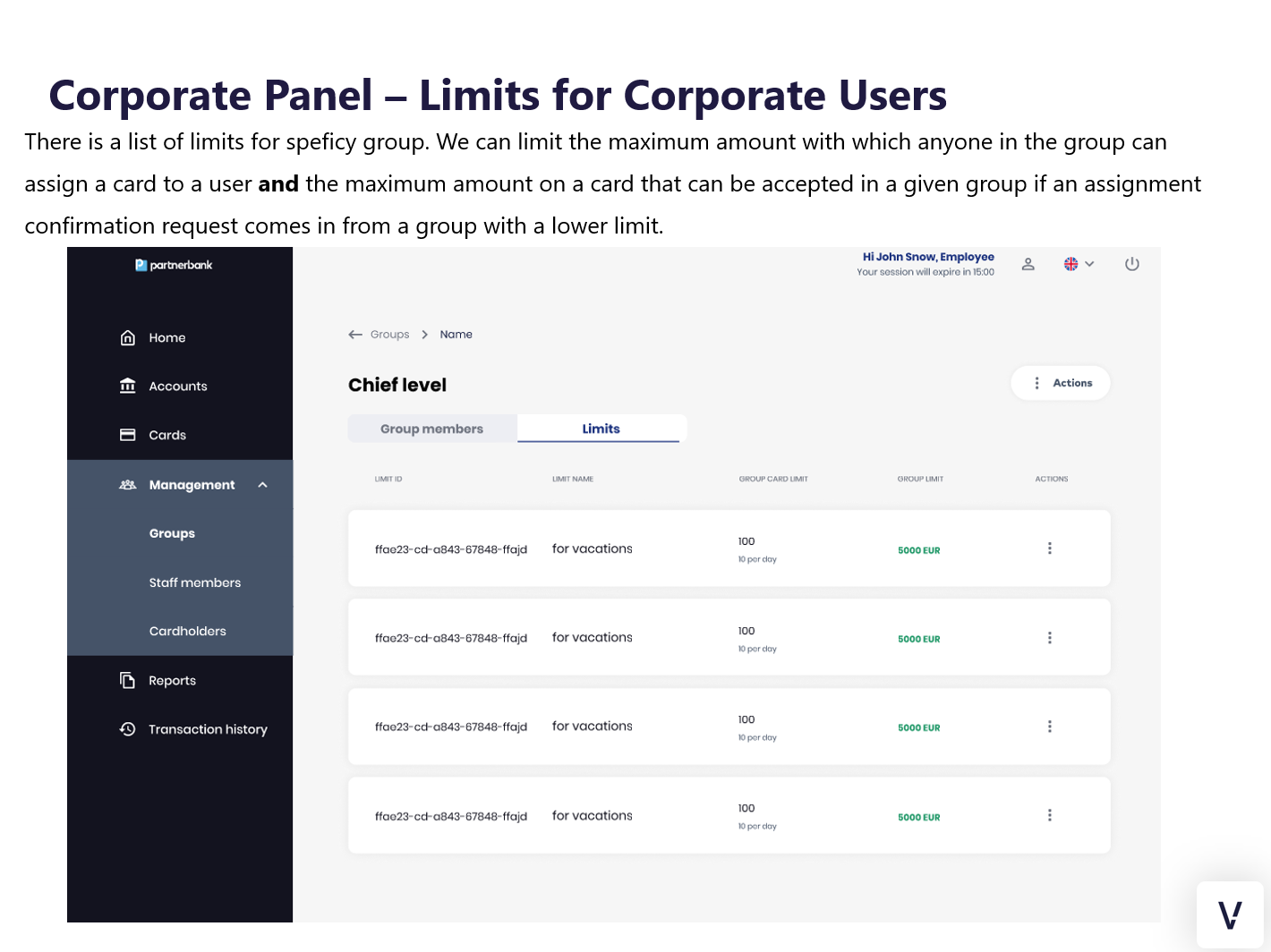
Limits tab
This tab contains the available limits applied on the selected group (i.e. the associated account with the limit of money to spend).
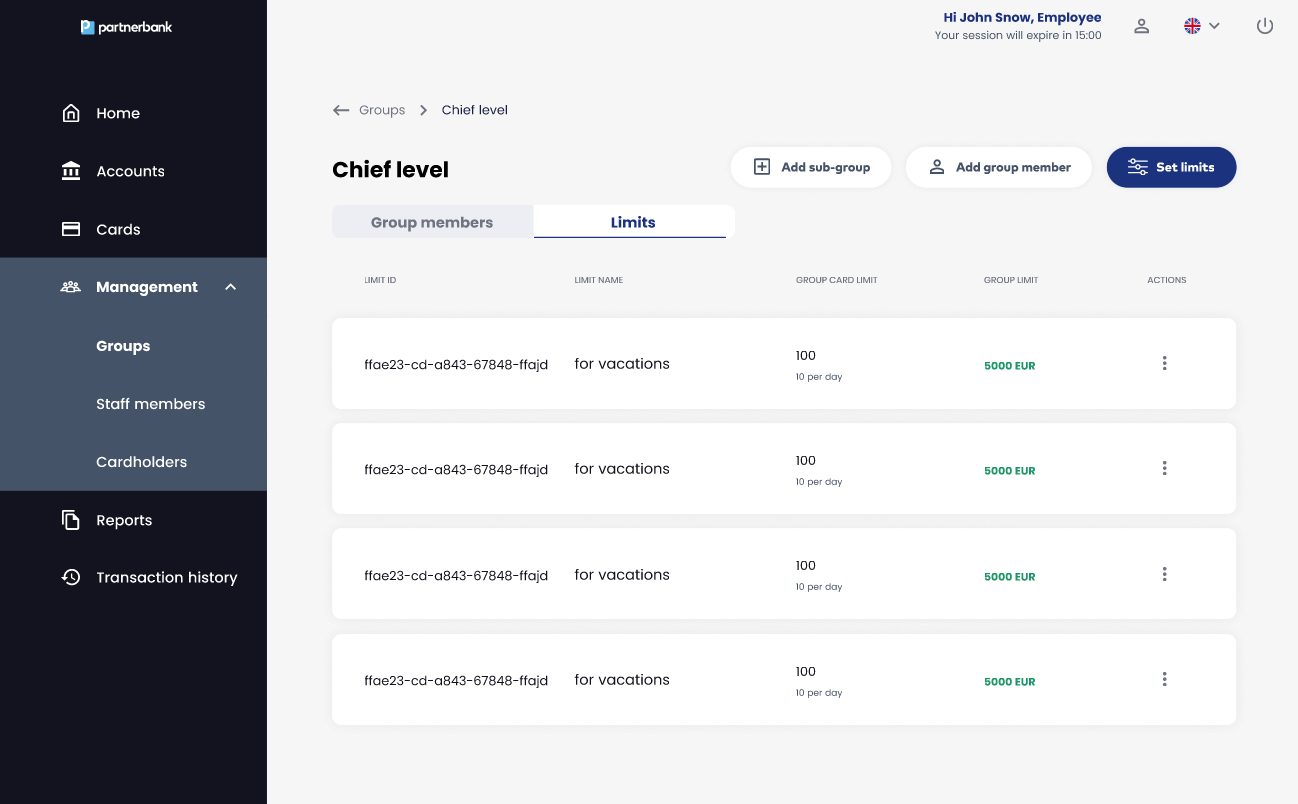
List includes following information:
|
Parameter |
Description |
|
Limit ID |
Internal identificatory of limit in the system. |
|
Limit name |
Name of a limit, e.g. for delegation. |
|
Group card limit |
Limit of a cards that can be assigned in a group. |
|
Group limit |
This limit determines the maximum amount with which anyone in the group can assign a card to a user and the maximum amount on a card that can be accepted in a given group if an assignment confirmation request comes in from a group with a lower limit. |
Actions:
- Add sub-group.
- Add group member.
- Set limit.
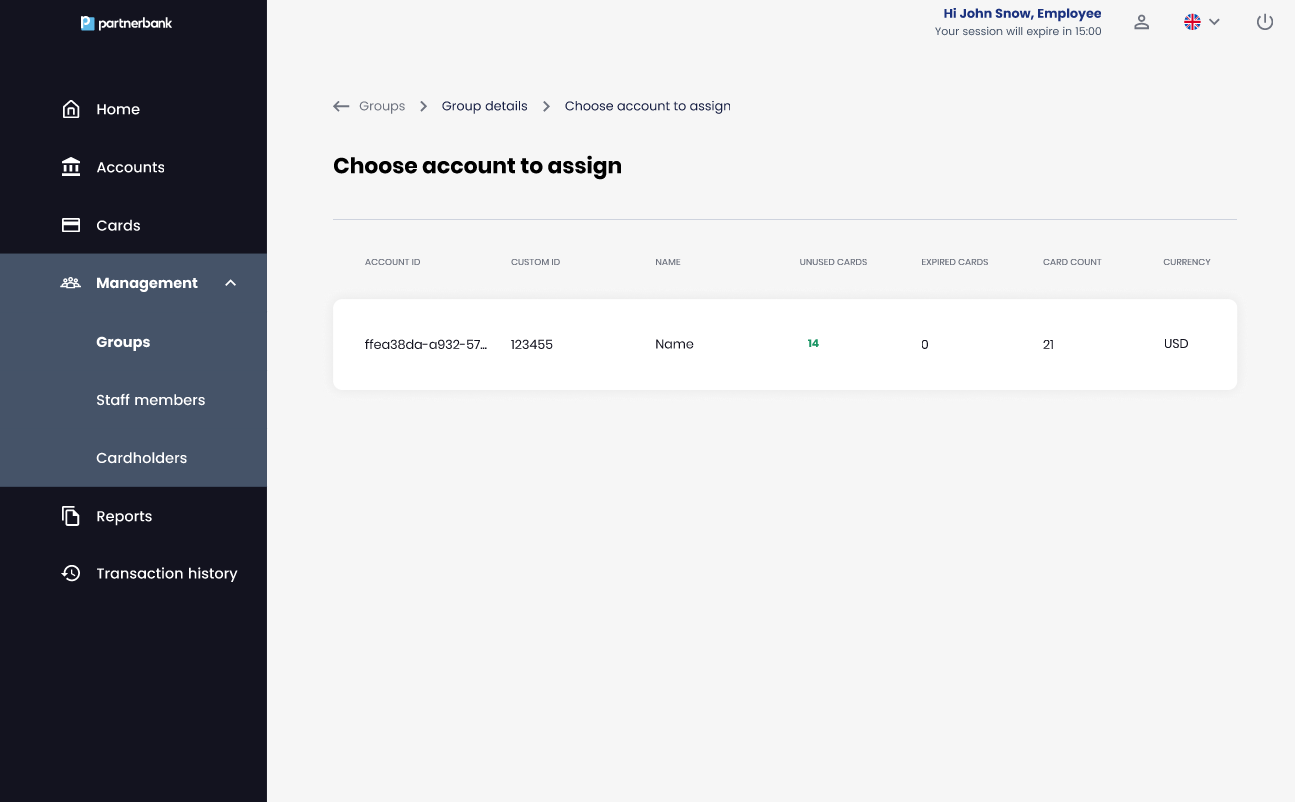
To set limit to the group it After user clicks “Set limits” action they see list of accounts to assign.
Setting limits
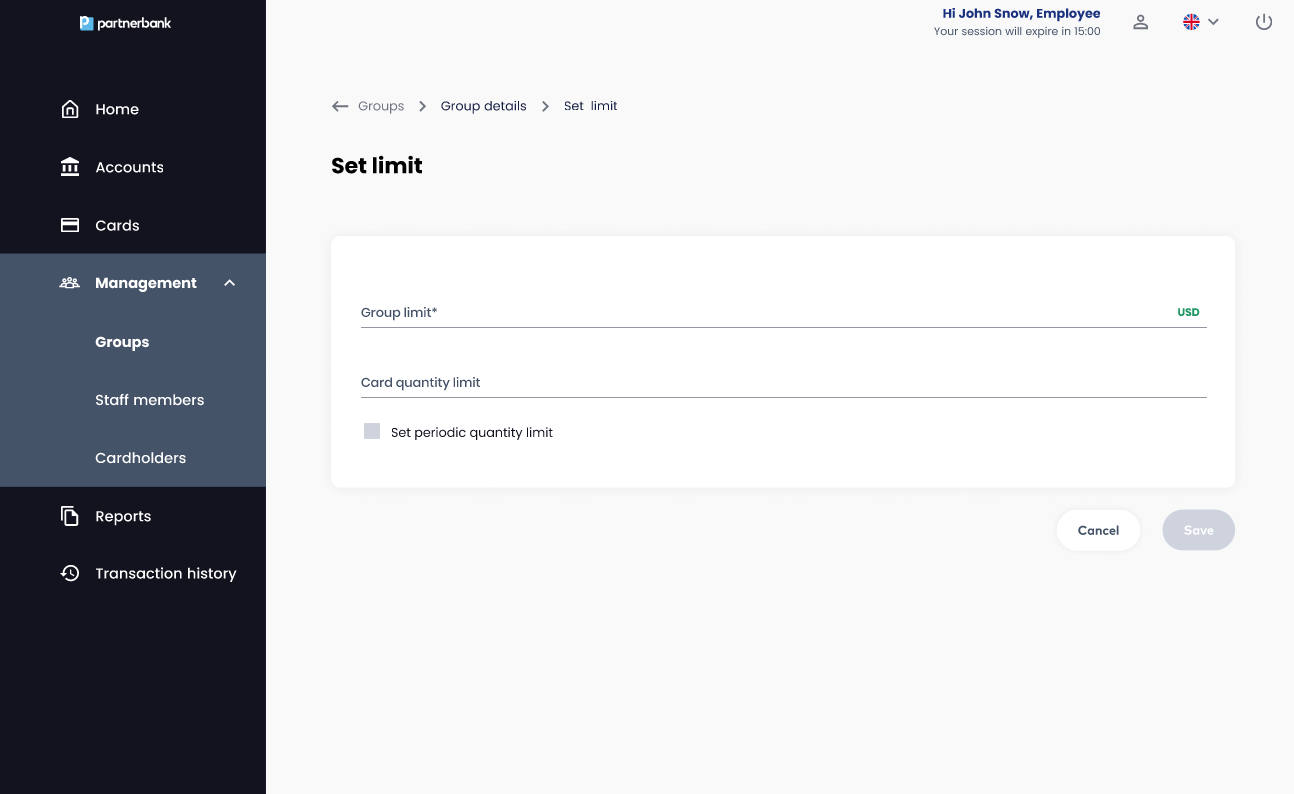
After clicking “Set limit” Operator chooses account he want to use for this group. Then they have to fill Set limit form with information:
- Group limit – amount in the same currency as account.
- Card quantity limit – number of cards that can be assigned in the same time by all group members.
- Set periodic quantity limit – number of cards that can be assigned daily, weekly or monthly.
Cards section
Awaiting cards tab
On this page there is a list of cards that require to take action: accept or reject. The card will be displayed on this list in consequence of one of actions:
- Cardholder request to increase their limit through the mobile application.
- Staff member from lower group assign card with higher limit than their group limit.
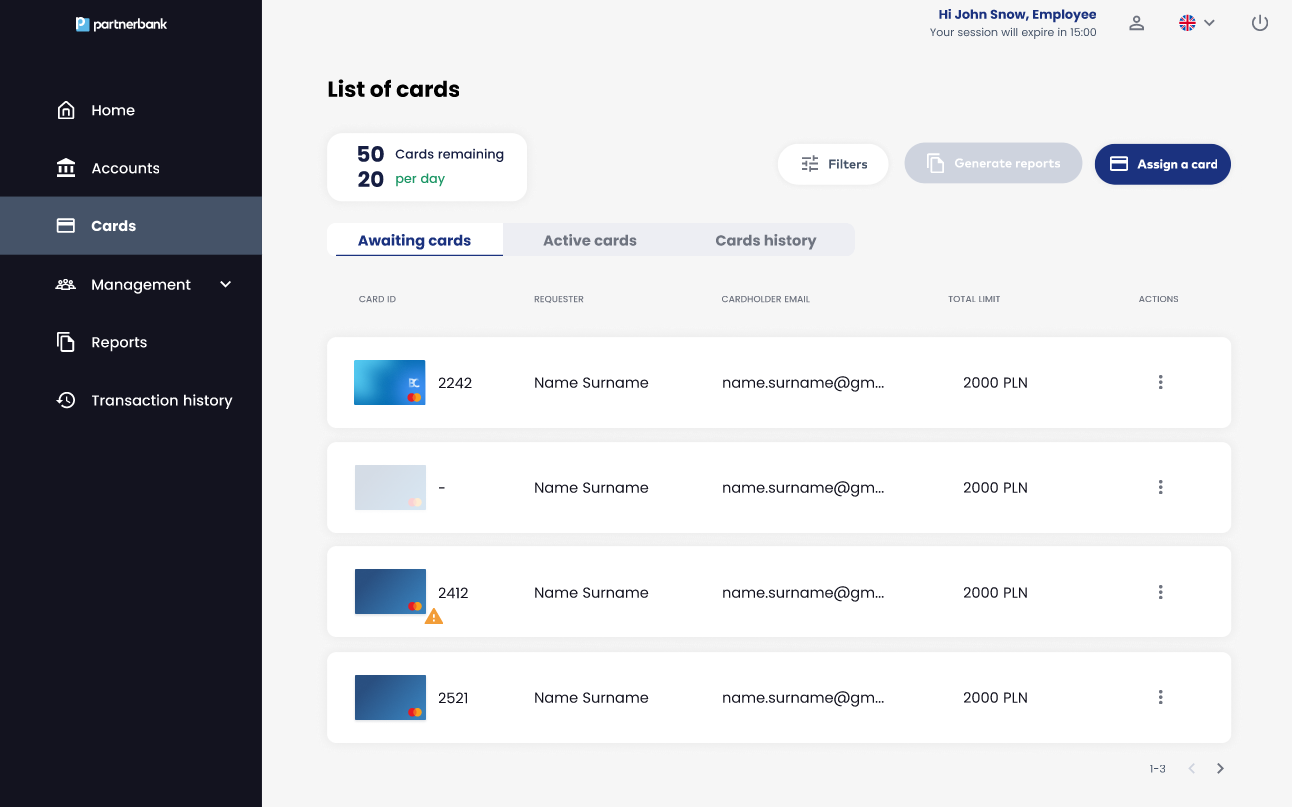
List includes following information:
|
Parameter |
Description |
|
Card ID |
Internal identificatory of a card in the system. |
|
Requester |
First name and last name of cardholder or operator who requested a card or a change of limit. |
|
Cardholder e-mail |
E-mail to which a message about assigning a new card arrives. |
|
Total limit |
This limit determines the maximum amount which a cardholder can spend using a card. |
When the card's validity start date is reached, an exclamation point icon is displayed next to the card's visual.
Active cards tab
On this page there is a list of cards that is currently active. The card will be displayed on this list in consequence of one of actions:
- The card assignment period has started, the card has been generated and the end user has activated the card within the app.
- The card assignment period has started, the card has been generated but the end user has not activated it yet (greyed out card).
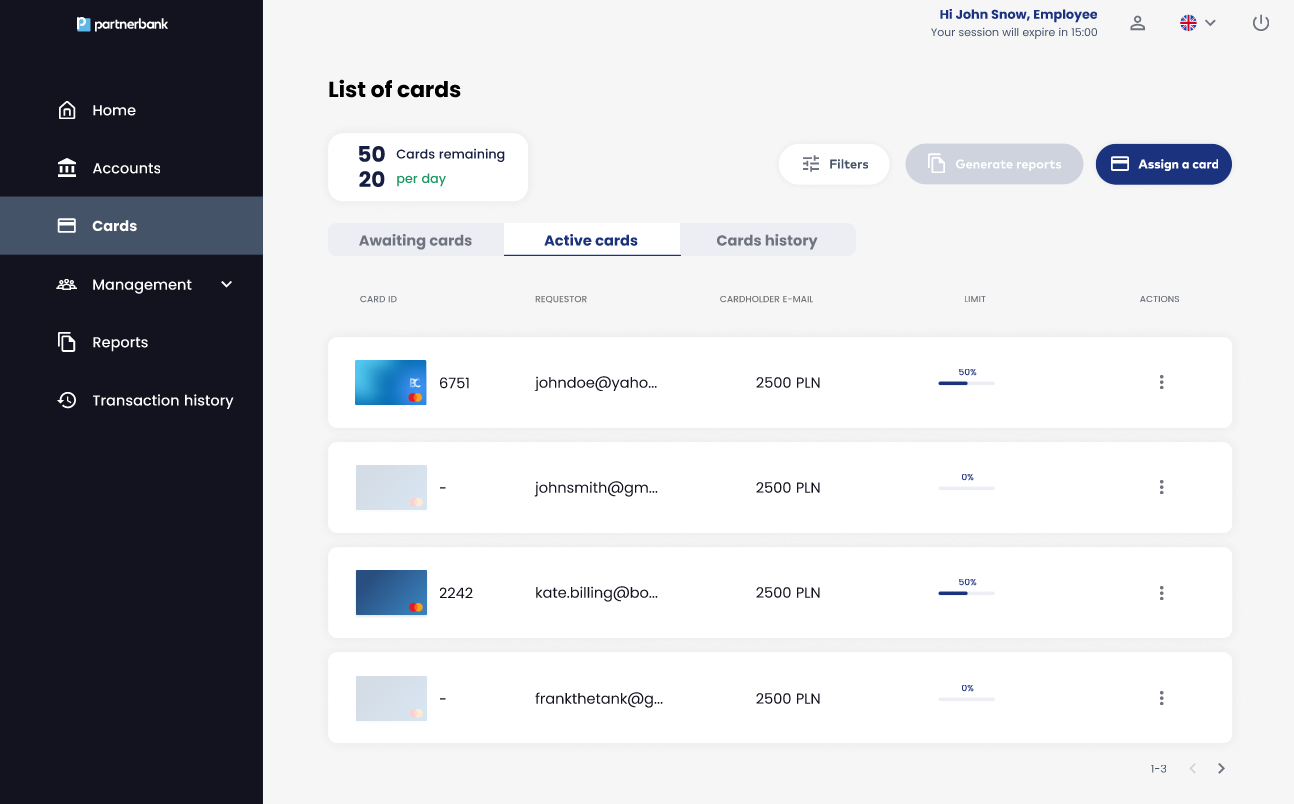
List includes following information:
|
Parameter |
Description |
|
Card ID |
Internal identificator of a card in the system. |
|
Cardholder e-mail |
E-mail to which a message about assigning a new card arrives. |
|
Limit |
This limit determines the maximum amount which a cardholder can spend using a card. |
|
Current spend |
This value shows the relationship between the money spent and the limit on the card. |
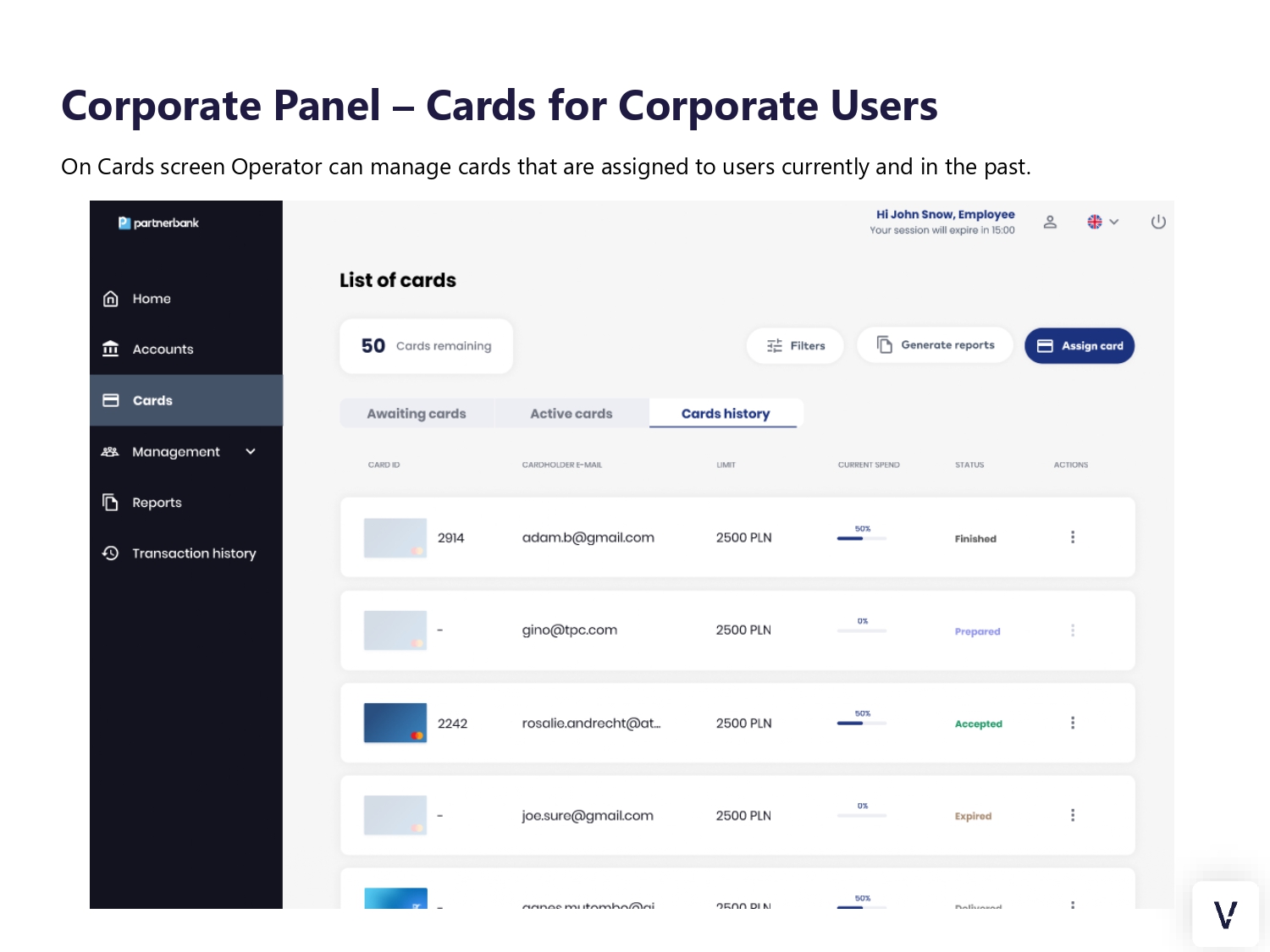
Cards history tab
On this page there is a list of all assignments of cards in the system. The list includes every card assignment, even cancelled, rejected or finished ones.
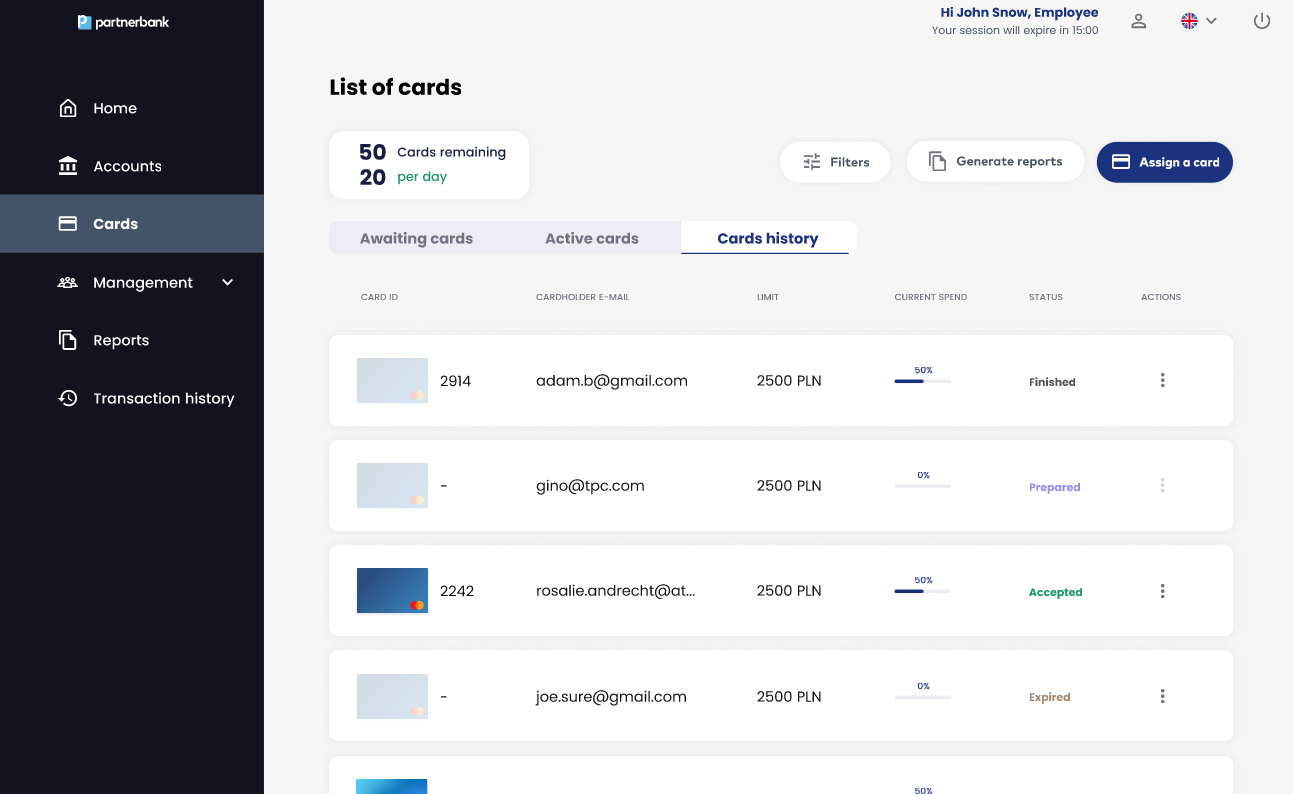
List includes following information:
|
Parameter |
Description |
|
Card ID |
Internal identificatory of a card in the system. |
|
Cardholder e-mail |
E-mail to which a message about assigning a new card arrives. |
|
Limit |
This limit determines the maximum amount which a cardholder can spend using a card. |
|
Current spend |
This value shows the relationship between the money spent and the limit on the card. |
|
Status |
Approval status of a card. |
Card assignment
Clicking on the “Assign card” button takes Operator to Assign card form view. The card assignment form is the most important screen in the system. It allows to enter the data for which a card will be generated and assigned. Currently, only the option to create virtual cards is available.
The form consist of sections:
- Select type of card (virtual or physical).
- Cardholder data - Operator chooses the cardholder for whom the card should be assigned (from the predefined list or using a form). If we choose a cardholder from a predefined list, an assigned card will be displayed in the app right after clicking "Save" on the form. If we choose the "Add new cardholder to the list" option then the cardholder needs to redeem the card on their own by providing codes from e-mail and SMS.
- Card visual - Operator can change the default visual for a card visible in cardholder mobile application. Corporation or Issuer can provide their own visuals so they can be also visible in this section.
- Limits – Defining the account in specific currency related to the card, total amount as available limit for expenses and card assignment period along with timezone.
- Merchant Category Codes allows to define merchant codes for which the card will work or codes that will define a declined transaction.
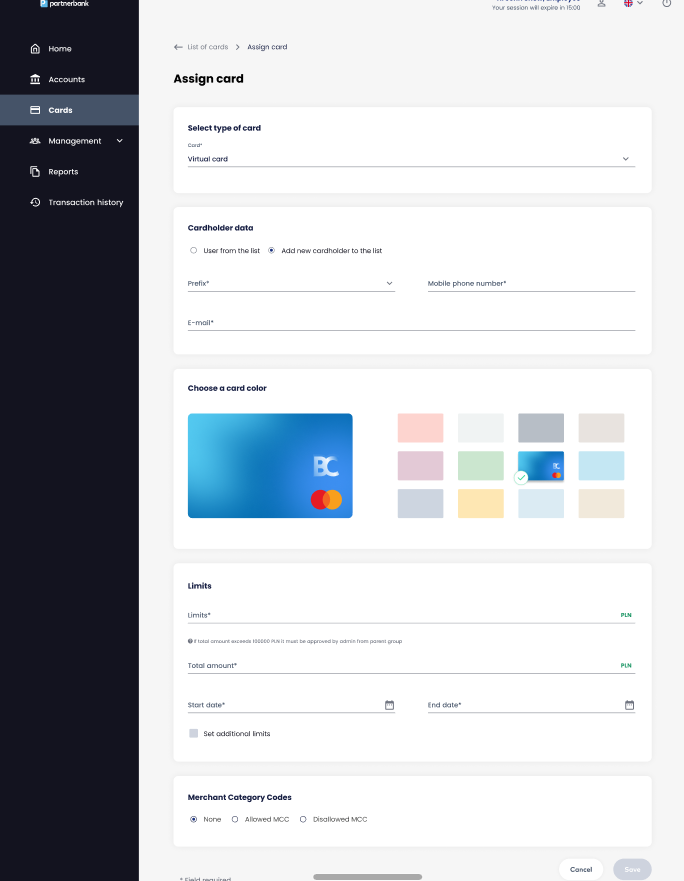
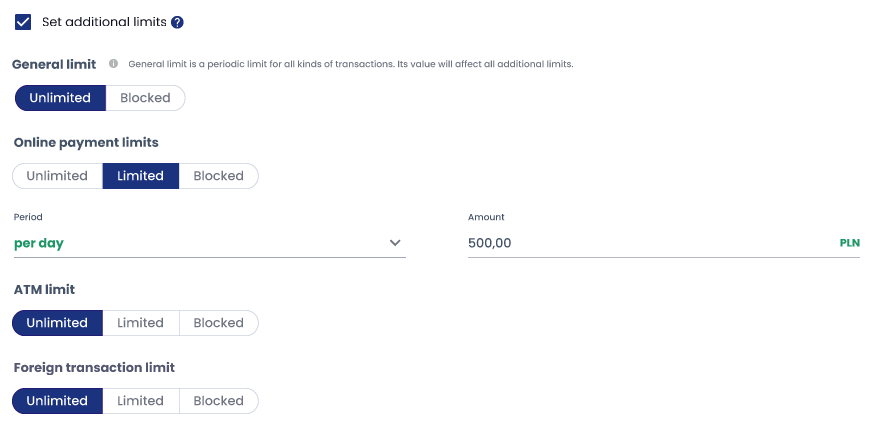
If user marks "Set additional limits" another four fields appear. All of them are in entry value "Unlimited". This means that all kind of transaction are available for this card. If operator chooses "Limited" they need to provide limited amount and period (per day, per week or per month). Periodic value can't be greater than total amount. If operator chooses "Blocked" then chosen type of transactions will be disallowed.
There are four types of additional limits:
1. General limit - periodic limit on all kinds of transactions. This value should be greater than remaining additional limits because it affects them.
2. Online payment limit - periodic limit on e-commerce payments.
3. ATM limit - periodic limit on ATM withdrawals.
4. Foreign transaction limit - periodic limit on transactions in a different currency from account currency.
Card details
After clicking on single row on Awaiting cards, Active cards or Cards history list Operator is directed to Card details screen. On this view there are sections:
- Basic data: Card visual, Last 4 digits, CVC, Expiry date, card ID, Account, Requester name, Cardholder e-mail, Cardholder phone number, Balance, Issue date, Current spend, Status.
- Use of the card – allowed way of paying by the card (available options: push provisioning and e-commerce payments).
- Limit details: Total limit, Start date, End date, Period, Periodic amount.
- History of transactions with filters – table with the same columns as on Transaction history view.

Accounts section
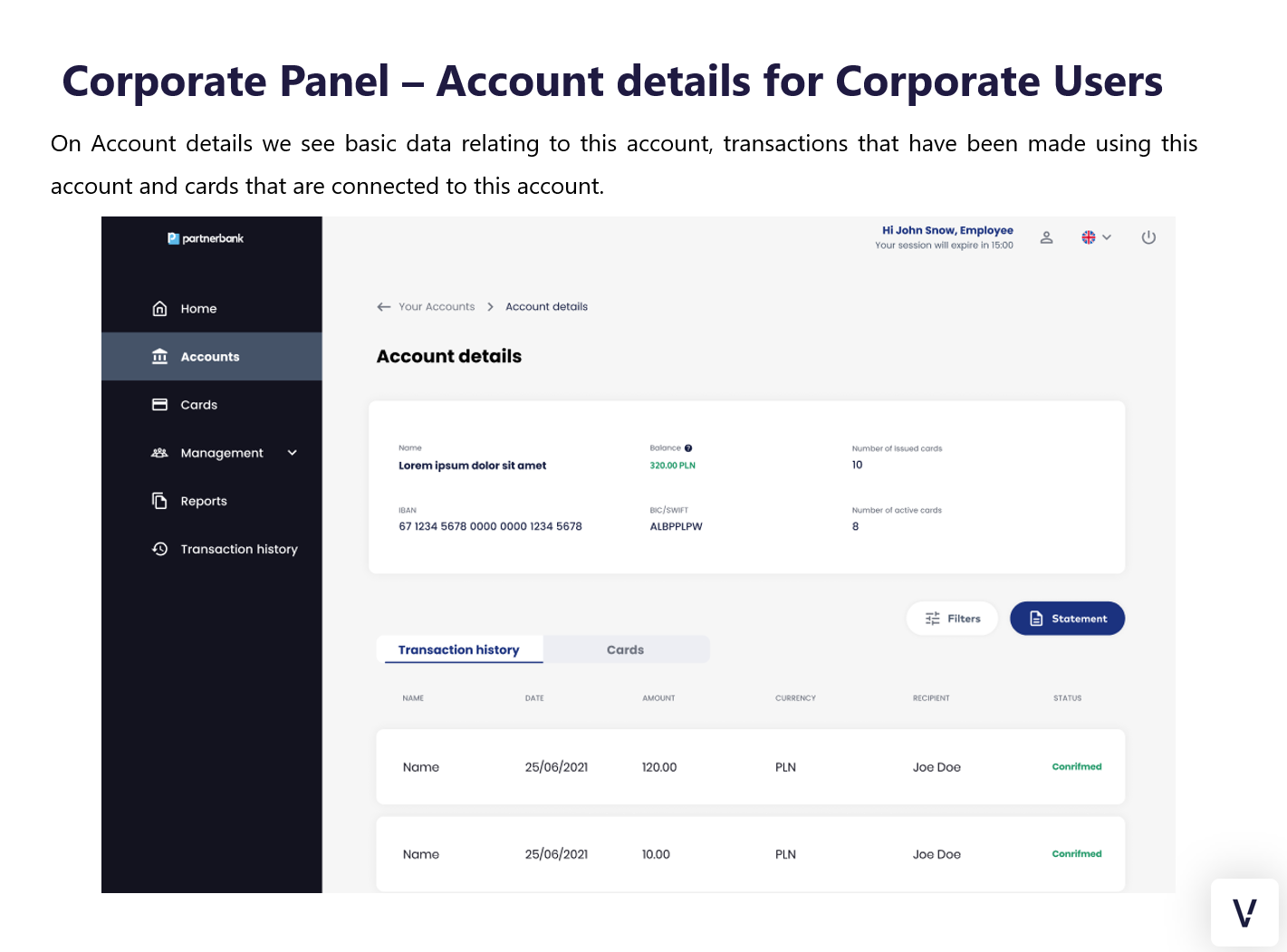
On this view the list of accounts which have been assigned to a corporation is displayed. The example shown contains 3 available accounts for a corporation. Each account can have only 1 currency, which is the currency of the cards generated under that account.
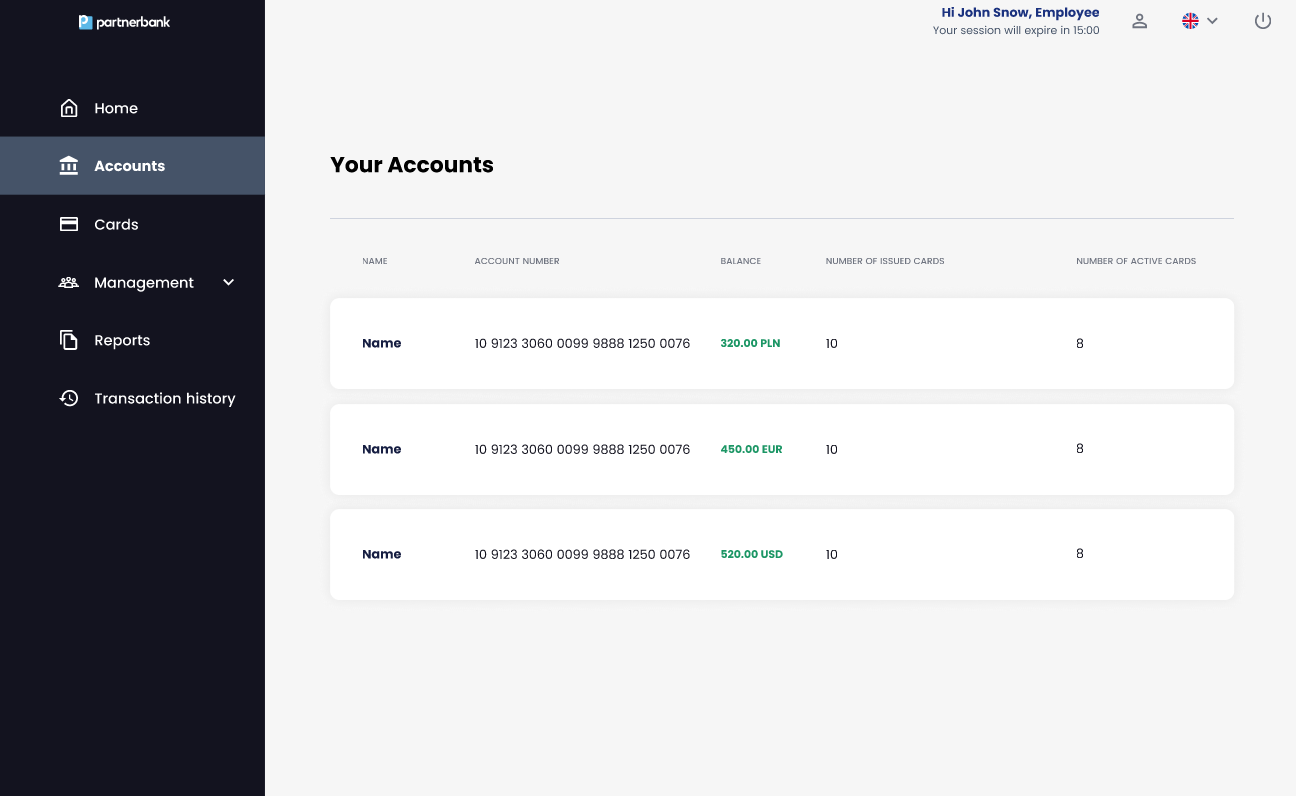
List includes following information:
|
Parameter |
Description |
|
Name |
Name of account. |
|
Account number |
24 digits number of account. |
|
Balance |
Current amount on the account with currency. |
6.3.1 Account details
On this view detailed information of account are displayed.
Below there is a list of:
- Statements for this account:
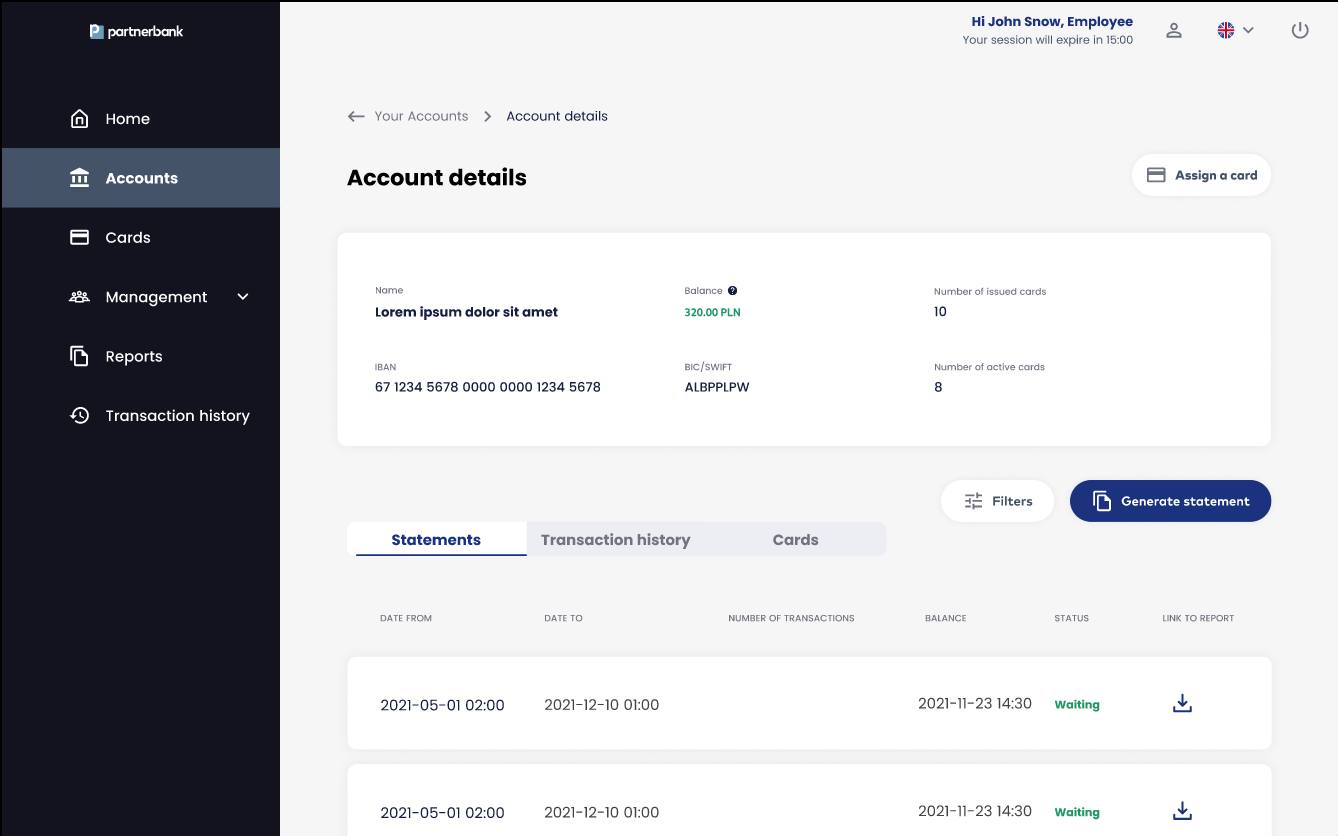
- Transactions made by cards related to the selected account;
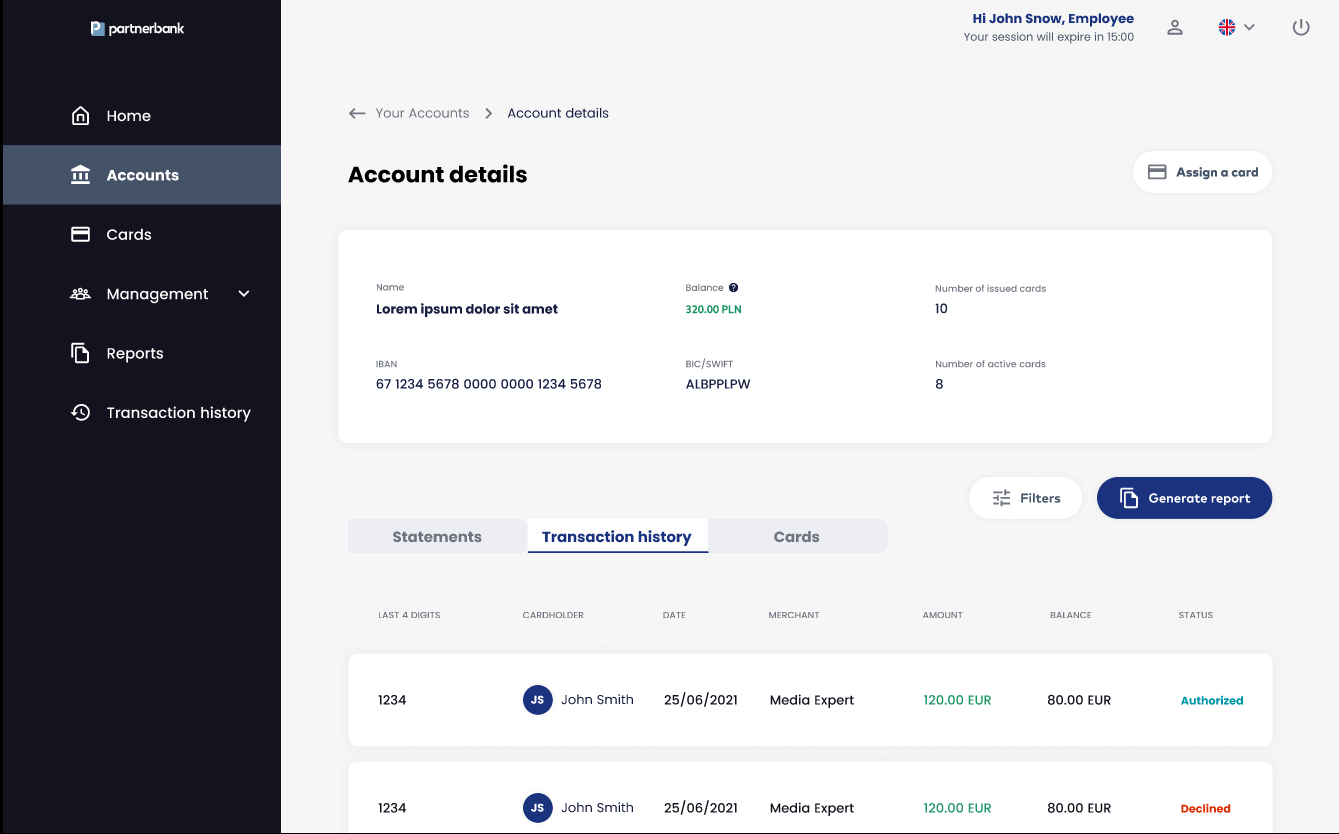
UI elements:
6.4 Staff members section
On this view the list of Corporate Panel Operators is displayed.
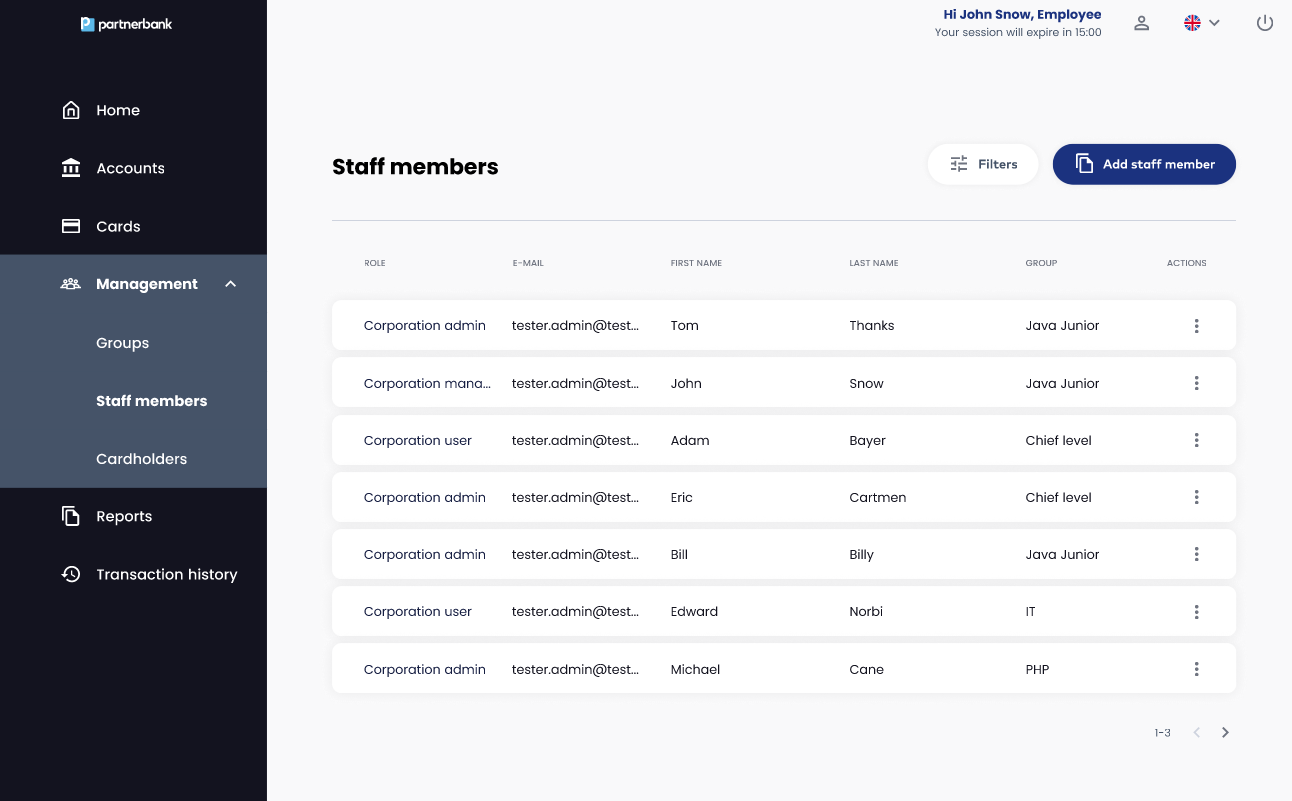
UI elements:
List includes following information:.
|
Parameter |
Description |
|
Role |
Role of a Operator (Corporate administrator, Corporate manager, Corporate user). |
|
|
E-mail that Operator use to login to Corporate Panel. |
|
First name |
First name of Operator. |
|
Last name |
Last name of Operator. |
|
Group |
Group to which Operator belongs. |
6.4.1. Add staff member form
Clicking on the “Add staff member” button takes Operator to Add staff member form view. The form consist of fields:
- First name (required),
- Last name (required),
- E-mail (required),
- Role (required) – select from drop-down list: Corporation administrator, Corporation manager, Corporation user,
- Group (required) – select from drop-down list of group tree.
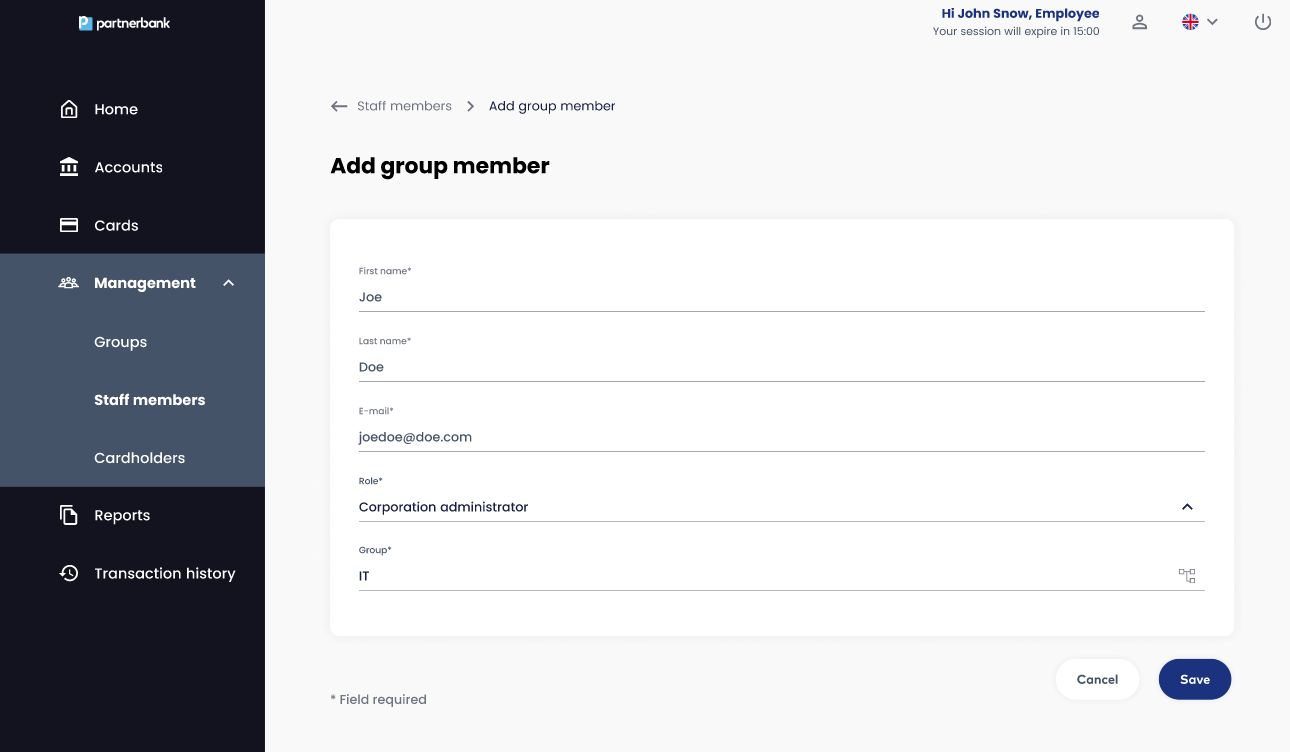
After clicking “Save” button the invitation e-mail is sent to the invited person.
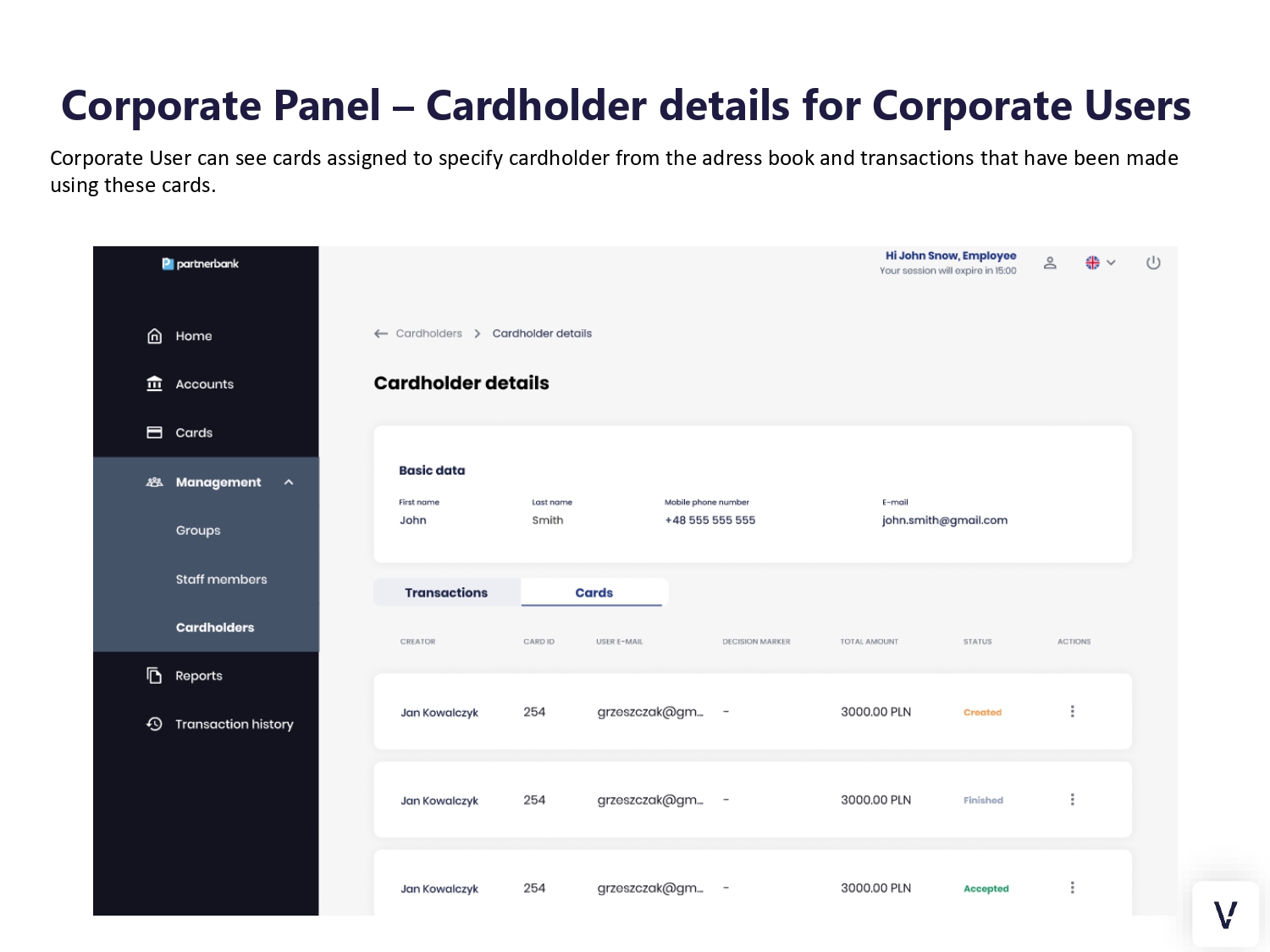
6.5. Cardholders section
On this view there is a list of people who redeemed at least one card. This functionality was created to be able to check what transactions have been made by exact cardholder and cards that are assigned to them.
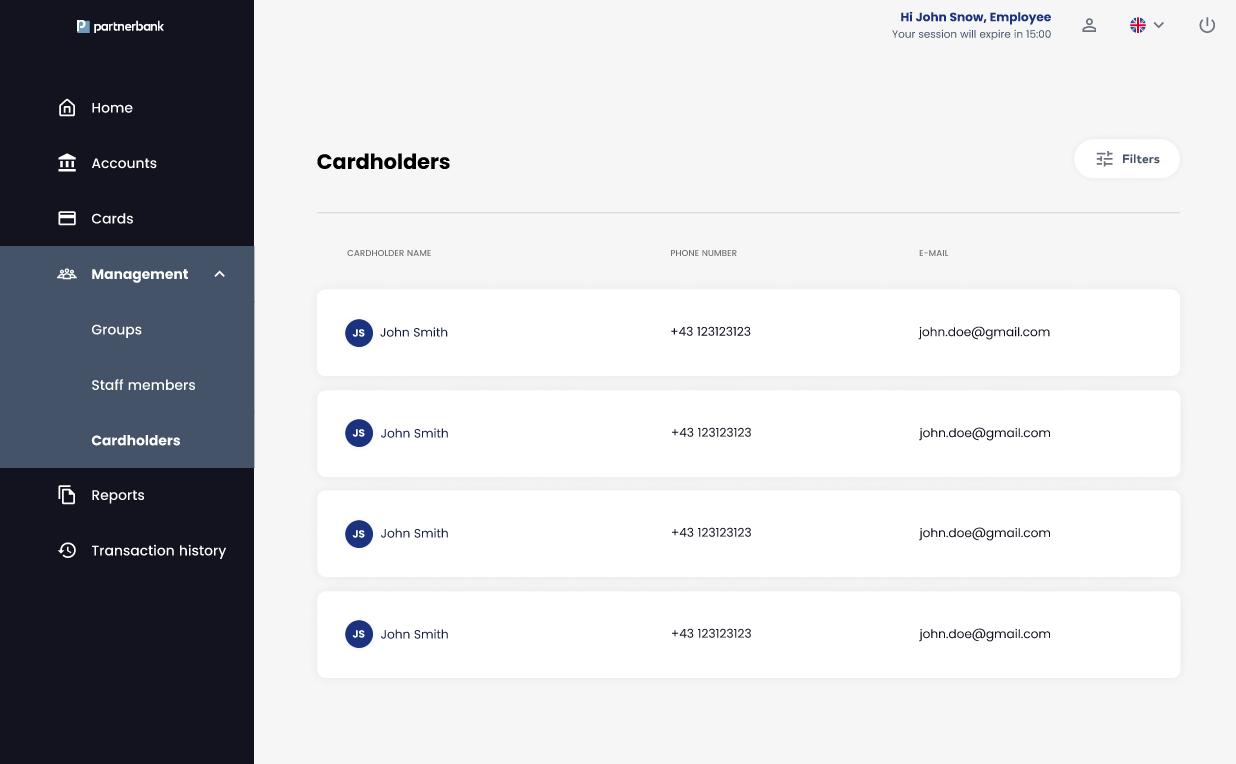
List includes following information:
|
Parameter |
Description |
|
First name |
First name of Cardholder (end-user). |
|
Last name |
Last name of Cardholder (end-user). |
|
Phone number |
Phone number of Cardholder (end-user). |
|
|
E-mail that Cardholder use to login to mobile application. |
6.5.1 Cardholder details
On cardholder details view information about enduser are displayed. Section “Basic data” contains information from Add new cardholder form:
- First name,
- Last name,
- Phone number,
- E-mail.
Below there is a list with two tabs:
- Transaction history – list of transactions made by that cardholder (enduser) using all their cards,
- Cards – list of cards assigned to that cardholder (enduser).
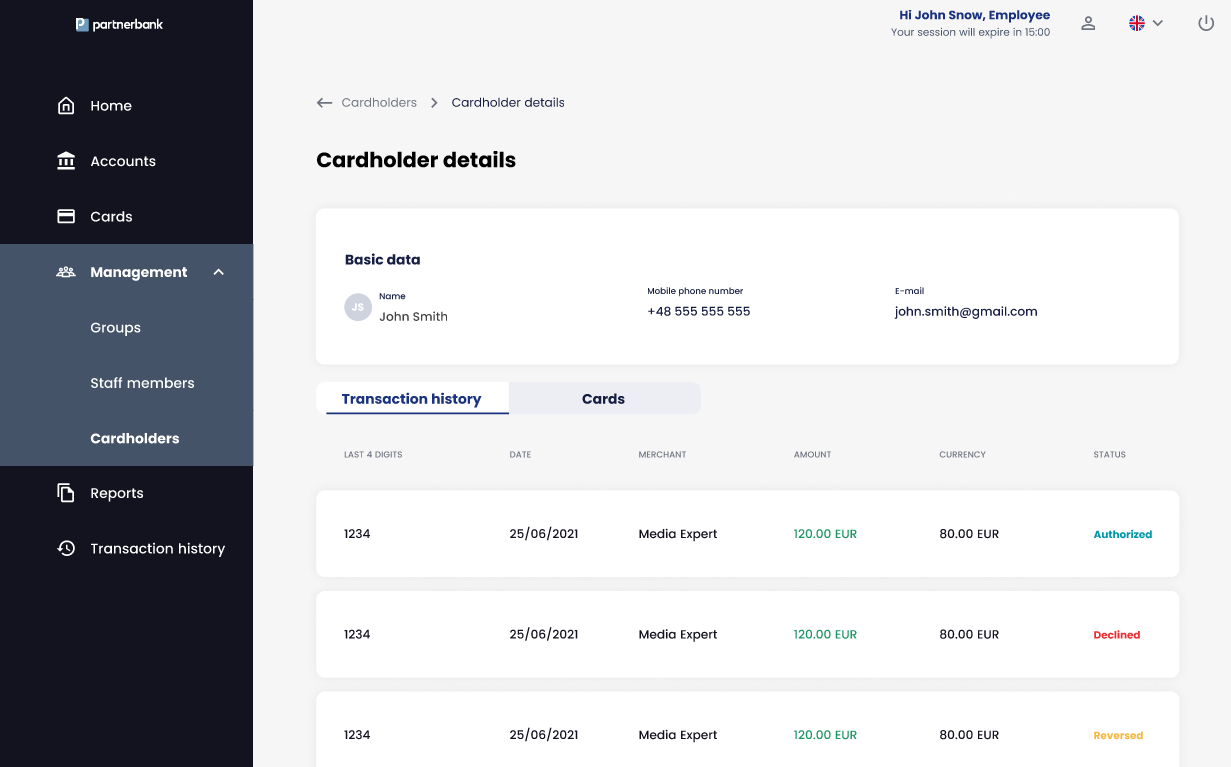
6.6 Reports section
Reports section contains files generated in the Corporate Panel and files added by Operators. File can be downloaded by clicking Download icon in every row. There are three tabs:
- Transaction history – a list of zip files that contain folders with .csv file with list of transactions and pictures of receipts added in mobile application,
- Card history – a list of csv files that contain reports from Card history view.
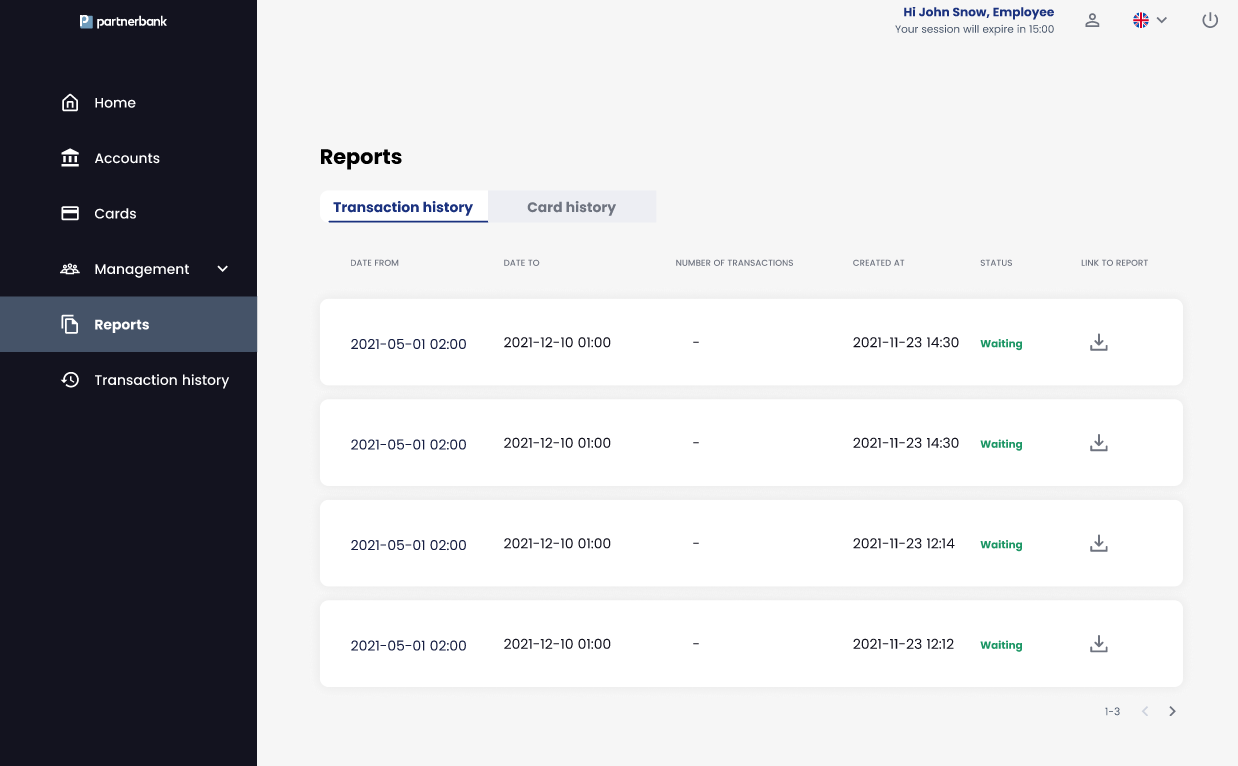
6.7. Transaction history section
This section contains list of transactions made by endusers.
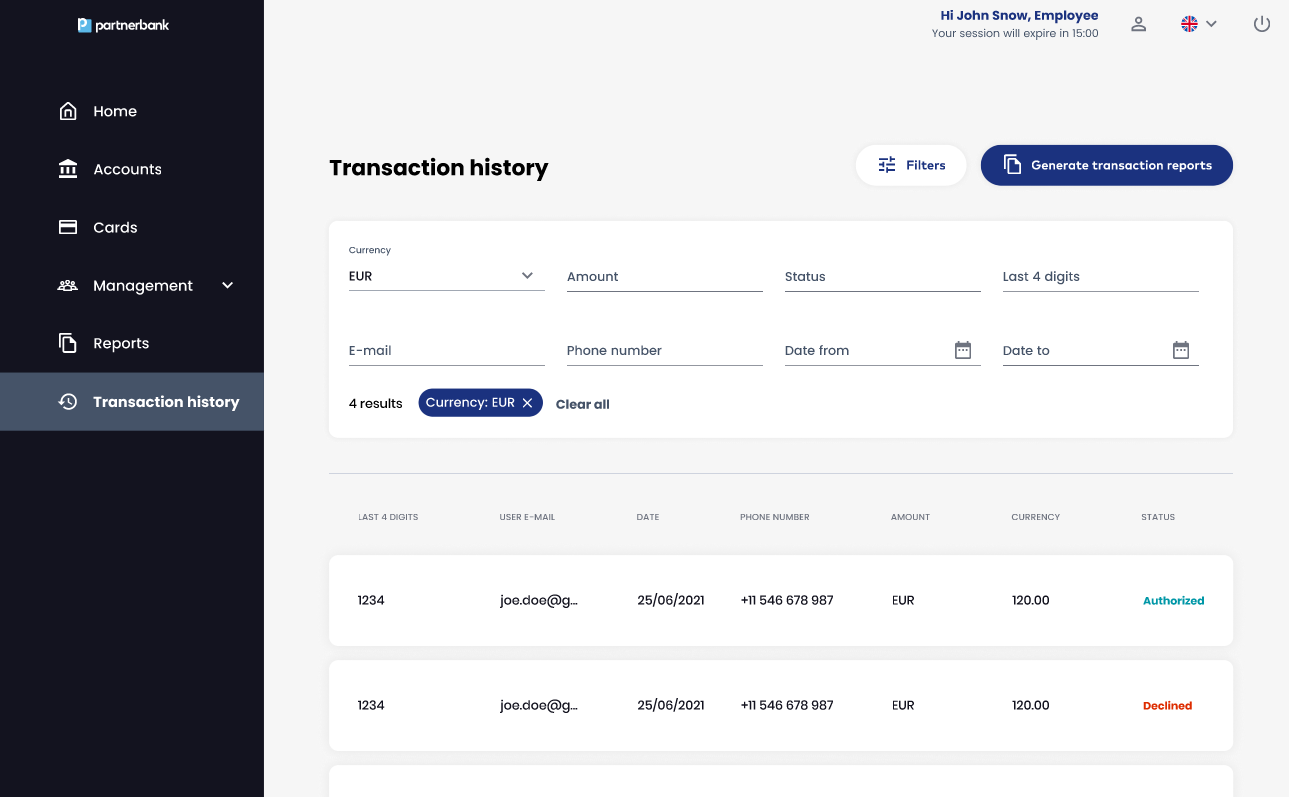
UI elements:
- Every row – to move to detailed view of a transaction,
- Button - Generate transaction history report.
List includes following information:
|
Parameter |
Description |
|
Last 4 digits |
Last 4 digits of a card. |
|
User e-mail |
E-mail of cardholder (enduser). |
|
Date |
Date of transactions. |
|
Phone number |
Phone number of cardholder (enduser). |
|
Amount |
Transaction amount with currency. |
|
Status |
Status of transaction. |
6.7.1 Transaction details
The transaction details section contains a set of information about a specific transaction such as:
|
Parameter |
Description |
|
Transaction ID |
Internal identifier of the transaction (Verestro ID). |
|
Token ID |
Token identifier used during the transaction. |
|
Card ID |
Card identifier. |
|
Created at |
Date of transactions. |
|
Phone number |
Phone number of cardholder (enduser). |
|
Amount |
Transaction amount with currency. |
|
Currency |
Currency od the transaction. |
|
Status |
Status of transaction. |
|
ExternalID |
External identifier of the transaction. |
|
Transaction channel |
Defines the channel used to perform transaction. |
|
Merchant name |
Name of merchant receiving the payment. |
|
Type |
Type of the transaction. |
|
Customer ID |
Internal identifier of the cardholder (enduser). |
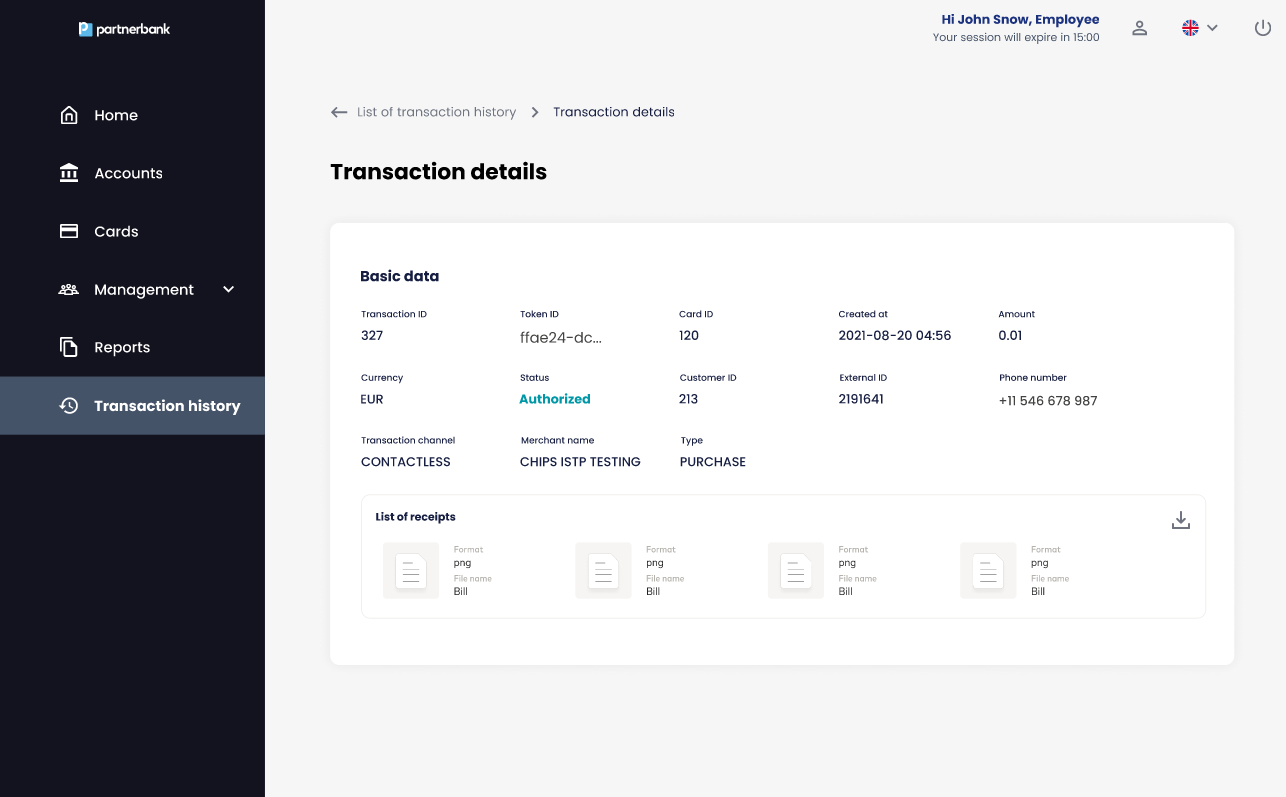
In list of receipts section there are pictures that end-user upload in mobile application.
Use cases
Below is a chart presenting group hierarchy to describe use cases on real structure.

Group limits
First account is created for the corporation during the process of adding the corporation. Second one can be added by the Issuer Admin. To be able to assign cards there must be a limit set to the highest group.
- Issuer Admin creates account A for corporation.
- Corporate Admin from Chief level group add limit for account A for Chief level group. Now only Corporate Admins from the Chief level group see this account.
- Corporate Admin from Chief level group add limit for account A for Java group. Now Corporate Admins from group Java can see account A on Accounts list and can assign cards using this account.
Accept/Reject card
Use case 1: Group limit of PO: 100$.
- Operator A from the group HR assigns a card with a total limit 100$. Card is created with a status Accepted. Actions available for this card for operators from PO group are: Edit, Cancel. Card is visible only on the Cards history tab.
- Cardholder received an email notification with a card to redeem.
Use case 2: Group limit for HR: 100$ Group limit for Business: 200$.
- Operator A from the group HR assigns a card with a total limit 150$. Card is created with a status CREATED. Actions available for this card for operators from PO group are: Edit, Cancel. Card is visible only on the Cards history tab.
- Operator B from the group Business sees A’s card on the Awaiting cards and Cards history tab. Option available for this card for B are: Accept, Reject.
- Operator B decides:
a. Accept - card changes its status to ACCEPTED and the cardholder receives an e-mail with a card to redeem.
b. Reject - card changes its status to REJECTED. No actions are available for this card. Operator A receives an e-mail notification about rejection.
Request changes as cardholder
Use case 1: Corporate admin from group A with group limit 100$ have assigned the card for the cardholder and requested change of limit is below 100$.
- Cardholder chooses the “Request changes” button in the mobile app and fills the form.
- All corporate admins from group A see a new request on the Awaiting cards tab on Cards list. He wants to change the limit from 50$ to 90$.
- Until there is no decision we see 2 states of this card on Cards list - the active one is in DELIVERED status and requested one is in CREATED status.
- Corporate admin decides:
a. Accept - card changes its status from CREATED to DELIVERED and card with previous limits changes its status to REAPPROVED. Only one card is seen on Cards history list.
b. Reject - card changes its status from CREATED to REJECTED and card with previous limits stays with status DELIVERED. Both cards can be seen on Cards history list.
Use case 2: Corporate admin from group HR with group limit 100$ have assigned the card for the cardholder and requested change of limit is above 100$. Limit of group above (Business) is 200$.
- Cardholder chooses the “Request changes” button in the mobile app and fills the form.
- All corporate admins from group HR see a new request on the Awaiting cards tab on Cards list. He wants to change the limit from 50$ to 150$.
- Until there is no decision we see 2 states of this card on Cards list - the active one is in DELIVERED status and requested one is in CREATED status.
- Corporate admin decides:
a. Accept - card stays with a status CREATED but disappears from the Awaiting cards tab for all users from the HR group. Request goes to the group above Business. Corporate admin from Business group decides:
i. Accept - card changes its status from CREATED to DELIVERED and card with previous limits changes its status to REAPPROVED. Only one card is seen on Cards history list.
ii. Reject - card changes its status from CREATED to REJECTED and card with previous limits stays with status DELIVERED. Both cards can be seen on Cards history list.
b. Reject - card changes its status from CREATED to REJECTED and card with previous limits stays with status DELIVERED. Both cards can be seen on Cards history list.
Redeem card
Use case 1: Start date of a card is actual date.
- Cardholder receives an email with code to redeem card in mobile application. If they do not have an account, they receive an invitation email first.
- Cardholder fills 6 digits code for redeeming card.
- In the next step the cardholder receives confirmation code on the phone number that Operator has put in the Assign card form. Cardholder fills this code in a mobile application.
- Card is redeemed and ready to use. In the Corporate panel card changes its status to DELIVERED.
Use case 2: Start date of a card is in the future.
- Cardholder receives an email with code to redeem card in mobile application. If they do not have an account, they receive an invitation email first.
- Cardholder fills 6 digits code for redeeming card before the start date of a card.
- In the next step the cardholder receives confirmation code on the phone number that Operator has put in the Assign card form. Cardholder fills this code in a mobile application.
- Card is redeemed but the cardholder can’t use it yet. In the Corporate panel card changes its status to PREPARED.
- When the actual date meets the start date of a card, the cardholder can use a card. Then it changes its status to DELIVERED.
In both cases cards can be used until the end date of a card or until Corporate Admin unassign a card from the cardholder. Then the card changes its status to FINISHED.
Reassign card
Reassign card option can be used to assign a card for the same cardholder one more time.
- Card changes its status to FINISHED.
- Corporate admin chooses option “Reassign card” on card details or cards list.
- Reassign card is displayed with already filled fields: Cardholder e-mail, cardholder phone number, account, total amount, periodic limit. All fields apart from cardholder e-mail and cardholder phone number can be changed.
- After adjusting data, the Corporate Admin saves form.
- Cardholder receives an email with code to redeem card in mobile application.
How to integrate with BC API as corporation
Onboarding
Essential steps before calling BC API:
1. This API requires Mutual TLS authentication. You can use the same certificate for all mTLS-secured APIs exposed by Verestro. If you don't have one, follow this instruction: Connecting to server-to-server APIs.
2. You should receive your corporationId, balanceId and certificate from Sparados. Optionally you can also receive personalized visuals and their Ids for your cards.
3. Now you can assign cards for your corporation members. Remember to save approvalId on your side because it will be needed in case of editing it.
Values used in BC API
Date format
We use ISO 8601 standard: year-month-day-T-hour-minute-second-Z.
where T is constant separating the date from the time and Z is Zulu time (Greenwich Mean Time (GMT)).
Example: 2023-05-22T10:00:01.953Z
Minor values
All numeric values used in our API are in minor. If you want to e.g. assign card with limit 100.50 EUR you have to send us 100500. Currency is not needed - it's always the same as currency of account/balance.
Currency
Card/approval is always created in the currency of account. Account can have only one currency although it is possible to make transactions in other currencies.
ID
We always use UUID format for IDs in our project.
Error format
The BC API uses a unified error structure standard for Verestro applications:
{
"reason": VALUE_FROM_ENUM, //says what happened - eg. INVALID_INPUT_DATA
"detail": "Human readable information what exactly happened. This is intended for developer using an API. Should be as concrete as possible eg. 'tried to charge $5, but you only have $3 in account id 123'. If there are multiple violations it's recommended to list all of them along with reasons here.",
"violations": [ //optional array detailing what was wrong in the request - most useful for validation errors
{
"propertyPath": "path.to.invalid.field.in.json",
"reason": "VALUE_FROM_ENUM //exact reason why field was invalid eg. LUHN_ALGORITHM_ERROR. Can be used to generate error translations
}
]
}Backward compatibility
In order to maintain backward-compatibility we'll still return errors in old format. To switch to the new format API consumers will be required to send header:
Accept: application/json, application/error+json
How to assign a card?
You should use POST /secure/approvals and provide data below. Required fields are signed with *.
| rules.budgetMinor * | Amount in minor that user can spend using a card provided in the currency of account/balance. |
| rules.validityPeriod * | Validity of a card in UTC format. |
| rules.timezone * | BC API will adjust startDate and EndDate to exact time in provided timezone. |
| limits.amountMinor | Additional periodic limit value in minor provided in the currency of account/balance. |
| limits.timeUnit | Available values: daily, weekly, monthly. |
| limits.type | Available values: general, ecommerce, atm, foreign_amount. Types are descibed below the table. |
| purpose.ecommerce * | Now it should be always as true. |
| purpose.allowChangeRequest * | True - user can send a request to change limits on card. False - user can't send a request to change limits on card. |
| user.email * | E-mail on which will be sent information about assigned card. |
| user.prefix * | Prefix of a phone number of a user that can be used for authorization purpose. |
| user.phone * | Phone number of a user that can be used for authorization purpose. |
| balance.Id * | Id of a balance created for you corporation. |
| card.description | Description displayed on a card visual in user app. |
| card.visual.Id | Id of visual provided by Sparados. Null - default Sparados visual. |
Additional limits
It's possible to set additional limits on a card. If they are left null our card issuing service sets a default value that is high enough to not be easily spent (legal need).
There are four types of additional limits:
1. General limit - periodic limit on all kinds of transactions. This value should be greater than remaining additional limits because it affects them. E.g. if the ATM limit is set to 100 EUR and the general limit is set to 50 EUR, the end user will be able to withdraw only 50 EUR from the ATM. Possible values: amount in minor or null.
2. Online payment limit - periodic limit on e-commerce payments. Possible values: 0, amount in minor or null.
3. ATM limit - periodic limit on ATM withdrawals. Possible values: 0, amount in minor or null.
4. Foreign transaction limit - periodic limit on transactions in a different currency from account currency. Limit is given in the currency of balance and it will be recalculated taking into account exchange rates and commission. Possible values: 0, amount in minor or null.
Possible time units for all additional limits:
- daily,
- weekly,
- monthly.
Possible values:
0 - disabled. End user won't be able to perform online payments, withdraw from ATM or transactions in foreign currencies.
Value in minor - limited to requested value.
Null - unlimited. End user will be able to perform online payments, withdraw from ATM or transactions in foreign currencies.
What is the difference between approval and reapproval?
Approval is created by the corporation in the process of assigning a card. We don't name it simply a card because a card is generated when the end-user redeems a card and the start date of approval occurs. Approval is created earlier, right after calling endpoint PUT /secure/approvals/.
Reapproval can be created by the corporation while editing data on approval (using method PUT /secure/approvals/{id}) in status Delivered or by mobile user when they request a higher limit or change of validity end date. Requesting changes can be disabled by putting the value false in purpose.allowChangeRequest field while creating an approval.
What actions can I perform on approval?
When reapproval is accepted it changes its status to Delivered and replaces previous approval. It's essential to save its ID because from the moment of acceptance it's valid Id of this approval. Status of original Approval changes to Reapproved.
If user requests changes and corporation decide to edit original approval, reapproval of user will be cancelled.
Until reapproval is accepted, the terms of an original approval apply.
Statuses of approvals:
|
CREATED |
Occur only when mobile user request changes on reapproval. |
|
ACCEPTED |
When an Approval is created. It changes to DELIVERED status after registration is complete and card is redeemed by end-user. |
|
CANCELED |
When an Approval or Reapproval with status CREATED, ACCEPTED or PREPARED is cancelled by corporation. |
|
REJECTED |
When a Reapproval with status CREATED is rejected by corporation. |
|
EXPIRED |
When a Reapproval with the status CREATED is not accepted/rejected or status of Approval is ACCEPTED but the card has not been redeemed by mobile user within the given Approval time (until the end of the ValidTo date). |
|
PREPARED |
When approval has been ACCEPTED, redeemed by the end-user and is waiting for card generation. Card is generated on startDate of Approval. |
|
DELIVERED |
When mobile user redeemed card. This is the state of approval in which transactions can be made with a card. |
|
FINISHED |
When an Approval with status DELIVERED exceeds the end date of assignment. |
|
REAPPROVED |
When a reapproval is created for a given Approval that is in Accepted/Delivered status. |
|
LOCKED |
This is a status of a card (not an approval) but we display it on the diagram below to show that Delivered is the only state of a approval on which we have action to lock and unlock card. |
Statuses of an Approval:
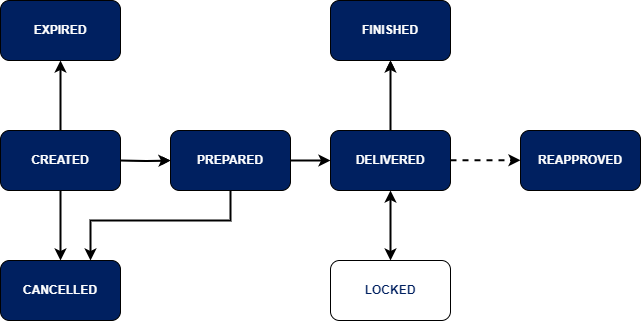
Statuses of a Reapproval:
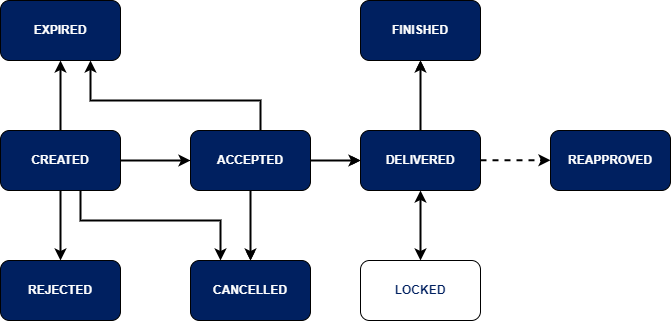
Actions available on approvals:
- Created: Accept, Reject, Edit, Cancel.
- Accepted: Cancel.
- Preprared: Cancel.
- Delivered: Lock, Unassign, Edit.
- Locked: Unlock.
- Rejected: —
- Expired: —
- Finished: —
How to take away card from end-user?
If user already redeem card (status of approval is Delivered) use PUT /secure/approvals/{id}/unassign method.
If user hasn't redeem card (status of approval is Accepted or Prepared) use PUT /secure/approvals/{id}/cancel method.
How to quickly increase or decrease available limit on a card?
You should use PUT /secure/approvals/{id}/increase_budget method.
To add another 10 EUR put the value:
"additionalBudgetMinor": 1000To substract 10 EUR put the value:
"additionalBudgetMinor": -1000Where can I see the transactions made by the issued cards?
Currently the only available way to see transactions is to login to Corporate Panel and go to Transaction history section.
What e-mails are sent to the end user?
E-mails can be adjusted to your corporation and sent in different language. Contact Sparados for details.
|
Email name |
Sending reason |
| BC_USER_PENDING_TERMS_AND_CONDITIONS | Sent while new terms and conditions are applied to the issuer to end users. |
| BC_USER_CARD_EXPIRING | Sent 1 day before card expiration to end user. |
| BC_USER_PENDING_CARD | Sent to end user when new card was assigned and is waiting for redemption. |
| BC_USER_NEW_CARD | Sent to end user when new card was redeemed. |
| BC_USER_CARD_EXPIRED | Sent to end user when approval is finished. |
| BC_USER_CARD_DELETED | Sent to end user while card/approval was uassigned or deleted by corporation. |
| BC_USER_CARD_LOCKED | Sent to end user when card was locked by corporation. |
@swagger="https://q4b-bc-api.upaidtest.pl/api-secure.yaml"