VIP Services Access Control
Special benefits for your customers to boost your bussines.
Introduction
Access Control is an advanced business solution designed to meet the growing needs of modern companies, banks, fintech and financial institutions. This product is specifically addressed Mastercard card users and enables them to access various perks such as entrances to amusement parks, fast lane access, airport lounge privileges, and other valuable extras. Basing on card transactions or product type cardholder can get access to particular benefit. Example:
- All Gold card users can get access to Airport Lounges.
- All business card users that do minimum 1000 USD transaction per month can get access to special loyalty program.
- All cardholders of particular BIN (bank) can get access to concert or event organised for them.
Features:
User-Friendly Admin Panel:
Access Control incorporates a user-friendly admin panel that facilitates easy management of the solution. The admin panel offers several options for convenient control and monitoring of the system.
Rule Management:
The admin panel allows administrators to manage rules effectively. Rules determine the eligibility criteria for accessing different perks and benefits. With this feature, administrators can easily configure and modify rules based on the specific requirements of the company and its customers.
Traffic Monitoring:
Access Control provides a comprehensive traffic monitoring feature through the admin panel. This allows administrators to keep track of user activity across the system. They can monitor number of entrances, guest entrances, time and date, free or paid entries and many more.
Report Exporting:
The admin panel incorporates a reporting function that enables administrators to generate reports for further analysis. These reports contain valuable insights and metrics related to user activity, benefits redeemed, and other relevant data. Administrators can export these reports in various formats for easy sharing and data analysis.
Card Enrollment Verification:
Access Control includes a card enrollment verification feature that ensures the security and validity of Mastercard users. The admin panel enables administrators to verify and manage card enrollments, ensuring that only authorized users can receive the various perks offered by the solution. This feature adds an extra layer of security, preventing fraudulent usage and unauthorized access.
Benefits:
Users can be rewarded with a variety of unique experiences at different service points. Anywhere there is a payment terminal. From airports, amusement parks, sport stadium, museums, travel entertainments to stores.
Enhanced Customer Experience:
By providing Mastercard users with access to a wide range of perks and benefits, Access Control enhances the overall customer experience. Users can enjoy valuable extras such as amusement park entrances, fast lane access, and airport lounge privileges, resulting in increased customer satisfaction and loyalty.
Efficient Administration:
The user-friendly admin panel simplifies the management of Access Control. Administrators can easily configure rules, monitor user activity, export reports, and validate card enrollments. This streamlines administrative tasks and enables efficient control of the system.
Data-Driven Decision Making:
The traffic monitoring and report exporting features enable administrators to gain valuable insights into user behavior and system performance. By analyzing this data, businesses can make data-driven decisions to optimize the Access Control solution and improve customer satisfaction.
Increased Security:
The card enrollment verification feature ensures that only authorized users can access the perks and benefits offered by Access Control. This security measure safeguards against fraudulent usage and unauthorized access, providing businesses and users with peace of mind.
Terms & Definitions:
|
Term |
Definition |
|
MRS |
Mastercard Rewards System |
|
ICA |
Interbank Card Association - x-digit number assigned by Mastercard to a financial institution, third party processor or other member. |
|
TPP |
Third Party Provide |
|
BIN |
Bank Identification Number (First 6 card digits.) |
|
PAN |
Primary Account number (Full card number.) |
|
GUI |
Graphical User Interface |
|
ASI |
Account Status Inquiry |
|
Token |
Digital card number |
Intro slides
Access Control is available to users through a friendly and easy-to-use admin panel accessible through a personalized website.
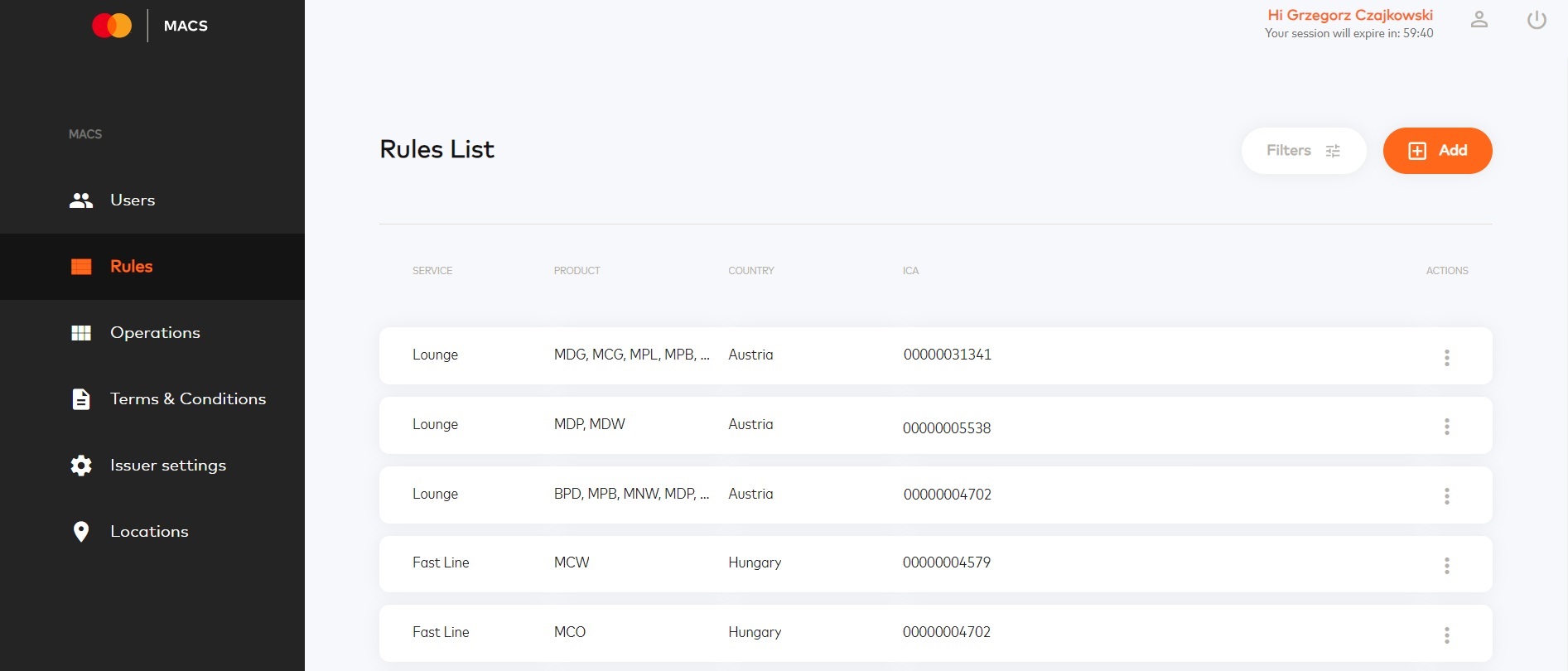
Web-based and Customizable Admin Panel:
The system features a web-based administrative panel that allows users to access and manage various aspects of the application through a web browser. Additionally, the admin panel is fully customizable, enabling administrators to tailor it to meet specific organizational needs and preferences.
Compliant with Safety Standards:
This system adheres to industry-specific safety and security standards, ensuring that it meets all necessary regulatory and safety requirements to safeguard users and data.
Implementation Time: 3 Months from Contracting
The system can be fully implemented and operational within a timeframe of three months from the signing of the contract. This includes all necessary development, testing, and deployment phases.
Compatible with Various Entertainment Outlets, Airports, Stadiums, Theaters, Museums, Cinemas, etc.:
The system is designed to seamlessly integrate with a wide range of entertainment and public places, including but not limited to airports, stadiums, theaters, museums, and cinemas. It can be deployed wherever accessible payment terminals are present.
Unique Access Control Engine Fully Prepared by Verestro:
The system offers a proprietary and exclusive access control engine developed and fully prepared by Verestro. This engine is responsible for managing user access permissions and ensuring the security and integrity of the system's functionalities. It is a distinctive feature that sets this system apart from others in the market.
Implementation Steps
- Opening project with Verestro.
- Setup of test environment.
- Configuration.
- Customise Admin Panel.
- POS provider Integration or use existing Ingenico connection.
- Setting up POS messages.
- Defining fallback to offline entrances.
- Integration with MRS (optionally if you need transaction history).
- Tests on beta environment.
- Test on production.
- Friends and family phase.
- Go live.
Architecture

Access Control flow (Example)

Prototype
Overview
Access Control within the system allows for the allocation of benefits to a specific group of cardholders. This feature empowers administrators to precisely define the criteria and conditions that must be met in specific locations for cardholders to receive these benefits. For instance, administrators can select a particular card type, such as MC Gold, issued by a specific country and bank. Furthermore, the system facilitates the provision of these benefits free of charge, both for the cardholder and their accompanying guests.
In certain scenarios, alongside complimentary access, administrators have the flexibility to establish special pricing structures for benefits upon meeting specific conditions. This means that, in some cases, individuals may qualify for benefits by fulfilling specific criteria while incurring a reduced cost.
The system's additional functionality includes spend-based control, enabling administrators to monitor a program participant's spending behavior. This feature allows for the creation of conditions like spending a minimum of 100 euros within a 30-day period at sports stores to qualify for complimentary stadium entry.
Solution Components:
The Access Control feature is an integral part of the solution, which comprises the following key components:
- Verestro’s Admin Panel: This web-based interface allows administrators to manage and configure the Access Control feature and associated settings. It provides a user-friendly platform for controlling benefit allocation criteria.
- Verestro’s Backend Engine: The core engine of the system, developed by Verestro, powers the Access Control feature. It manages the allocation of benefits, verifies conditions, and ensures the security and integrity of the entire process.
- Integration with POS Providers: To enable the seamless execution of benefit criteria and conditions, the solution integrates with Point-of-Sale (POS) providers. This integration facilitates the real-time verification of spending and other conditions at relevant stores.
Key point to choose Access control:
- Emphasizing the Inclusiveness of a Specific Payment Card: Access Control allows organizations to highlight the inclusiveness of a particular type of payment card, making it an attractive choice for cardholders. This feature enhances the appeal of the card and can drive card usage.
- Activating Users to Utilize the Payment Card in Specific Shopping Categories: Access Control empowers administrators to incentivize cardholders to use their payment card within specific shopping categories. This promotes targeted spending behavior and increases engagement with the card.
- Providing a Premium Experience for Cardholders and Guests: Access Control offers the capability to deliver a premium experience not only to the cardholder but also to their accompanying guests. This enhances customer loyalty and satisfaction.
- User-Friendly Operation with Minimal Additional Steps: The Access Control solution is designed to seamlessly integrate with the user experience at payment terminals. It ensures that users do not encounter additional, complex steps beyond the standard authorization process, simplifying their interactions.
- Compliance with the Latest Security Standards: Access Control is built with a strong focus on security, ensuring compliance with the most up-to-date security standards and protocols.
Terminal User’s Flow
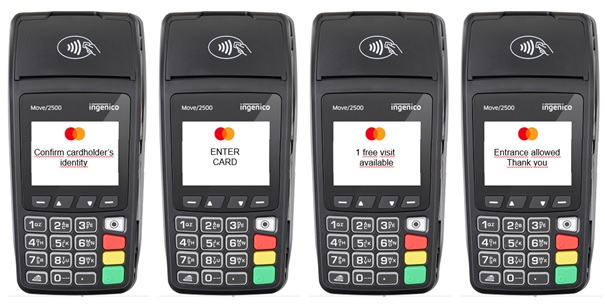
- Local staff verification of cardholder's identity:
Prior to granting access or benefits, local staff members are required to confirm the identity of the cardholder. This manual verification step ensures that the correct individual is accessing the designated area or service.
- Cardholder taps card on POS for authorization:
The cardholder initiates the process by tapping their payment card on the Point-of-Sale (POS) terminal. This action triggers the authorization process, validating the card's eligibility for access or benefits.
- POS informs cardholder about the number of available visits:
The POS terminal communicates the number of available visits or benefits associated with the card to the cardholder. This information helps the cardholder understand their benefits and make decisions.
- POS Confirms Entrance:
Once the cardholder's eligibility is established, the POS terminal confirms their entrance, granting access or providing the specified benefits. This step marks the successful completion of the Access Control process.
Access Control Key Components
|
Component |
Description |
|
Admin Panel |
Allows to create rules, monitor entrances and download reports. |
|
Access Control Engine |
It connects with acquier and the POS provider, counts the carholder's payments, converts the amounts and decides on granting the benefit. |
|
MRS |
Mastercard Reward System provides information about the cardholder's spending. |
|
Acquier integration |
The acquirer provides an account status inquiry to verify the card. |
|
POS provider integration |
Interface for user interaction. |
POS authorization
Technology stack:
- JWT - https://jwt.io
- TLS
- RSA
Actors:
- POS/CMS operator (as Operator) - person who has access to Admin Panel and physical access to POS device.
Objects:
- Admin Panel - as AP - User web interface interface.
- Point of sell device (payment terminal) - as POS - physical payment terminal device.
- Serial Number - as SN - POS unique serial number printed on a device.
- Pairing code - as Pairing Code - temporary code used to pair terminal into MACS. It contains numbers and it length is 8 characters.
All operations are made using SSL/TLS.
It is mandatory on POS to load correct SSL Trusted CA Certificate (MACS SSL) into parameters file of MACS POS application.
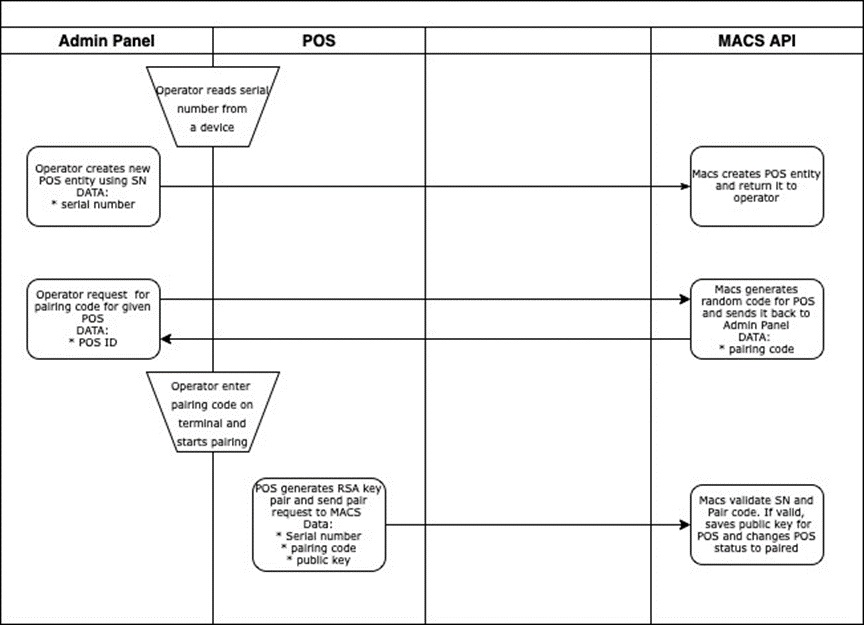
Pairing process:
- Operator adds POS to a location in AP. Operator must read SN from a POS and provide the SN to AP.
- On list of terminals in AP, Operator select options for previously added POS and select Get Pairing Code option. The code is generated with TTL=2h and displayed to the Operator.
- Pairing code - is connected with SN - only particular POS (SN) can be paired using generated Pairing Code.
- Operator enter the Pairing Code on POS and initiate paring process.
- POS generates RSA key pair - 2048 Length.
POS sends SN, Pairing Code and Public key(base64 encoded) to MACS pairing endpoint "/pos/pair".
- MACS check if Pairing Code still exists (it's auto removed after TTL ends) and if match to SN. If so, the public key is decoded, checked and saved next to SN in database.
- MACS changing status of terminal to "paired".
- Pair code cannot be generated for the paired POSes.
- Any other pair request for the particular POS will be declined 6. Success response is returned to POS.
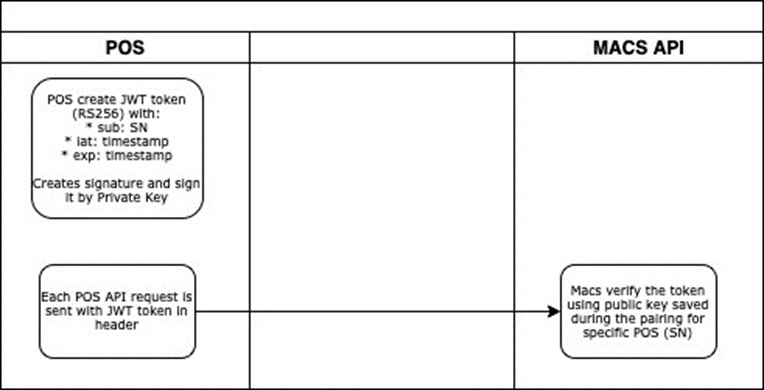
Operating:
All POS requests must contain authorization header (JWT).
JWT Token must be created according to the RFC 7519 (JWT) - type RS256.
Token in payload should contain fields:
- sub - equal to POS SN,
- iat - issued at date as unix,
- tiemestamp exp - expire date as unix timestamp.
Token must be present for each request - stateless.
- Each request must be sent with the header "Authorization". The content should contain the JWT token preceded by "Bearer ".
- MACS will check the sub, iat, exp fields. If any of fields is invalid, access will be forbidden.
- MACS will search for public key in database for particular POS.
- If public key is found. Macs will verify the JWT token using the POS public key.
- Access will be granted if verification is succeeded.
- If POS SN is not found or signature is invalid for the public key, access will be forbidden.
POS functionalities
Core functionalities
|
Functionality |
Type |
Description |
MACS API method |
| Check possibility to entry | Online | It should send card data in request, in response it receives success or error with code. It should show number selector for guest up to max number of guest received in response. | post/check_entry |
| Confirm entrance | Online | Should confirm cardholder used a service with selected number of guests along with "accessId". | pos/confirm_entry |
| Check possibility to entry in offline mode | Offline | It should keep BIN ranges downloaded in some time perion (1 day) or manually from terminal - per each POS. In case a POS has no internet connection at moment cardholder is trying to use it. The POS should check if card is between one of BIN ranges and allow enter in this case. | pos/fallback_bin_ranges |
| Report offline entrances | Online | Should report all offline entrances made in offline mode. | pos/offline_reports |
| Allow offline entrances for cardholder from whitelist | Offline | POS should keep hashes of whitelisted PANs downloaded from the AC API in time period (daily) or manually. As cardholder tryin to use it and POS is offline the POS should hash PAN uses HMAC with sha256 algorithm and secret (hardcoded, received from Verestro), then check if hash exists on the list. IF so, POS should accept entry. | pos/whitelisted_pans |
Check entry error codes handling
|
Functionality |
Type |
Description |
MACS API method |
| Check possibility to entry | Online | It should send card data in request, in response it receives success or error with code. It should show number selector for guest up to max number of guest received in response. | post/check_entry |
| Confirm entrance | Online | Should confirm cardholder used a service with selected number of guests along with "accessId". | pos/confirm_entry |
| Check possibility to entry in offline mode | Offline | It should keep BIN ranges downloaded in some time perion (1 day) or manually from terminal - per each POS. In case a POS has no internet connection at moment cardholder is trying to use it. The POS should check if card is between one of BIN ranges and allow enter in this case. | pos/fallback_bin_ranges |
| Report offline entrances | Online | Should report all offline entrances made in offline mode. | pos/offline_reports |
| Allow offline entrances for cardholder from whitelist | Offline | POS should keep hashes of whitelisted PANs downloaded from the AC API in time period (daily) or manually. As cardholder tryin to use it and POS is offline the POS should hash PAN uses HMAC with sha256 algorithm and secret (hardoded, received from Verestro), then check if hash exists on the list. IF so, POS should accept entry. | pos/whitelisted_pans |
Check entry error codes handling
| CARD_ASI_FAILED | Card status authorization failed. Use the card again to try amount verification. |
| CARD_AUTH_INSUFFICIENT_FUNDS | Insufficient card funds. Authorization cannot be performed. |
| CARD_AMOUNT_AUTH_FAILED | Amount verification failed. |
| LIMIT_EXCEEDED | The usage limit for this card is exceeded. |
| UNMET_REQUIREMENTS | Requirements to access the service are not fulfiled. Contact your bank for more information. |
| TEMPORARILT_BLOCKED | The card was recently used and the transaction is not completed. Complete the transaction or wait a while and retry. |
| MISSING_ACCESS_RULES | Your card is not allowed to be used in this location. |
| API Error code | On terminal error screen. |
| UNKNOWN_DEVICE | The device is not assigned to any location. |
Access Control Admin Panel
Access Control incorporates a user-friendly Admin Panel that facilitates easy management of the solution. This panel offers several options for convenient system control and monitoring.
Users
This screen displays a list of all system users who have access to the Admin Panel service, along with their assigned roles and status.
|
Column |
Description |
| First name |
The user's given name. |
| Last name |
The user's surname. |
| Role |
The system role assigned to the user (e.g., Admin, User, Service Provider, Issuer, Call Center). Defines the access rights and permissions within the system. |
|
The email address associated with the user's account. |
Users can narrow down the results by using the available filters on this screen:
- First name
- Last name
- E-mail address
From this view we can proceed to adding/editing/deleting an user.
Rules
This tab allows you to manage entry rules for specific services, applicable to selected locations and BINs.

The main view shows a list of all added rules. Users can narrow down the results by using the available filters on this screen.
From this view we can proceed to adding/editing/deleting a rule.
Adding a new rule
To add a new rule, we require completing the information below:
|
Parameter |
Description |
| Name |
The name assigned to the ruleset. |
| Description |
The description of the ruleset. |
| Valid from | The date and time from which this ruleset becomes active in the system. |
| Valid to | The date and time when this ruleset ceases to be active and becomes expired. |
Country and product
|
|
| Country | The country of the Issuer. |
| Product Code | 3-character indicator provided by Mastercard. |
| ICA |
Interbank Card Association Number (ICA) number assigned by MasterCard to a financial institution. You can add multiple ICAs along with the BIN range. |
| BIN ranges | Specific BIN range for given ICA. |
Rules
|
|
| Services | Name of the service we offer to the client. We currently support Fast Line and Lounge. |
| Total number of usage | The total count of times this specific ruleset has been successfully used. |
| Period of time in days | Limit of entries in a given time period. |
|
Location rules |
|
| Country |
Country of selected location. |
| Location |
Specific location where the rule should apply - you can select all possible ones for a given country and service. |
| RPM ruleset* | Activation of the option to set up external rules in the RPM service. |
|
Cardholder entry cost - you can specify the rules for Cardholder. You can set the entry as free or set as paid.
It is possible to configure both free and paid entry rules simultaneously. In this setup, once all entries have been used, the ruleset for paid entries automatically becomes applicable. |
|
| Amount |
The value (fee) charged for this specific entry. (required - if a paid option is chosen). |
| Currency |
The three-letter ISO 4217 code specifying the currency of the entry amount e.g., USD, EUR, PLN). (required - if a paid option is chosen). |
| Period of time in days |
Limit of entries in a given time period. |
| Number of usage per each location |
The total allowed entries for the cardholder at this specific location. |
| Number of free invitations |
Maximum number of free entries. (required - if a free option is chosen). Can be set as unlimited. |
| Number of paid invitations |
Maximum number of paid entries. (required - if a paid option is chosen). Can be set as unlimited. |
|
Guests - you can specify the rules for Cardholder guests. |
|
| Adult guests |
You can set the entry as free or set as paid. If paid: specify the exact amount and currency. |
| Number of free invitations |
Maximum number of free entries. (required - if a free option is chosen). |
| Number of paid invitations |
Maximum number of paid entries. (required - if a paid option is chosen). |
| Number of guests per flight |
Maximum number of guests per entry. |
| Children guests |
You can set the entry as free or set the paid. If paid: specify the exact amount and currency. |
| Number of free invitations |
Maximum number of free entries. (required - if a free option is chosen). |
| Number of paid invitations |
Maximum number of paid entries. (required - if a paid option is chosen). |
| Number of guests per flight |
Maximum number of guests per entry. |
|
You can also set free entry for children under X years of age |
|
|
Spend based control - you can determine the customer's required spending to enable entry. |
|
|
Amount |
The amount the cardholder must spend. |
|
Currency |
The three-letter ISO 4217 code specifying the currency of the transaction amount e.g., USD, EUR, PLN). |
|
Period of time (in days) |
The period in which the cardholder should spend a given amount. For example: If you set period = 10 and the cardholder wants to use the service on 11/01/2024 at 12:30, that means that his spending is taken from the period 1/01/2024 12:30 to 11/01/2024 at 12:30. |
|
MCC ID |
Merchant Category Code - transactions only from selected MCCs will be taken for calculating spending. |
|
Grace period (in days) |
Grace period in days. |
Rule details
Additionally, on the Rule Details screen, besides the information listed above, we can view details such as:
|
Parameter |
Description |
| Ruleset ID |
The unique identifier assigned to this specific set of access rules. |
| Created by |
The identifier (e-mail address) of the user who initially created and saved this ruleset. |
| Creation date |
The date and time when the ruleset was initially created in the system. |
| Modified by |
The identifier of the last user who made changes and saved the ruleset.
|
| Modification date |
The date and time when the ruleset was last updated or edited. |
Operations
The Operations tab provides a real-time list of all card entry events (or access attempts) processed by the system. This view is crucial for monitoring activity as it happens.
The main list displays the following key information for each card entry event:
|
Column |
Description |
| Country of Location |
Country of selected location. |
| Masked PAN |
The first six digits (BIN) and the last four digits of the card number (e.g., 543210******1234). |
| Date |
The date and time when the card entry occurred. |
| Service |
Name of the service we offer to the Client. We currently support |
| Status |
The current status of the operation. Possible values:
|
| Type |
Type of entry. Possible values:
|
Users can narrow down the results by using the available filters on this screen.
Cancellation functionality
This screen provides the ability to cancel a specific successful entry. This option can only be performed by the Admin role or the Service Provider role. Admins can perform reversals without any time restrictions. Service Providers are restricted to performing reversals only within 30 minutes following the entry.
- The status change is possible only from
COMPLETEDtoREVERSED. - The
REVERSEDstatus ensures that the operation is not included in the total count of entries for the card. - When performing a reversal, it is possible to provide a reason/comment for the action.
The following information is added to the Operation Details screen after a reversal is executed:
-
Reversal Timestamp - The date and time the reversal was executed.
-
Reversal User ID - The
userIdof the person who performed the reversal action. - Reversal Reason
Export Report
Additionally, this screen allows users to generate an Operations report.
Report can be generated in one of two formats: Summary or Detailed.
Operations details
Clicking on an operation record in the main list navigates the user to the operation details. This view additionally provides the following information:
|
Parameters |
Description |
| Product |
3-character indicator provided by Mastercard. |
| Terminal |
The unique identifier for the terminal, which corresponds to its Serial Number. Necessary to correctly pair the device within the system. |
| Reject error code |
A specific code indicating the exact reason why the operation or entry attempt was rejected by the system. Possible values:
|
| Card auth response code |
A unique code returned by the payment network to confirm the card authorization. Possible values: https://documentation-ecommerce.fenige.pl/#response_codes_iso8583 |
| ICA ID | Interbank Card Association Number (ICA) number assigned by MasterCard to a financial institution. |
| ICA name | A financial institution name. |
| Last change date | The date and time when the operation record was last modified or updated. |
| Requested date | The date and time when the operation record (entry) was initially created in the system. |
| Payment | Specifies the method used by the terminal to read the card data during the entry (e.g., chip or contactless). |
| Reversed by | The userId of the person who performed the reversal action. |
| Reversed at | The date and time the reversal was executed. |
| Reversed reason | Reason for operation reversal (if executed). |
| Paid cardholder | Information on whether the cardholder was admitted free of charge or if a fee was applied for the entry (true/false). |
| Free adult guests | Number of free guests who used the entry. |
| Paid adult guests | Number of paid guests who used the entry. |
| Free children guests | Number of free children who used the entry. |
| Paid children guests | Number of paid children who used the entry. |
Show rule
This screen also offers the option to select "Show Rule" which, upon clicking, displays the details of the ruleset applied to the specific card's entry.
Show transactions
This option allows the display of a list of transactions performed by the card related to the operation. This enables reviewing the transaction history to verify if the spending condition has been met.
Enrolled cards
This view shows a complete list of all cards that have been successfully registered (enrolled) in the MRS (Mastercard Reward System). You can use this view to quickly find and review card records.
You can use these filters to easily narrow down the list of cards:
- BIN
- Last 4 digits
- AREF
- Product
- ICA
- Created from
- Created until
The following information is displayed for every card in the list:
|
Column |
Description |
| Masked PAN |
The first six digits (BIN) and the last four digits of the card number (e.g., 543210******1234). |
| AREF |
Card Identifier in MRS System. |
| ICA |
Interbank Card Association Number (ICA) four-digit number assigned by MasterCard to a financial institution.
|
| Product | 3-character indicator provided by Mastercard. |
| Enrollment Date | The date and time when the card record was successfully registered in the system. |
Export Report
Additionally, this screen allows users to generate a report containing all displayed card records. The report content is based on the currently applied filters and includes these data:
- Masked PAN
- HASH
- AREF
- ICA
- Issuer name
- Product code
- Enrollment date
- Available free entries
- Available paid entries
- Ruleset ID
Enrolled card details
Clicking on a card record in the main list navigates the user to the card details. This view additionally provides the following information:
|
Parameters |
Description |
| HASH |
Hash of the enrolled card. |
| Number of free visits |
Number of free visits from the ruleset from card entry. |
| Number of paid visits | Number of paid visits from the ruleset from card entry. |
Show rule
This screen also offers the option to select "Show Rule" which, upon clicking, displays the details of the ruleset applied to the specific card's entry.
Terms & Conditions
This tab displays the Terms and Conditions required for access and usage of the management portal.
Only selected roles (Admin and User) have the permissions to manage these documents.
Terms and Conditions cannot be edited or deleted.
If a T&C file already exists for the same date, adding a new file will replace the existing version and become the currently valid one.
For roles Issuer, Service Provider and Call Center the first time they log in, they will be presented with a mandatory screen requiring them to checkboxes for the Terms and Conditions and the Privacy Policy.
Consent to both documents is required to proceed with using the portal.
Locations
The main view shows a list of all added locations where a terminal is currently installed and active/or waiting for pairing.
For easier location searching the list can be filtered according to the following parameters:
Filters:
- Country code
- Location Name
- Service name
Columns:
- Location Name
- Country code
- Service
- City
- Address
From this view, we can proceed to add, edit, or delete a location, or add a new terminal.
Adding a new location
To add a new location, we require completing the information below:
|
Parameter |
Description |
| Name |
The name of location. |
| Country code |
The three-letter code representing the country of the location. |
| Service |
Name of the service we offer to the Client. We currently support Fast Line and Lounge. |
| Postal code | The postal code of the location. |
| City | The name of the city where the location is situated. |
| Address (optional) | The full physical street address of the location (e.g., building number, street name, etc.). |
|
Cooldown period in minutes (optional) |
Defines the minimum time required between successful visits at the same location, preventing repeated use within the X minutes limit. Rejected transactions return a custom code. |
Adding a new terminal
To add a new terminal, we require completing the information below:
|
Parameter |
Description |
| ID |
The unique identifier for the terminal, which corresponds to its Serial Number. Necessary to correctly pair the device within the system. |
Location details
This section displays all detail information for the location. This data is managed via the Edit functionality.
Parameters:
Terminal list
This section also presents a list of all terminals that are currently paired with, or physically installed at, this specific location.
The terminal list includes:
-
Terminal ID
-
Terminal Status (Possible values:
PAIRED,NOT PAIRED)
Additionally, it is possible to delete a terminal or retrieve the pairing code that should be used to pair the device. To pair a terminal, the POS must send the required request containing the terminal identifier (serial number) and the pairing code ( POST /pos/pair)