FCM configuration - Grant permission for another Project
Configuration for forwarding Cloud Messages from Verestro FCM to Client's FCM.
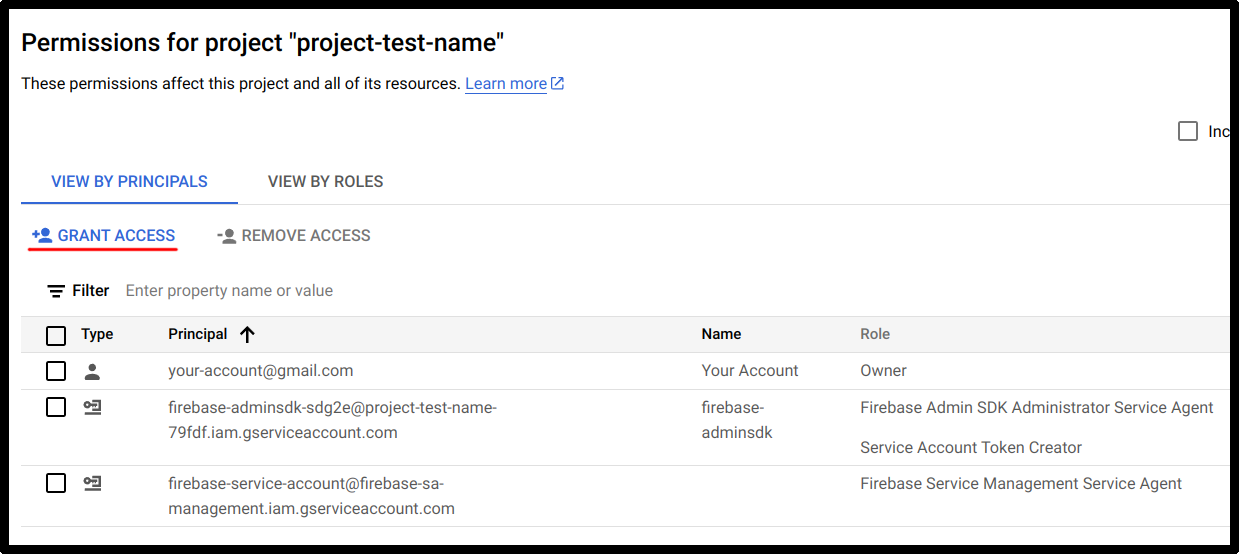
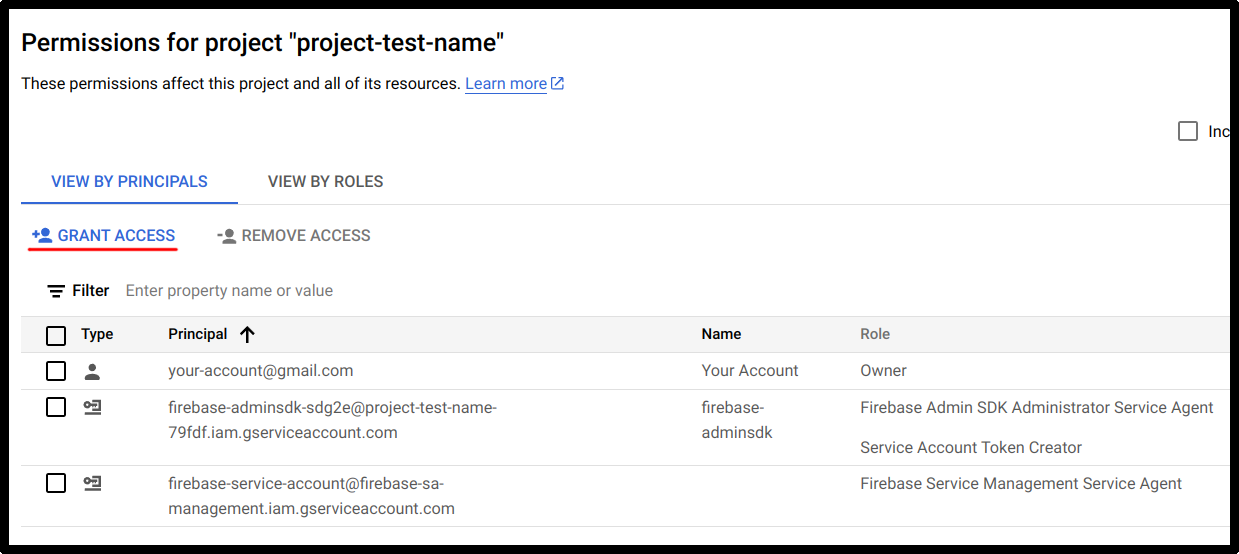
- Visit console.cloud.google.com/iam-admin
- Select Grant Access

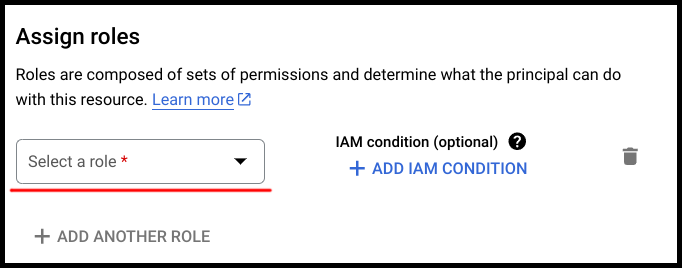
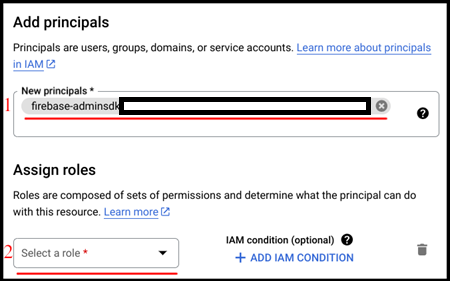
- In Assign roles section select a role from a list

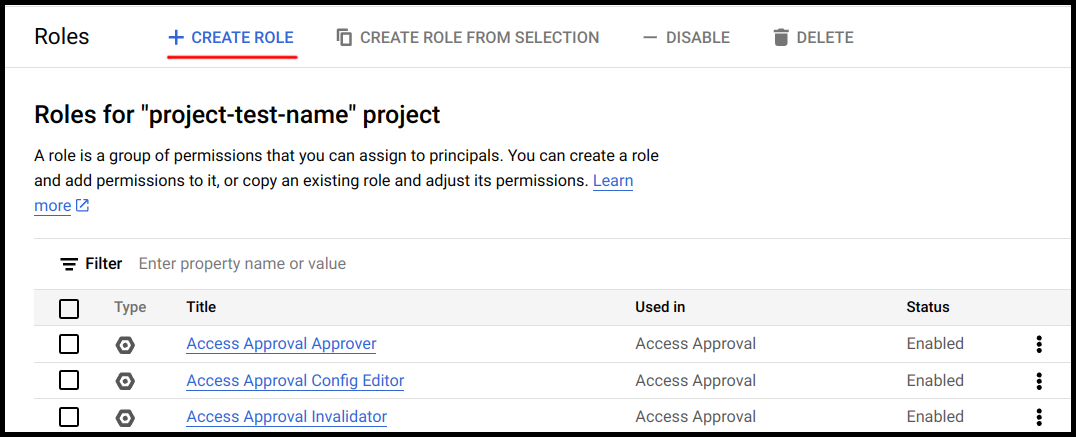
- Select option Manage roles

- Select Create role

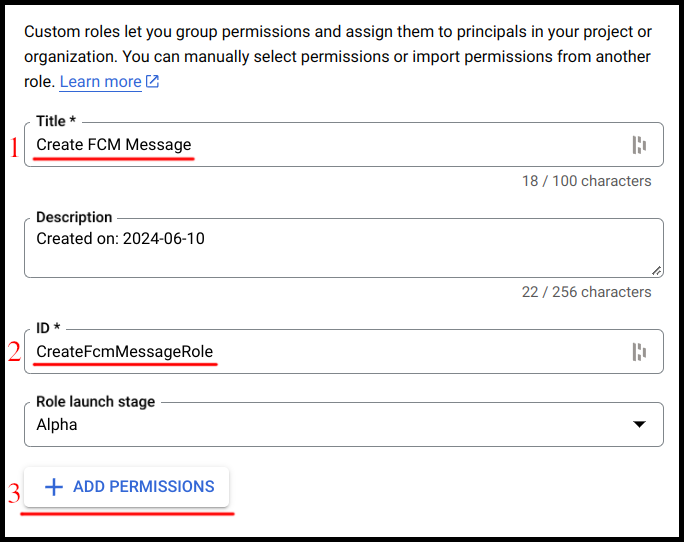
- Fill title (1) and ID (2) fields, and click on Add permissions (3)

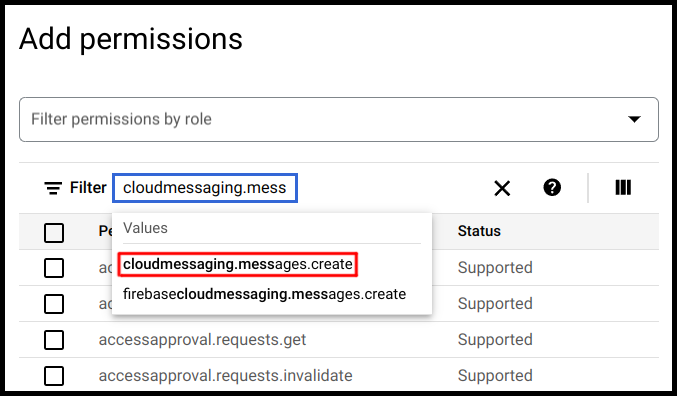
- In Add permissions window, using filter field find cloudmessaging.messages.create value

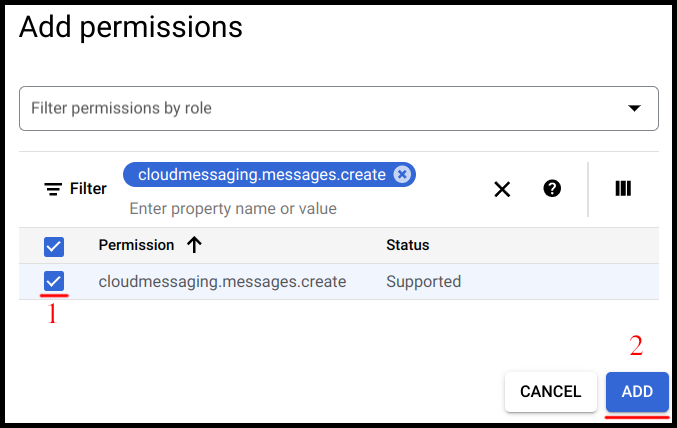
- Mark found permission, and add it

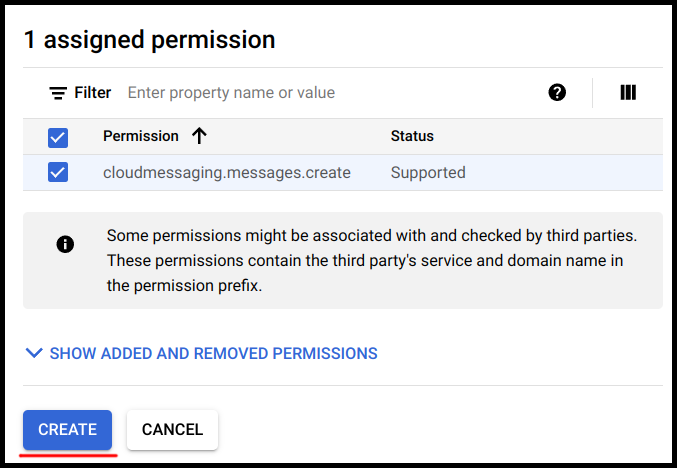
- After adding permission, create the role

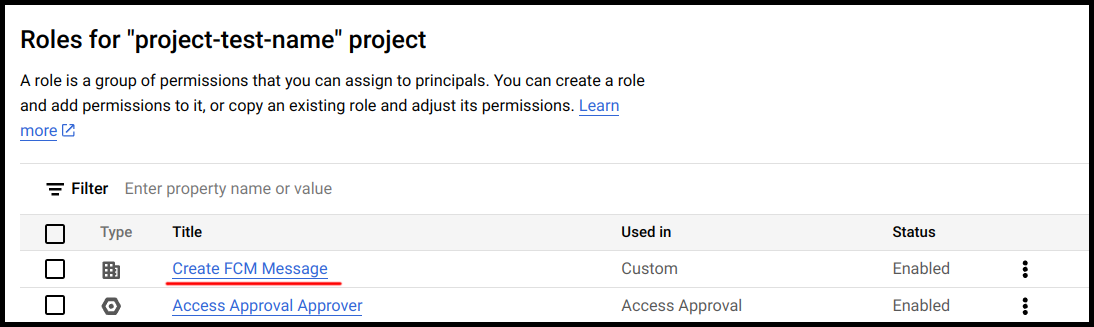
- There should appear our new created role

- Visit https://console.cloud.google.com/iam-admin/iam
- Select Grant access option again
- Input e-mail in New principals field (1) for account which will be using the new role (principal provided directly or in configuration file), and next in Assign roles section select a role (2) from a list

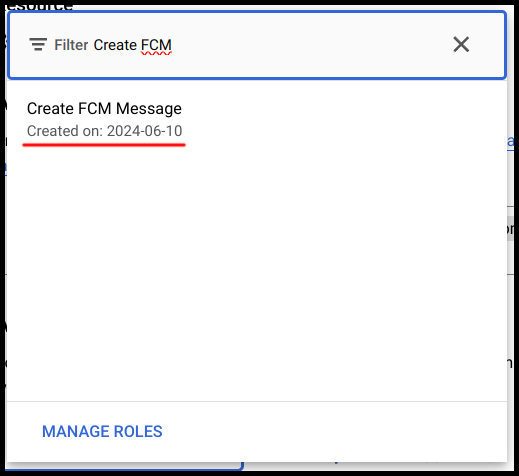
- Using filter field, find new created role

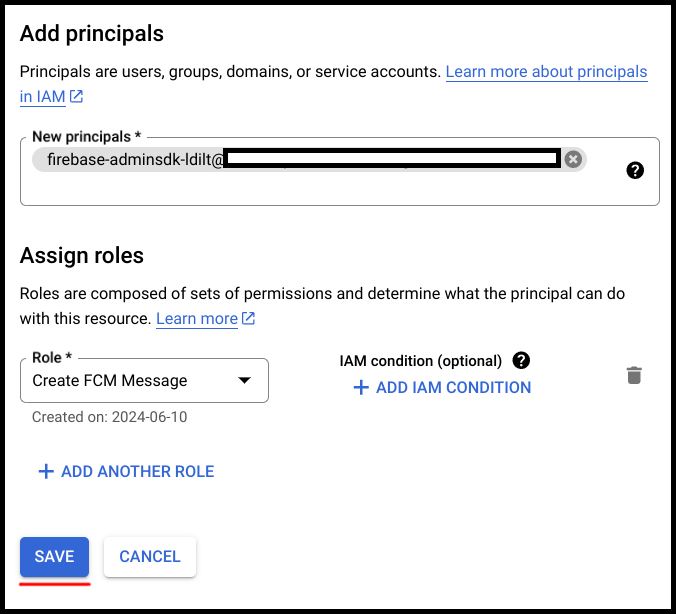
- After choosing a role, save the principal access

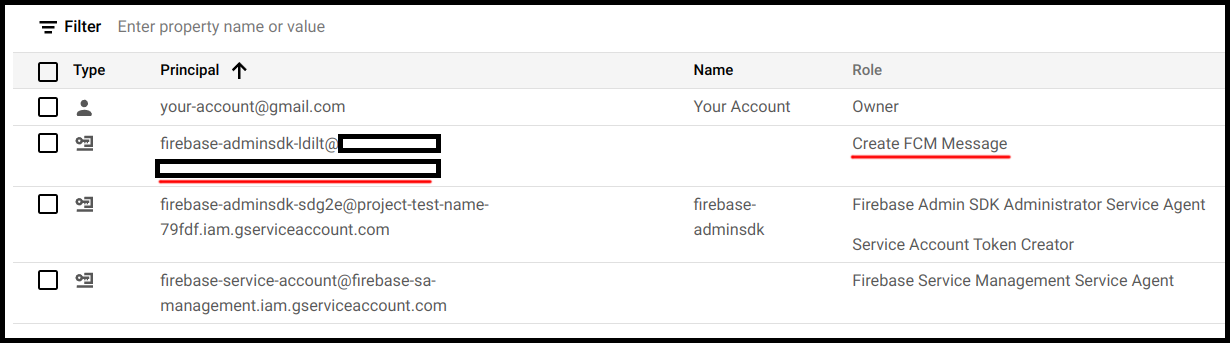
- There should appear new principal with new role on the list