# Use cases

This chapter describes the business functions that can be performed by having a company balance in the Verestro system and using Payout to card. We also present end user default views presented during using the application.

## Know your business


The first step to starting integration is to complete the KYB process. This process is required to identify and verify business clients. Automatic registration process ensures that all the information and documents provided by the clients gone properly through AML verification. Business client registration process may take around 10-15 minutes. [At this link you can find out what exactly the KYB process is and what it looks like](https://developer.verestro.com/books/kyb-platform-know-your-business). KYB in Verestro is performed with the help of an external verification provider - Mobiltek.

<p class="callout info">**Note:** AML (Anti-Money Laundering) is a set of policies, procedures, and technologies that prevents money laundering.</p>

## Customer balance management

Description of methods in Antaca service to create and manage the balance.

<table border="1" cellpadding="1" cellspacing="0" class="align-left" id="bkmrk-method-description-c" style="width: 924px; height: 141.088px;" width="708"><tbody><tr style="height: 35.4875px;" valign="TOP"><td bgcolor="#002060" style="width: 237.547px; height: 35.4875px;" width="129"><span style="font-family: Lato; color: #ecf0f1;">**Method**</span></td><td bgcolor="#002060" style="width: 601.453px; height: 35.4875px;" width="573">**<span style="font-family: Lato; color: #ecf0f1;">Description</span>**

</td></tr><tr style="height: 35.2px;" valign="TOP"><td style="width: 237.547px; height: 35.2px;" width="129">[<span style="font-family: Lato;">Create balance</span>](https://developer.verestro.com/books/money-transfer-via-card/page/use-cases#bkmrk-credit-balance)

</td><td style="width: 601.453px; height: 35.2px;" width="573">Method that allows you to create a balance for your company.

</td></tr><tr style="height: 35.2px;"><td style="width: 237.547px; height: 35.2px;">[<span style="font-family: Lato;">Credit balance</span>](https://developer.verestro.com/books/money-transfer-via-card/page/use-cases#bkmrk-credit-balance)

</td><td style="width: 601.453px; height: 35.2px;">Method that allows you to top up the created balance.

</td></tr><tr style="height: 35.2px;"><td style="width: 237.547px; height: 35.2px;">[<span style="font-family: Lato;">Debit balance</span>](https://developer.verestro.com/books/money-transfer-via-card/page/use-cases#bkmrk-debit-balance)

</td><td style="width: 601.453px; height: 35.2px;">Method that allows you to debit the created balance.

</td></tr></tbody></table>

<p class="callout info">**Note:** The balance for your corporation is created during its registration in our system.  
You can create end-user balances from the Administration Panel created for your corporation or use the [<span style="font-family: Lato;">Create balance</span>](https://developer.verestro.com/books/money-transfer-via-card/page/use-cases#bkmrk-credit-balance) method mentioned above.</p>

## Initialize payment link

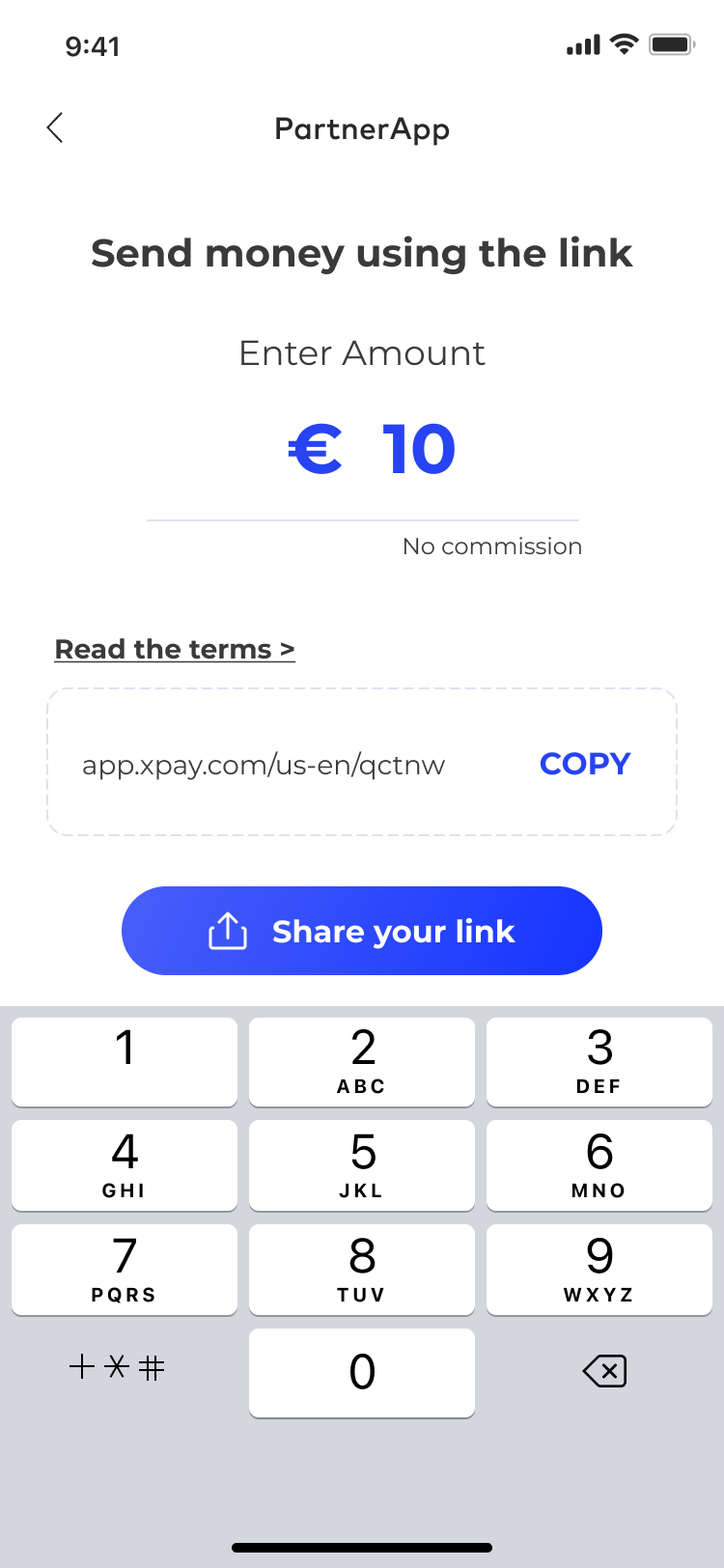
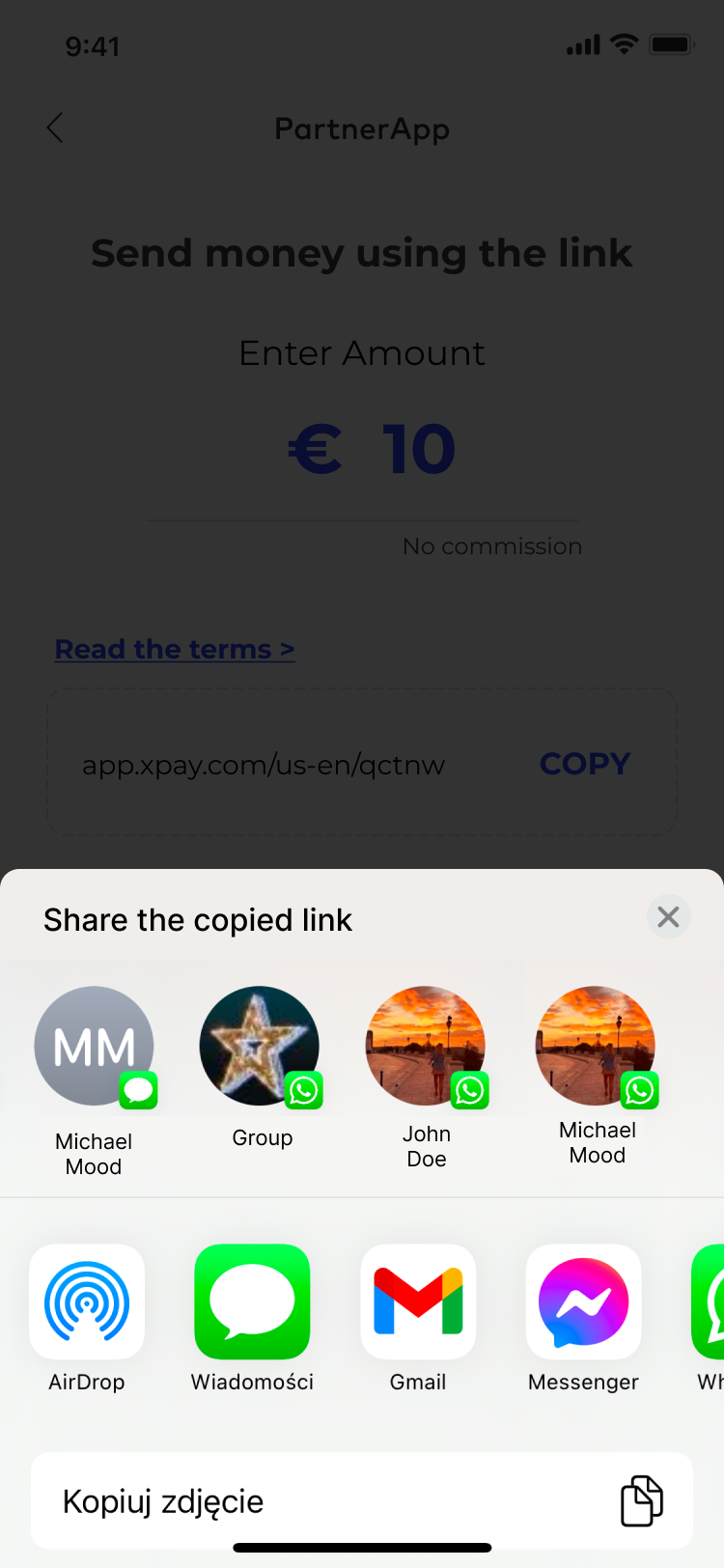
The card top-up process begins when the payment link is initialized. As a customer, you must provide transaction metadata such as the amount and currency in which the payout will be made. After confirming the entered data, a link is generated that you can send to the recipient.

<p class="callout warning">**Important!** The first screen below (PartnerApp view) imitates the view from your application and you will be responsible for implementing this view.</p>

<details id="bkmrk-uml-presenting-initi"><summary>UML presenting initialize payment link step by step</summary>

@startuml  
skinparam ParticipantPadding 30  
skinparam BoxPadding 30  
skinparam noteFontColor #FFFFFF  
skinparam noteBackgroundColor #1C1E3F  
skinparam noteBorderColor #1C1E3F  
skinparam noteBorderThickness 1  
skinparam sequence {  
ArrowColor #1C1E3F  
ArrowFontColor #1C1E3F  
ActorBorderColor #1C1E3F  
ActorBackgroundColor #FFFFFF  
ActorFontStyle bold  
ParticipantBorderColor #1C1E3F  
ParticipantBackgroundColor #1C1E3F  
ParticipantFontColor #FFFFFF  
ParticipantFontStyle bold  
LifeLineBackgroundColor #1C1E3F  
LifeLineBorderColor #1C1E3F  
}  
participant "Sender" as sender  
participant "Customer" as cust  
participant "Verestro" as oro  
participant "Recipient" as user  
sender-&gt;cust: Send money using payout  
note right of sender: Money Sender has a balance in Antaca Verestro  
cust-&gt;oro: Initialize payment link (provide transaction metadata)  
oro-&gt;cust: Return generated payment link  
cust-&gt;sender: Return generated payment link  
sender-&gt;user: Send link to the receiver  
@enduml

</details><table border="1" class="align-center" id="bkmrk-1.-provide-transacti" style="border-collapse: collapse; width: 71.6667%; border-width: 0px; border-style: hidden; height: 606.063px;"><colgroup><col style="width: 50%;"></col><col style="width: 50%;"></col></colgroup><tbody><tr style="height: 592.172px;"><td style="height: 592.172px; border-width: 0px;">[![1_partner_app_sender_view.png](https://developer.verestro.com/uploads/images/gallery/2024-12/scaled-1680-/1-partner-app-sender-view.png)](https://developer.verestro.com/uploads/images/gallery/2024-12/1-partner-app-sender-view.png)

</td><td style="height: 592.172px; border-width: 0px;">[![2_partner_app_sender_view.png](https://developer.verestro.com/uploads/images/gallery/2024-12/scaled-1680-/2-partner-app-sender-view.png)](https://developer.verestro.com/uploads/images/gallery/2024-12/2-partner-app-sender-view.png)

<span id="bkmrk--1" style="font-weight: normal;"></span>  
</td></tr><tr style="height: 13.8906px;"><td class="align-right" style="height: 13.8906px; border-width: 0px;">1. Sender provides transaction metadata and order payment link (this step takes place in Customer's application).</td><td class="align-left" style="height: 13.8906px; border-width: 0px;">2. Sender gets payment link and sends it to the recipient.</td></tr></tbody></table>

### Top-up card

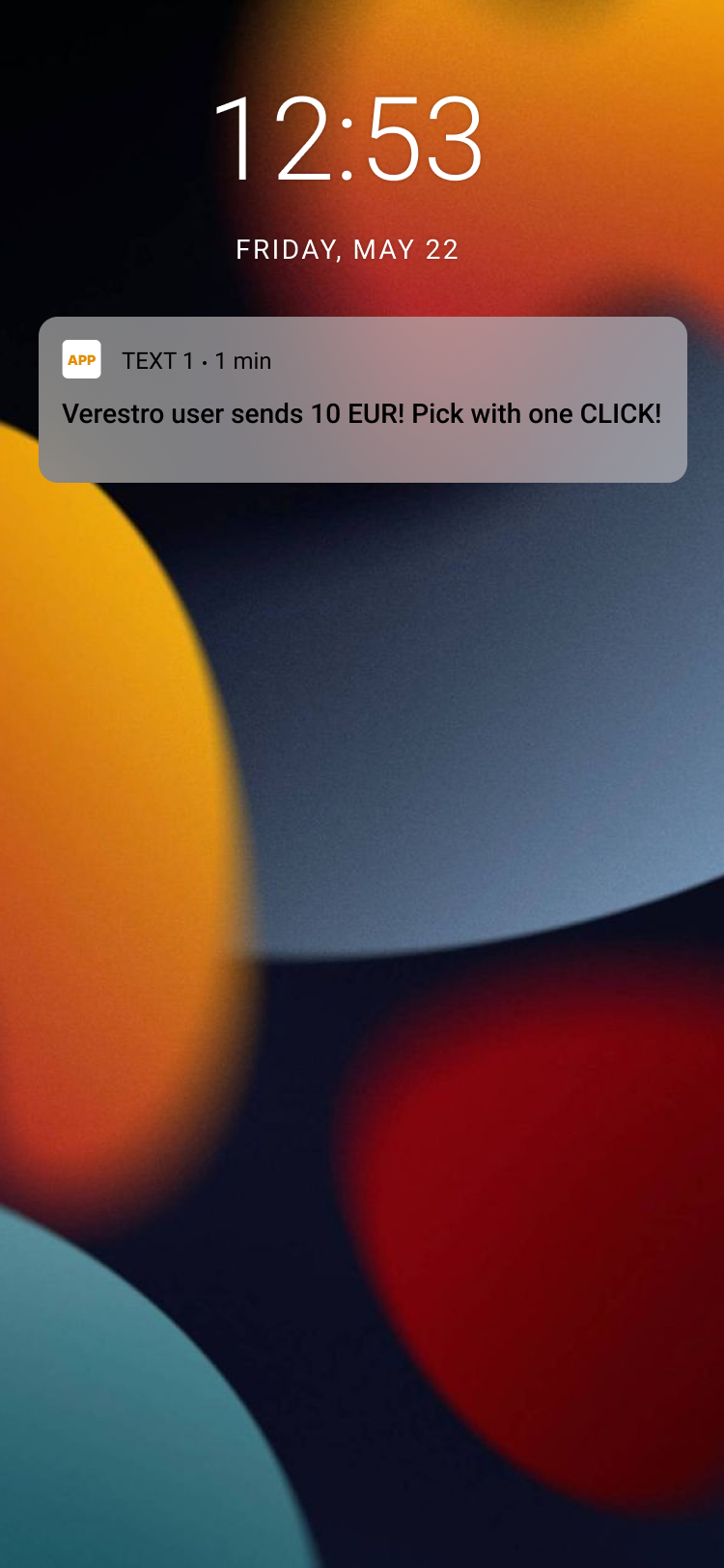
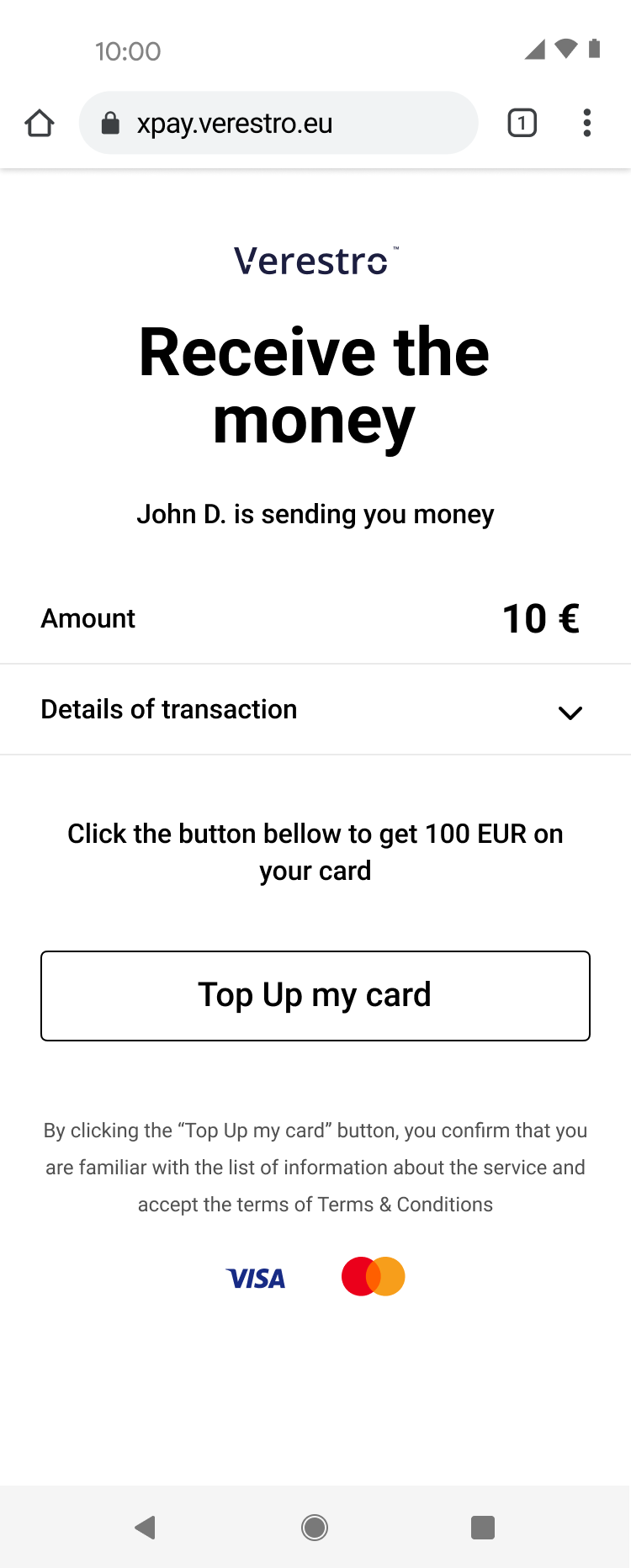
The recipient of a payment link sent by the sender is the beneficiary of the transfer. Upon opening the link, the recipient is redirected to our responsive webview, where he/she can see a message indicating that a specific person intends to transfer a certain amount in a given currency.

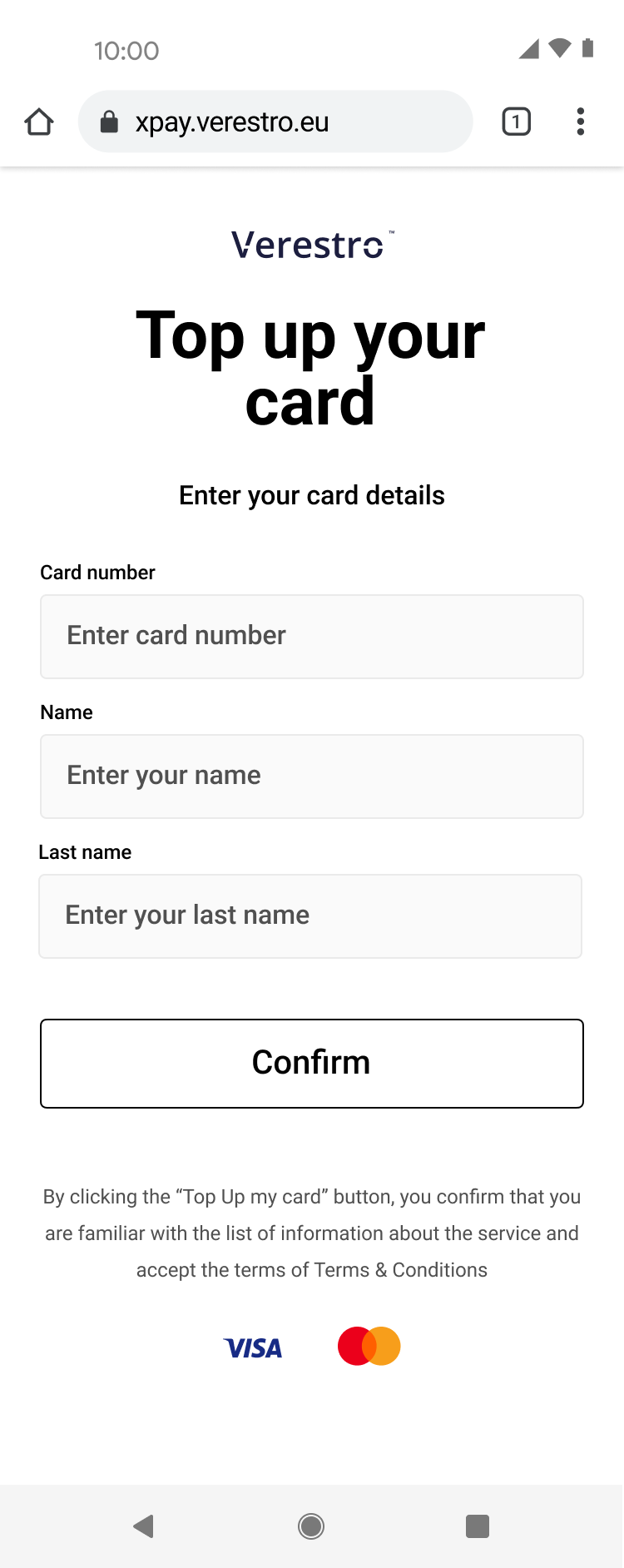
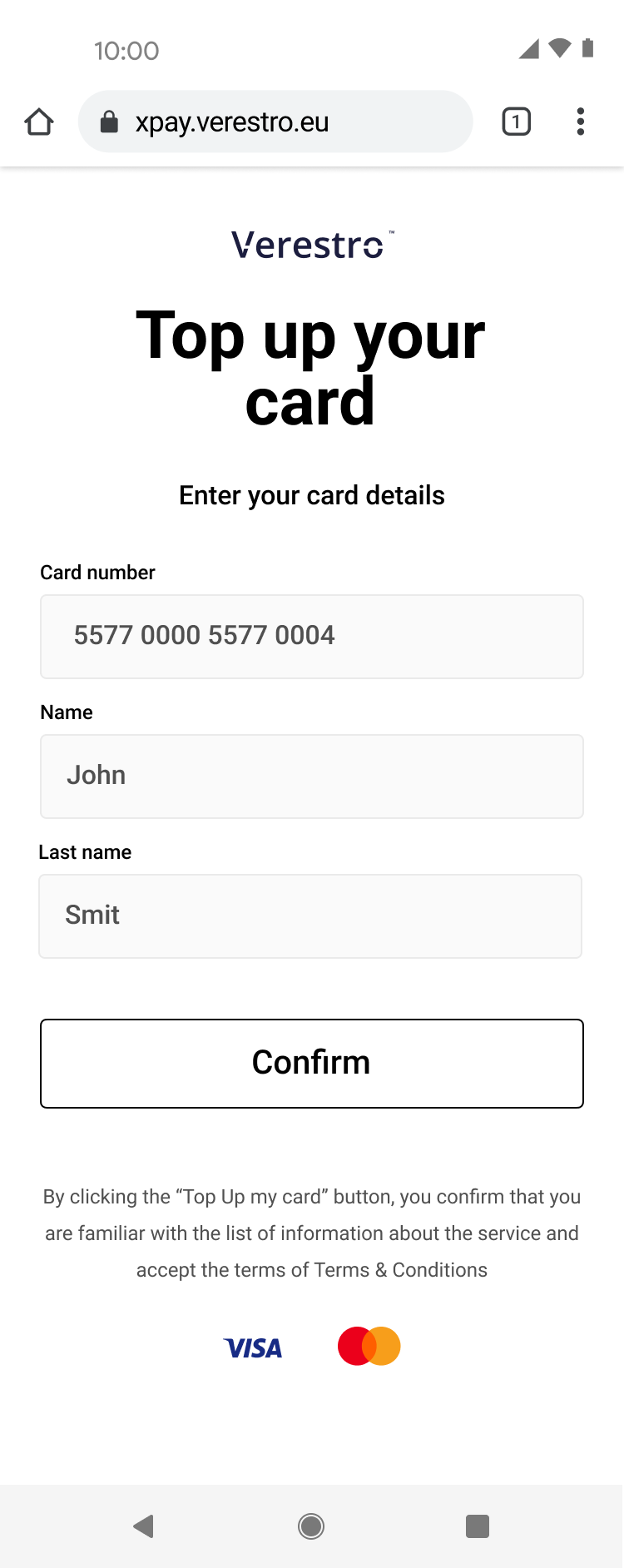
To claim these funds, the recipient is required to enter his/her card PAN (Primary Account Number) into the designated input field provided on this page. The recipient then confirms hir/her intention to accept the transfer by clicking the **“Confirm”** button. Once confirmed, the funds are credited to his/her balance immediately.

<table border="1" id="bkmrk-" style="border-collapse: collapse; width: 100%; border-width: 0px;"><colgroup><col style="width: 20.0191%;"></col><col style="width: 20.0191%;"></col><col style="width: 20.0191%;"></col><col style="width: 20.0191%;"></col><col style="width: 20.0191%;"></col></colgroup><tbody><tr><td style="border-width: 0px;">[![image.png](https://developer.verestro.com/uploads/images/gallery/2025-09/scaled-1680-/nnZimage.png)](https://developer.verestro.com/uploads/images/gallery/2025-09/nnZimage.png)

</td><td style="border-width: 0px;">[![image.png](https://developer.verestro.com/uploads/images/gallery/2025-09/scaled-1680-/Cetimage.png)](https://developer.verestro.com/uploads/images/gallery/2025-09/Cetimage.png)</td><td style="border-width: 0px;">[![image.png](https://developer.verestro.com/uploads/images/gallery/2025-09/scaled-1680-/LHzimage.png)](https://developer.verestro.com/uploads/images/gallery/2025-09/LHzimage.png)

</td><td style="border-width: 0px;">[![image.png](https://developer.verestro.com/uploads/images/gallery/2025-09/scaled-1680-/6nkimage.png)](https://developer.verestro.com/uploads/images/gallery/2025-09/6nkimage.png)

</td><td style="border-width: 0px;">[![image.png](https://developer.verestro.com/uploads/images/gallery/2025-09/scaled-1680-/0KDimage.png)](https://developer.verestro.com/uploads/images/gallery/2025-09/0KDimage.png)

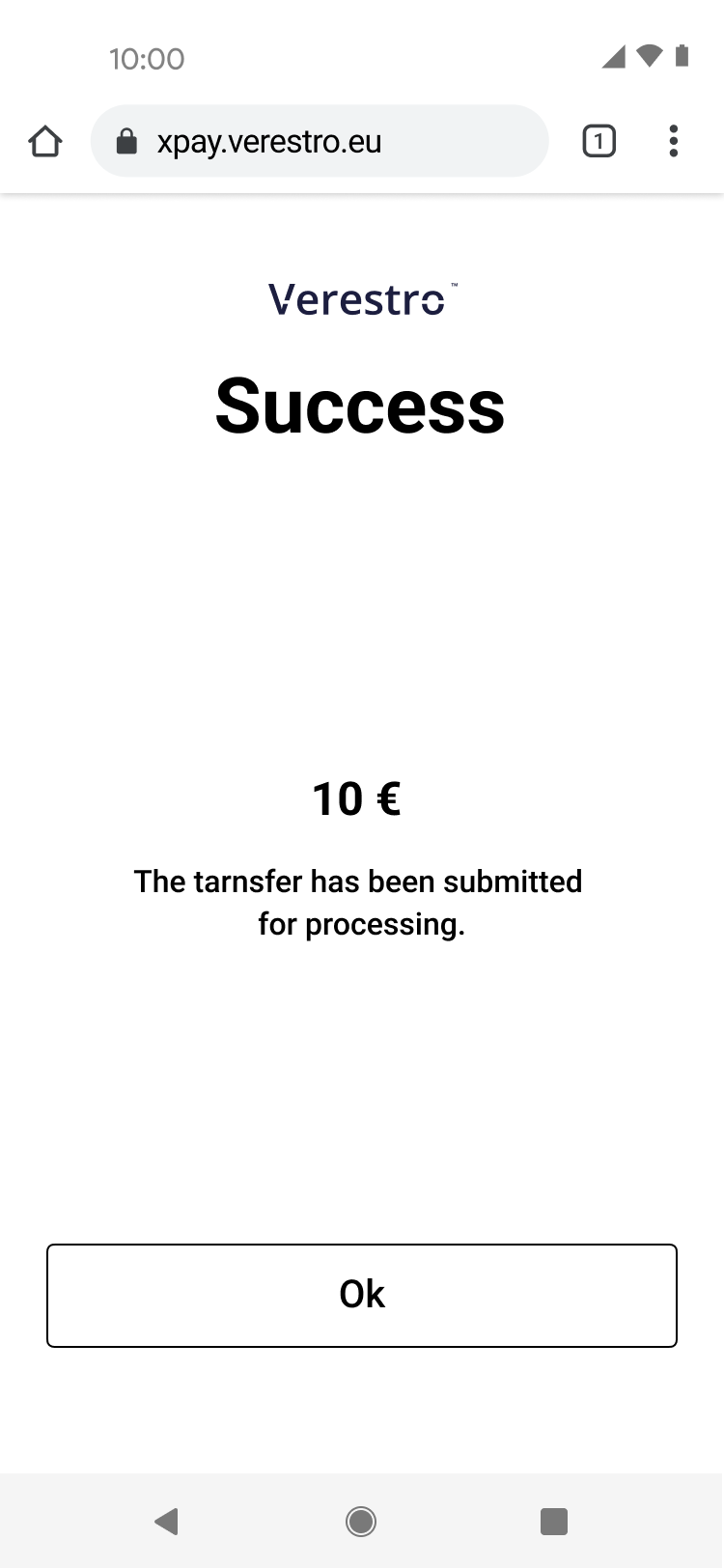
</td></tr><tr><td class="align-right" style="border-width: 0px;">3. Recipient gets message with payment link from the Sender and clicks that link.</td><td style="text-align: justify; border-width: 0px;">4. Recipient is redirected to Payout to card and view (this step takes place in Verestro Payout to card application) and clicks **Top Up my card** button.</td><td style="text-align: justify; border-width: 0px;">5. The form to provide card number and cardholder details is shown to the Recipient.</td><td style="text-align: justify; border-width: 0px;">6. Recipient provide his card's number and his name.</td><td class="align-left" style="border-width: 0px;">7. The status of the top up is shown to the Recipient.</td></tr></tbody></table>

<details id="bkmrk-uml-presenting-initi-1"><summary>UML presenting top up card provided manually</summary>

@startuml  
skinparam ParticipantPadding 30  
skinparam BoxPadding 30  
skinparam noteFontColor #FFFFFF  
skinparam noteBackgroundColor #1C1E3F  
skinparam noteBorderColor #1C1E3F  
skinparam noteBorderThickness 1  
skinparam sequence {  
ArrowColor #1C1E3F  
ArrowFontColor #1C1E3F  
ActorBorderColor #1C1E3F  
ActorBackgroundColor #FFFFFF  
ActorFontStyle bold  
ParticipantBorderColor #1C1E3F  
ParticipantBackgroundColor #1C1E3F  
ParticipantFontColor #FFFFFF  
ParticipantFontStyle bold  
LifeLineBackgroundColor #1C1E3F  
LifeLineBorderColor #1C1E3F  
}  
participant "Money Receiver" as user  
participant "Verestro" as payt  
participant "Google/Apple Pay" as xpay  
participant "Acquirer" as acq  
note right of user: Money Receiver gets payment link via SMS/Messenger/etc sent by Sender  
user-&gt;user: Open payment link  
note right of user: Link redirects Money Receiver to the web browser  
user-&gt;payt: Choose xPay card  
payt-&gt;xpay: Get xPay card token  
xpay-&gt;payt: Return xPay card token  
payt-&gt;payt: Debit Money Sender's balance (declared transaction amount)  
payt-&gt;acq: Payout to card  
acq-&gt;user: Top up card from xPay card token  
@enduml

</details><p class="callout success">**Tip:** After the transaction is completed, a notification will be sent to you informing you of the completion of the transaction and whether it was a success or failure.</p>