# Digital Cards Design
### Design Specifications for Graphic Designers and Customers Required for the MDES Manager Application
1. Sizes required for the MDES Manager: **1536 px x 969 px**
2. File format: **PNG**
If you are submitting files to be verified by Verestro, you will need the SVG format.
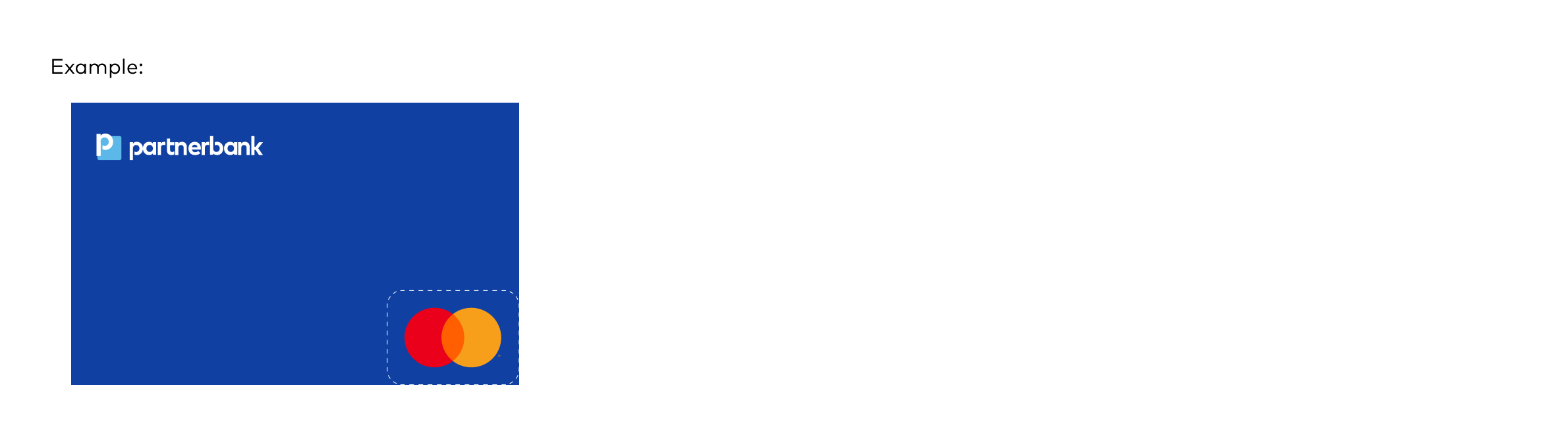
3. The corners of the cards should not be rounded. The corners will be rounded in the application.
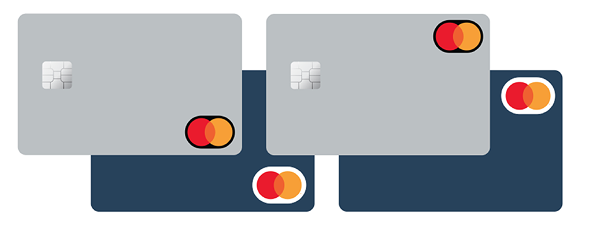
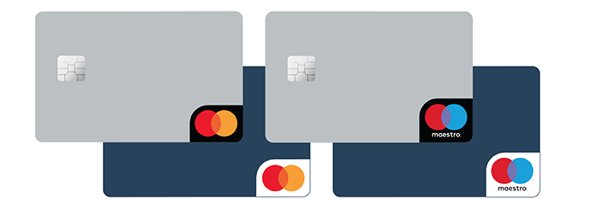
4. **Safety shape.** If the card background blends with the Mastercard Symbol and reduces its visibility, a **safety shape** must be used to ensure sufficient contrast. Mastercard allows two forms: **oval** (an oval around the mark) or **corner** (a black or white corner shape). This guarantees the symbol remains clear and readable.
[](https://developer.verestro.com/uploads/images/gallery/2025-11/M8Ysafety-shape-1.png)
[](https://developer.verestro.com/uploads/images/gallery/2025-11/safety-shape-2-1.png)
[](https://developer.verestro.com/uploads/images/gallery/2024-02/Jbvdigital-cards.png)
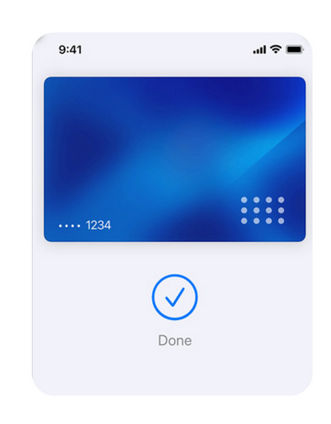
Remember that in the Apple Pay and Google Pay applications, the card number is placed in the bottom left corner of the cards. The card numbers should be visible.
[](https://developer.verestro.com/uploads/images/gallery/2024-03/image-1709621511133.png)
**What do we need for MDES Manager?****
**
1. Preparation of the **card for** **MDES Manager** (according to the guidelines above).
2. Client's **logo for MDES Manager** (size: 1372px x 293px).
3\. Client **icon (favicon) for MDES Manager** (size: 100px x 100px).
**What do we need for 3ds?**
1. Preparation of the client's logo for **3DS** (size: 129px x 60 px).
The UX department will help provide logos and icons in appropriate sizes, please provide the icon and logo that will appear on a white background.
**Download the Mastercard logo in SVG format for your project:**
**[](https://developer.verestro.com/attachments/19)**